

If you can't upload files to your Media Library on the Infinite Uploads Free plan, your 10 GB of cloud storage is full. This is expected, and it's quick to fix.
What you'll see
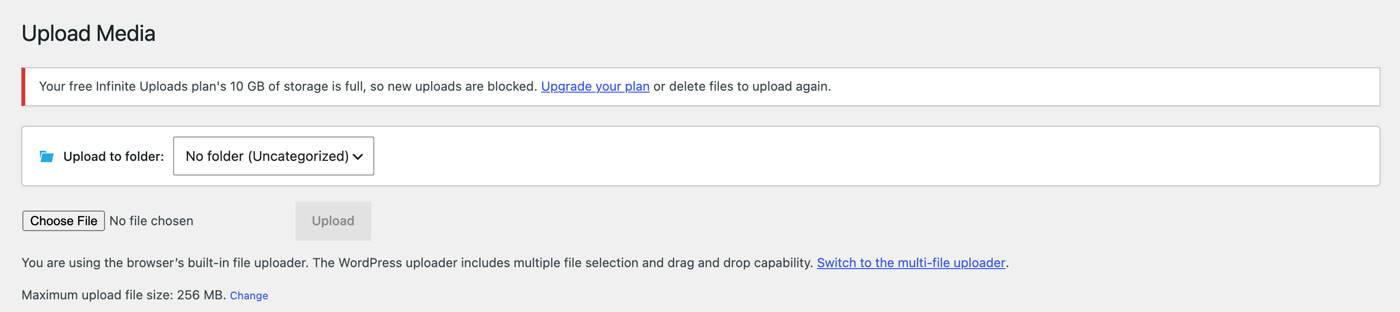
Administrators see this message above the media uploader and on the Infinite Uploads screen:
Your free Infinite Uploads plan's 10 GB of storage is full, so new uploads are blocked. Upgrade your plan or delete files to upload again.
Other users see a shorter message:
Uploads are blocked because this site's Infinite Uploads storage is full.
If you try to upload anyway, WordPress shows:
Files can't be uploaded because your free Infinite Uploads storage is full.
Saving an edited image in the WordPress image editor is also turned off while storage is full, because it creates a new file.
Why this happens
Your Free plan storage is shared across every site connected to your account. When the total reaches 10 GB, we pause new uploads instead of letting them fail halfway. Everything already in the cloud keeps loading for your visitors.
How to fix it
You have two options:
- Upgrade your plan. Click the Upgrade your plan link in the message, or go to your account billing page. Uploads work again as soon as the plugin sees your new plan.
- Delete files you no longer need. For how deleting affects files in the cloud, see Does deleting a file from the WordPress Media Library remove it from Infinite Uploads cloud storage?
Note: Storage usage is recalculated about every 24 hours, so uploads may stay blocked for a while after you delete files. After upgrading, click the refresh icon in the top right of the Account & Usage card on the Infinite Uploads screen to pick up your new plan right away.
Still having trouble?
Need help with uploads on the Free plan or have questions? Submit a support request and a member of our team will get back to you within 24 hours. Create a ticket at https://infiniteuploads.com/support/