

The Infinite Uploads Free plan gives you 10 GB of cloud storage and 20 GB of CDN bandwidth a month, shared across all of your connected sites, with no credit card required. This article covers what the plan includes, where to see your usage, and what happens when you reach a limit.
What the Free plan includes
With the Free plan you get:
- 10 GB of cloud storage for your offloaded Media Library files.
- 20 GB of CDN bandwidth a month to deliver those files to your visitors.
- Unlimited sites. The storage and bandwidth are shared across every site you connect to your account.
- The Infinite Uploads plugin features that come with every connected site, like cloud sync, CDN delivery, and the Advanced Media Library (folders, sorting, and search).
Note: Media Cleanup, S3-compatible API, custom CDN domains, and Image Optimization are included with our business plans. On the Free plan they show a Business badge and an upgrade link in the Infinite Uploads settings.
Where to see your usage
From your WordPress Dashboard, open the Infinite Uploads menu. The Account & Usage card shows your storage and CDN bandwidth as usage bars, plus the date your bandwidth Resets.
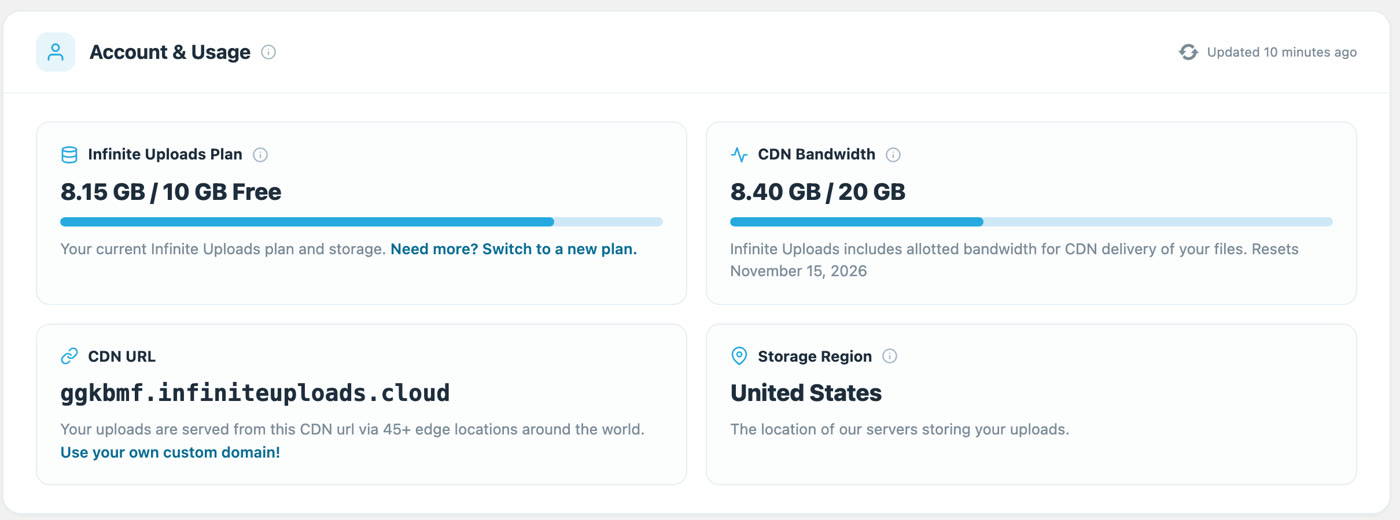
Usage includes every site connected to your account, not just the one you are looking at. The bars turn to a warning color when you pass 90% of a limit.
What happens when you reach a limit
We built the limits so they never surprise you:
- Storage full. New uploads are paused with a message and an upgrade link. Files already in the cloud keep loading. See Why are my uploads blocked on the Free plan?
- A sync that won't fit. If your Media Library needs more storage than you have left, the sync stops before it starts, so you never end up with half a library in the cloud. See Why won't my Media Library sync on the Free plan?
- Bandwidth running low or used up. A notice tells you how much you've used. If the month's bandwidth runs out, your CDN and video are paused until the reset date or until you upgrade. See Why did my media stop loading on the Free plan?
Inactive sites
On the Free plan, a connected site that doesn't check in with Infinite Uploads for 90 days is archived and its cloud files are deleted. We email you at 60 and 80 days first, and a site that's still serving visitors is never archived this way. See What Happens to Inactive Sites on the Free Plan After 90 Days?
Upgrading
When you outgrow the Free plan, click any Upgrade link in the plugin, or go to your account billing page. Your files stay right where they are. See Understanding Billing and Pricing for the paid plans.
Have a promo code? Enter it in the Promo code field on the upgrade preview and click Apply before you confirm.
Get Support
Need help with Infinite Uploads or have questions? Submit a support request and a member of our team will get back to you within 24 hours. If you are having a problem, we would love the opportunity to resolve any issues. Create a ticket at https://infiniteuploads.com/support/