

You can connect your WordPress site to Infinite Uploads without leaving your AI tool. Your AI tool gives you a link and a short code, you approve the connection at infiniteuploads.com, and your site finishes connecting on its own. This is called Agent Connect, and it works with AI tools such as WPVibe, Novamira and Respira.
Before You Start
You'll need:
- Infinite Uploads 3.4 or later and WordPress 6.9 or later on your site.
- An AI tool connected to your site, such as WPVibe, Novamira or Respira, working as an Administrator. On a multisite network, use a Super Admin account on the main site.
- An Infinite Uploads account with an active plan. A free trial counts. New to Infinite Uploads? Start your 7-day free trial first, then come back to your AI tool.
- A site that's live on the internet at its normal
https://address. Before we show you a code, we confirm the request really came from your site, so a local copy on your computer, or a site behind password protection or a maintenance-mode page, can't be verified.
Ask Your AI Tool to Connect
Ask your AI tool to connect the site. For example: "Connect this site to Infinite Uploads."
Get the Link and Code
Your AI tool replies with a link to infiniteuploads.com and a short code, like BH38-••••. It tells you the code expires in 15 minutes, then keeps checking for your approval. The link looks like this:
https://infiniteuploads.com/connect/?device=BH38-••••
Leave the conversation open while you approve.

Open the Link and Check the Code
- Open the link. If you're not signed in to your Infinite Uploads account, sign in, and you'll come straight back to the request.
- Check that the code on the page matches the one your AI tool gave you. If it doesn't, click Deny.
- Under Requesting site, check your site's address. The Verified badge means we confirmed the request came from that WordPress site.
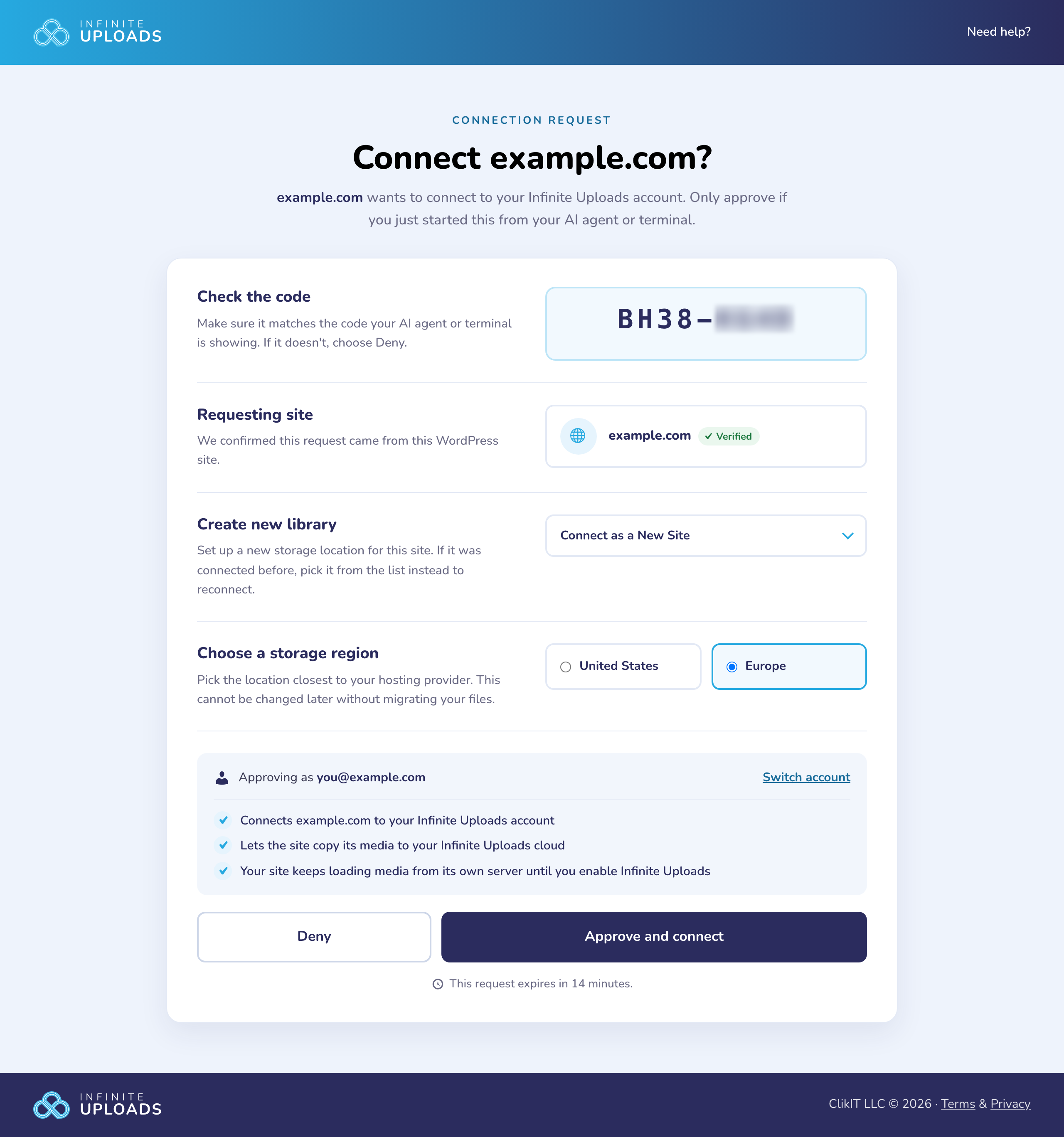
Only approve a request you just started yourself.
Choose Where Your Media Goes
Use the menu on the page to choose the library your site's media goes into.
A New Site
Leave Connect as a New Site selected. Under Choose a storage region, pick United States or Europe, whichever is closest to where your site is hosted. You can't change the region later without moving your files.
A Site That Was Connected Before
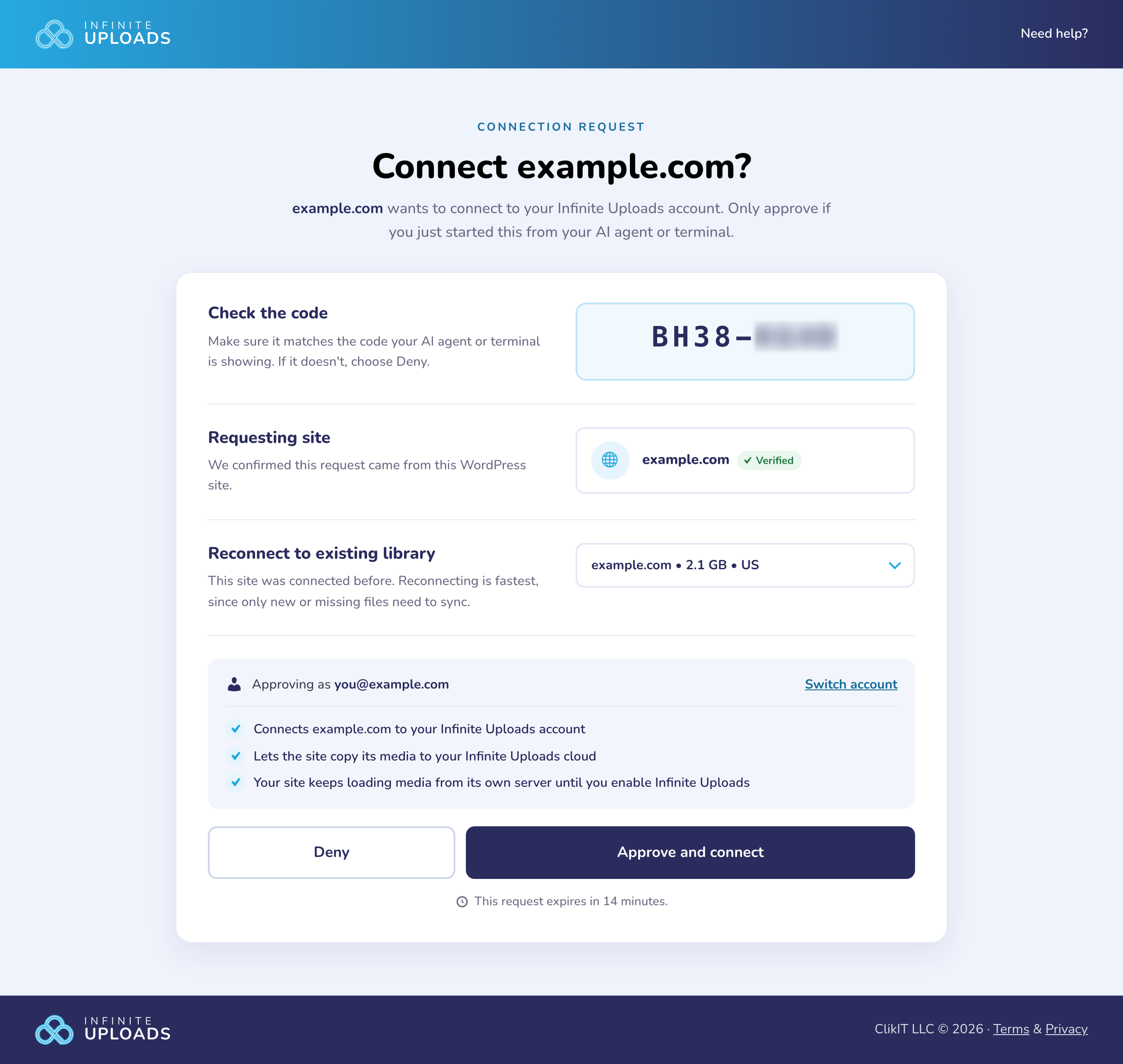
If this site was connected to your account before, its library is already selected and the section reads Reconnect to existing library. That's the fastest option, since only new or missing files need to sync.
One of Your Other Sites
You can also choose one of the other sites in your account from the menu. Your site connects to that site's library, and any files missing from the cloud get synced into it. The page warns you that the other site will be disconnected if it's still connected, so only choose it when that site doesn't need its library anymore, for example after you've moved to a new domain.
Approve and Connect
- Check the email next to Approving as. To use a different Infinite Uploads account, click Switch account.
- Click Approve and connect.
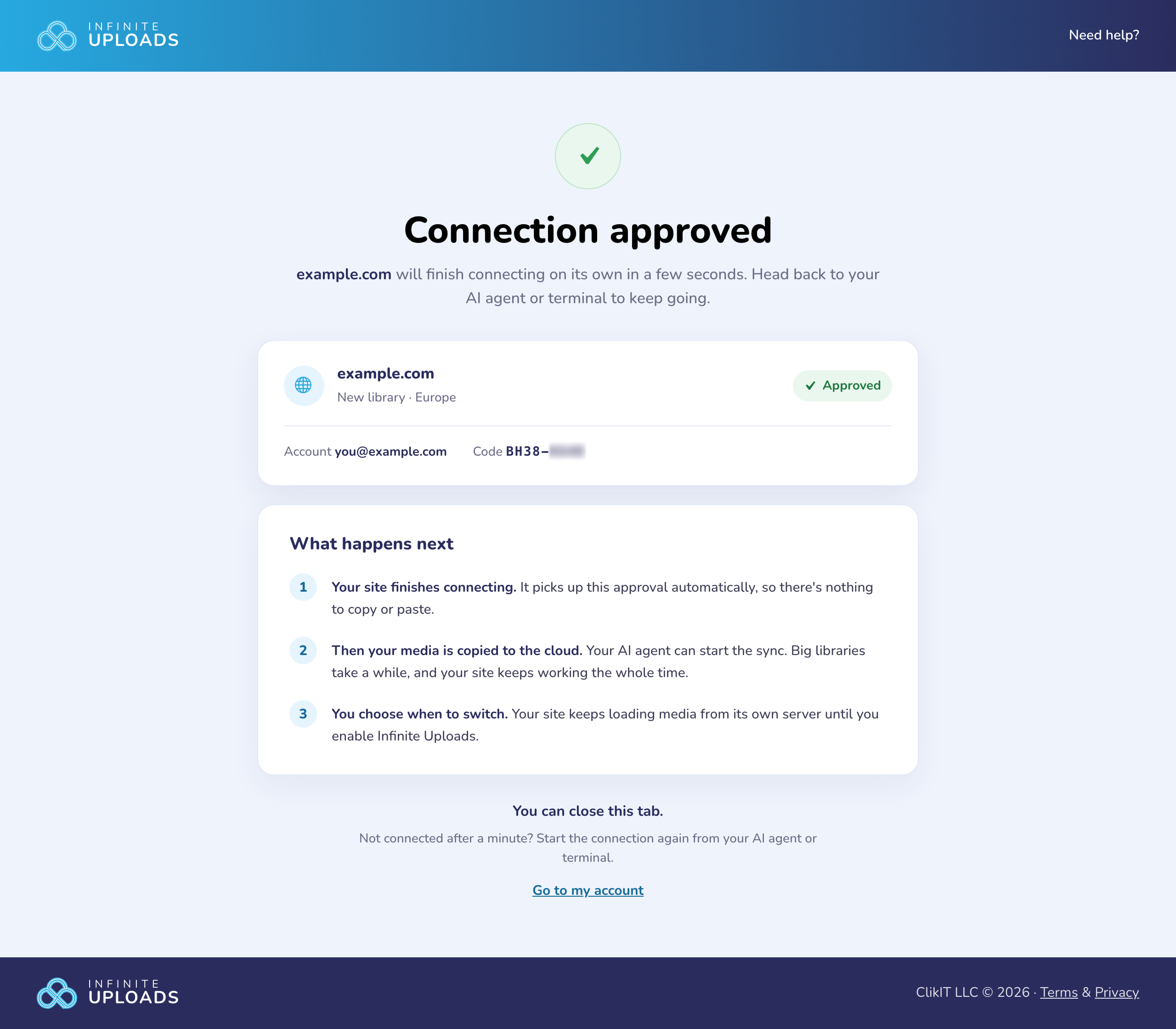
You'll see Connection approved, with your site, its library and region, your account, and the code.
What Happens After You Approve
- Your site finishes connecting on its own. Go back to your AI tool. Within about a minute, it tells you your site is connected and keeps going. There's nothing to copy or paste.
- Nothing changes on your live site yet. Your site keeps loading media from its own server until you choose to switch over.
- Your plan and billing stay the same. Approving only connects the site.
What to Do Next
Your AI tool usually carries on by itself from here. If it stops, ask it to move your media to the cloud:
- Scan and sync. Ask "Now scan my media and sync it to the cloud." Some AI tools ask before they send your files to the cloud. If yours does, say yes. The sync runs in the background on your server, so you can close the chat and ask how it's going later. If your site was scanned before, your AI tool may ask for your approval to start the scan over.
- Switch over when you're ready. When the sync finishes, your AI tool asks whether to switch your site over to load media from the cloud. Say yes, or ask "Enable cloud serving."
For everything else you can ask, see Using Infinite Uploads With an AI Agent.
Why It Works This Way
Agent Connect is built so a site only connects when you approve it yourself.
- The request is verified. Before you see a code, we check with your WordPress site that it really started the request. That's what the Verified badge means.
- You approve while signed in. Only a signed-in Infinite Uploads account with an active plan can approve, and only by clicking Approve and connect.
- Codes expire. Each code works for 15 minutes, and only once.
- Deny cancels it. A denied request can't be approved later.
- No keys in links. Your site collects its private access key directly from us, so the key never appears in a link, in your browser history, or on the approval page.
How can I verify it is working?
There are two ways to check that your site is connected.
Ask your AI tool:
Ask "What's the Infinite Uploads status of this site?" Your AI tool should say the site is connected and show your plan and CDN URL.
From the WordPress Dashboard:
Open the Infinite Uploads screen. Your plan, CDN URL and storage region show in the Account & Settings module.
Troubleshooting
The Code Expired
Codes last 15 minutes. If you open the link after that, you'll see Can’t approve this request with this message:
That code has expired or was never issued. Start the connection from your site again.
Your AI tool may tell you the code expired, too. Ask it to start the connection again, and approve the new code within 15 minutes.
I'm Signed In to the Wrong Account
Before you approve, check the email next to Approving as. If it's the wrong account, click Switch account. You'll be signed out, and once you sign in with the right account, you'll come back to the same request.
My Subscription Isn't Active
Approving needs an account with an active plan, and a free trial counts. If your plan was cancelled or a payment failed, clicking Approve and connect shows Can’t approve this request with this message:
Your Infinite Uploads subscription is not active. Reactivate or upgrade your plan, then try again.
Reactivate your plan or update your payment method on the Payment & Billing page. See Managing Your Subscription. If you've never had a plan, start a free trial. Then open the link again, or ask your AI tool for a new code if more than 15 minutes have passed.
I Clicked Deny, or the Code Didn't Match
Deny cancels the request. You'll see Connection request denied, no site is connected, and your AI tool tells you the request was denied. If you denied it by mistake, ask your AI tool to start the connection again for a new code.
If the code on the page didn't match the one your AI tool gave you, denying was the right call. Ask your AI tool to start a new connection, and only approve when the codes match.
My AI Tool Says the Site Is Already Connected
Your AI tool won't start a new connection for a site that's already connected, so there's nothing to approve. Ask "What's the Infinite Uploads status of this site?" to see its plan and CDN URL, then carry on with the sync. If the site is connected to the wrong account, open a support ticket and we'll sort it out.
My AI Tool Couldn't Start the Connection
This usually means we couldn't verify your site. Before we show you a code, we check with your site that it really started the request, so your site has to answer from the internet. Check that:
- Your site loads at its normal
https://address with a valid security certificate. - It isn't a local copy running on your computer, like
mysite.localorlocalhost. - It isn't behind password protection or a maintenance-mode page. Turn those off while you connect, then turn them back on.
- Infinite Uploads 3.4 or later is installed and active.
Then ask your AI tool to start the connection again. If you've tried several times in a row, wait 15 minutes first.
To connect a site that can't be reached from the internet, use the Connect button on the Infinite Uploads screen in your dashboard instead. See Connecting and Configuring Infinite Uploads Plugin.
My AI Tool Says It's Still Waiting
Your AI tool keeps checking until you approve. If it's still waiting:
- Make sure you clicked Approve and connect and saw Connection approved. If the page showed a message instead, look it up above.
- Make sure you approved the most recent code your AI tool gave you. If you asked more than once, older links won't finish this connection.
- Ask your AI tool to check again.
- Still not connected a minute after you approved, or more than 15 minutes after you got the code? Ask your AI tool to start the connection again. If you already approved a new library, the page offers it as Reconnect to existing library, so you won't end up with two.