

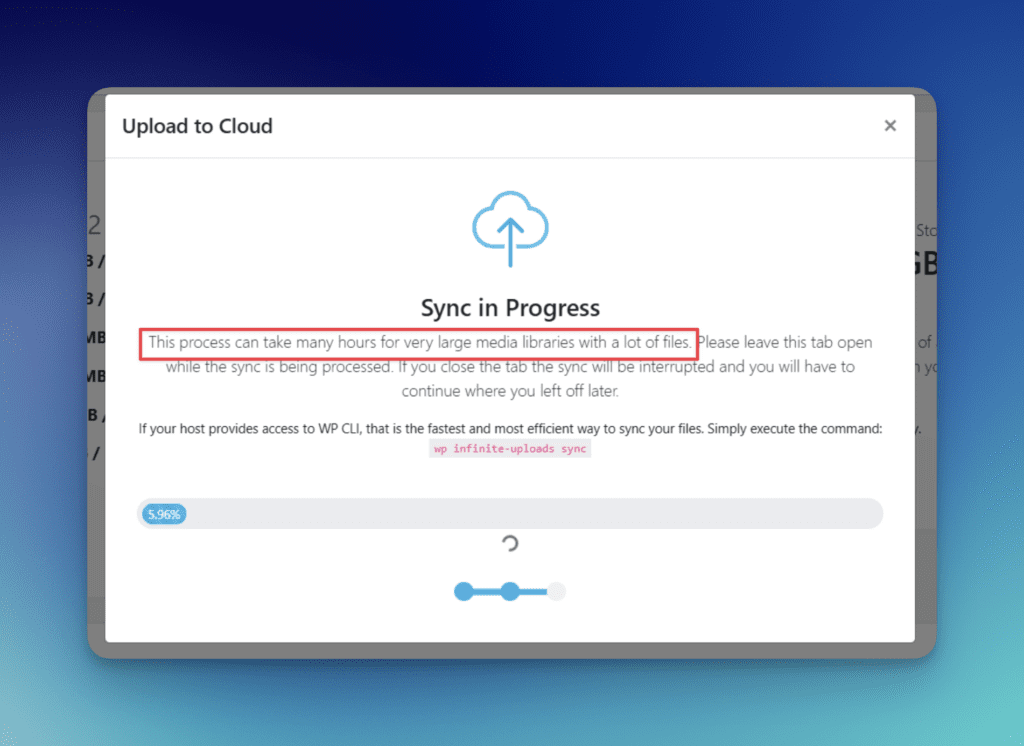
The initial sync moves your existing WordPress media library to the Infinite Uploads cloud. How long it takes depends on two things: the size of your library and the method you use to sync.
There are two ways to run the initial sync: the browser-based auto sync from your WordPress dashboard, or WP-CLI commands from your server terminal. WP-CLI is faster and doesn't require you to keep a browser tab open, but not every host provides access to it.
Estimated Sync Times
These estimates are for the browser-based auto sync. WP-CLI sync times will be faster, especially for larger libraries.
| Library Size | Approximate File Count | Estimated Time |
| ~1 GB | ~10,000 files | ~4-5 minutes |
| ~10 GB | ~30,000 files | ~30 minutes |
| ~25 GB | ~70,000 files | ~50 minutes |
| ~50 GB | ~150,000 files | 1–2 hours |
| 100+ GB | 300,000+ files | Several hours |
Actual speeds will vary based on your hosting server’s upload speed, server resource limits, and current server load. Shared hosting environments tend to be slower than VPS or dedicated servers.
Browser-Based Auto Sync
Auto sync runs directly from the Infinite Uploads plugin page in your WordPress dashboard. Click the Sync Now button and the plugin will begin scanning your files and uploading them to the cloud.
Important: You must keep the browser tab open and active for the entire duration of the sync. If you close the tab, navigate away, or your computer goes to sleep, the sync will pause.
The good news is that the sync is resumable. If it gets interrupted for any reason, you can come back and pick up exactly where you left off. It will not start over. You can complete the sync across multiple sessions if needed.
The progress bar in the plugin tracks by bytes, not file count. This makes it more accurate when your library includes a mix of small images and large video or audio files. The progress updates every 15 seconds.
WP-CLI Sync (Recommended for Large Libraries)
If your host provides WP-CLI access, this is the faster and more reliable way to sync. It runs server-side, so there’s no browser dependency and no risk of the sync stopping because a tab got closed or a laptop went to sleep.
To run the sync, SSH into your server and execute:
wp infinite-uploads syncThe default concurrency is 20 simultaneous uploads. You can adjust this with the --concurrency flag if your server can handle more (or needs less):
wp infinite-uploads sync --concurrency=30Add --verbose to see each file as it uploads, which is helpful for debugging slow or failed syncs.
For full WP-CLI command reference, see the WP-CLI Commands and Usage Docs.
What Affects Sync Speed
Server upload speed. Your hosting server’s outbound bandwidth determines how fast files can be pushed to the cloud. A VPS or dedicated server will typically sync faster than shared hosting.
File count vs. total size. A library with 100,000 small image thumbnails takes longer per-GB than a library with 500 large video files. Each file requires its own upload request, so high file counts add overhead regardless of total storage size.
Server resource limits. Some hosts impose PHP execution time limits, memory caps, or rate limiting that can throttle the sync. If you’re seeing frequent timeouts, WP-CLI typically bypasses these browser-based restrictions.
Large individual files. Files over 100 MB use resumable multipart uploads. If a large file upload gets interrupted, it will continue from where it left off rather than restarting the entire file.
Handling Errors During Sync
If individual files fail to upload, the plugin will retry them automatically (up to 3 attempts per file). Any files that fail after 3 retries will appear in the error log within the sync modal.
Common causes of sync errors include unreadable file permissions, corrupted files on your server, or transient network issues. The sync will skip problem files and continue with the rest of your library, so one bad file won’t block the entire process.
If you see repeated server errors (like 504 timeouts), the plugin uses exponential backoff, automatically waiting longer between retries to give your server time to recover. If errors persist, switching to WP-CLI is usually the fix.
After the Initial Sync Completes
Once the initial sync finishes, all new uploads to your WordPress Media Library go directly to the cloud automatically. There’s no manual step required for ongoing files. The plugin handles this in the background.
Your media URLs are automatically rewritten to serve from the Infinite Uploads CDN, so your visitors get faster load times without any extra configuration on your part.
If you want to free up local disk space after syncing, see Freeing Up Local Storage.