

Infinite Uploads 3.5 redesigned the plugin screen so you can see your status, usage, and settings at a glance. This article walks through each part so you know where everything lives.
Where to find it
From your WordPress Dashboard, click the Infinite Uploads menu. On a multisite network it lives in the Network Admin.
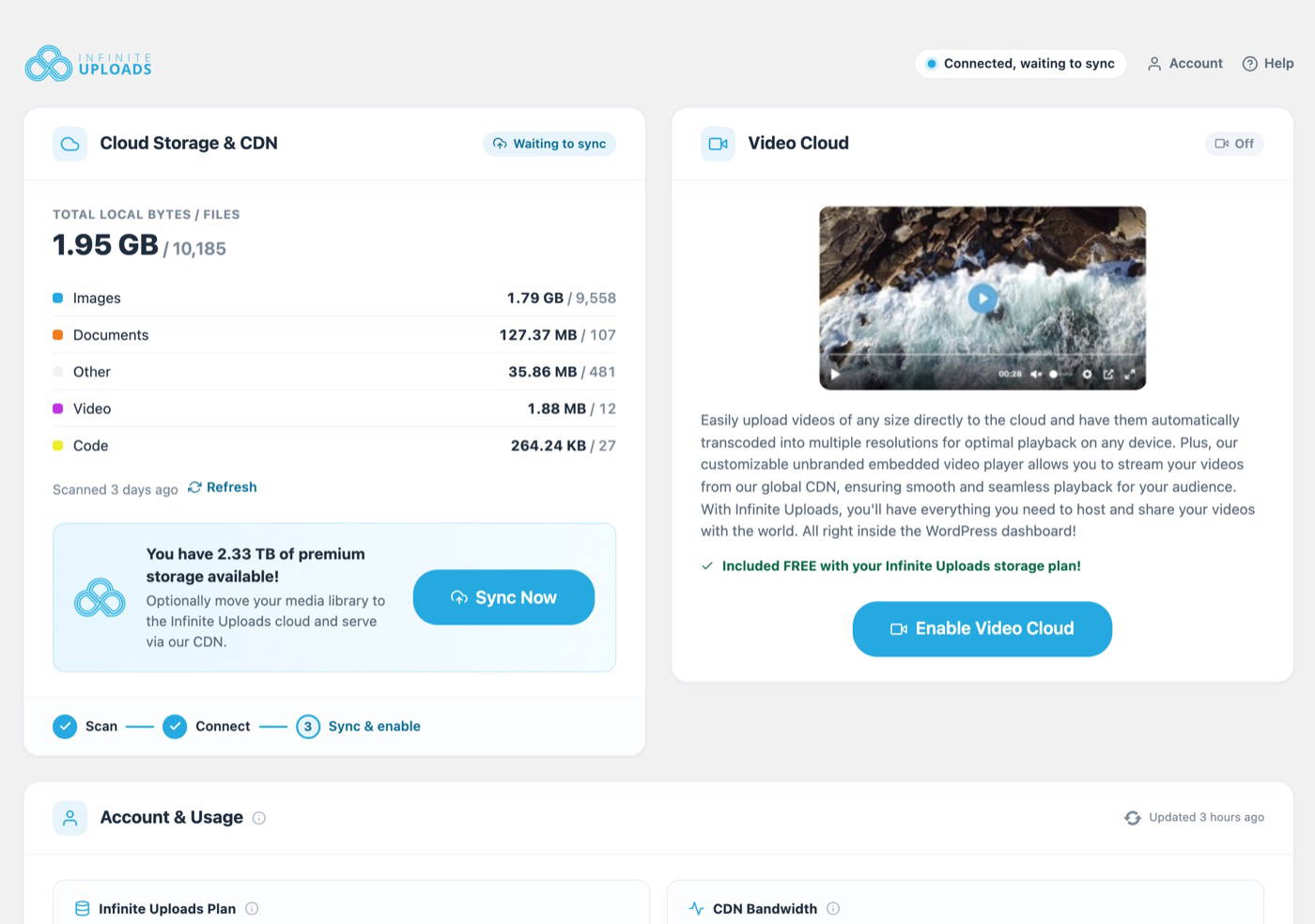
The header and status badge
The header shows a status badge so you can tell where your site stands without reading the whole page:
- Not connected: the site isn't connected to an Infinite Uploads account yet.
- Connected, waiting to sync: the site is connected, but your files haven't been synced and enabled.
- Cloud enabled: your files are in the cloud and being delivered from the CDN.
- Account needs attention: something on your account, usually billing, needs a look.
The Account and Help links in the header take you to your account and to our docs.
The step tracker
Until your site is set up, a tracker shows the three steps and which one you're on: Scan, Connect, and Sync & enable. See Connecting and Configuring the Infinite Uploads Plugin for the full walkthrough.
Account & Usage
Once connected, the Account & Usage card shows usage for all of your connected sites:
- Infinite Uploads Plan: your plan and storage used, with a usage bar.
- CDN Bandwidth: bandwidth used this month, with a usage bar. On the Free plan it also shows the date it Resets.
- CDN URL: the address your files are delivered from.
- Storage Region: where your files are stored.
The bars turn to a warning color when you pass 90% of a limit. To pull the latest numbers, click the refresh icon in the top right of the card. Hover it to see when the data was last updated.
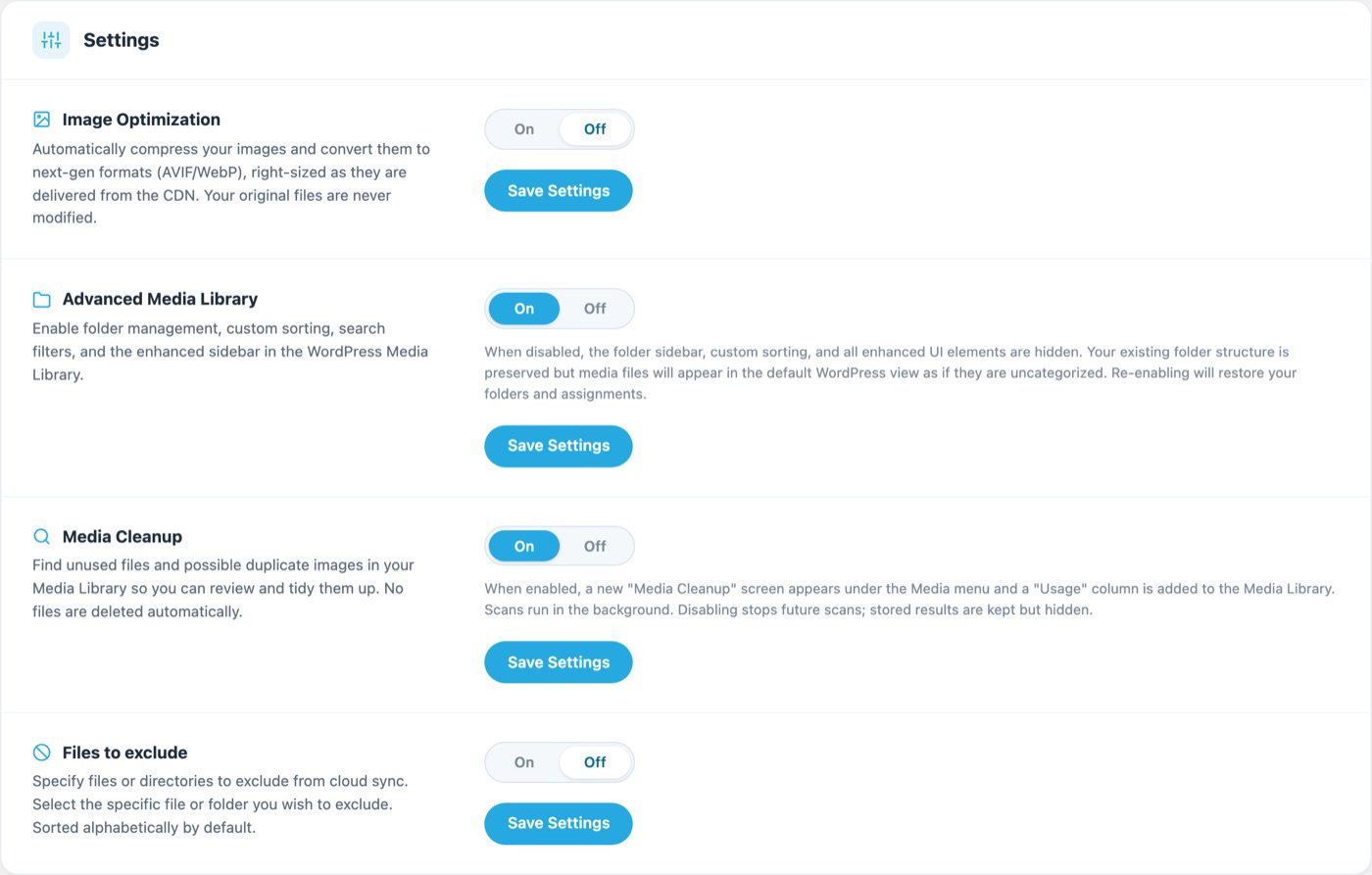
Settings
Each setting is a simple On and Off switch with its own Save Settings button:
- Image Optimization: compress images and deliver AVIF and WebP from the CDN. Business plans. See Enabling Image Optimization.
- Advanced Media Library: folders, custom sorting, search filters, and the enhanced sidebar in the Media Library.
- Media Cleanup: find unused files and possible duplicate images. Business plans. See Turning On Media Cleanup and Running a Scan.
- Files to exclude: files or folders to leave out of the cloud sync.
Video pages
If you use Infinite Uploads Video, your videos live at Media > Video Library, and the video settings are under Infinite Uploads > Video Cloud. Both pages match the new look. See Where Are My Videos and How Do I Find or Delete Them?
Get Support
Need help with Infinite Uploads or have questions? Submit a support request and a member of our team will get back to you within 24 hours. If you are having a problem, we would love the opportunity to resolve any issues. Create a ticket at https://infiniteuploads.com/support/