

If Infinite Uploads shows Not Enough Storage when you try to sync, your Media Library is bigger than the storage left on your Free plan. We stop the sync before it starts so you never end up with half of your library in the cloud.
What you'll see
After the scan, a window titled Not Enough Storage opens with the heading Your free plan is out of room and a message like:
Your media library needs 14.20 GB of cloud storage, but your free plan has 6.50 GB left. Upgrade for more storage.
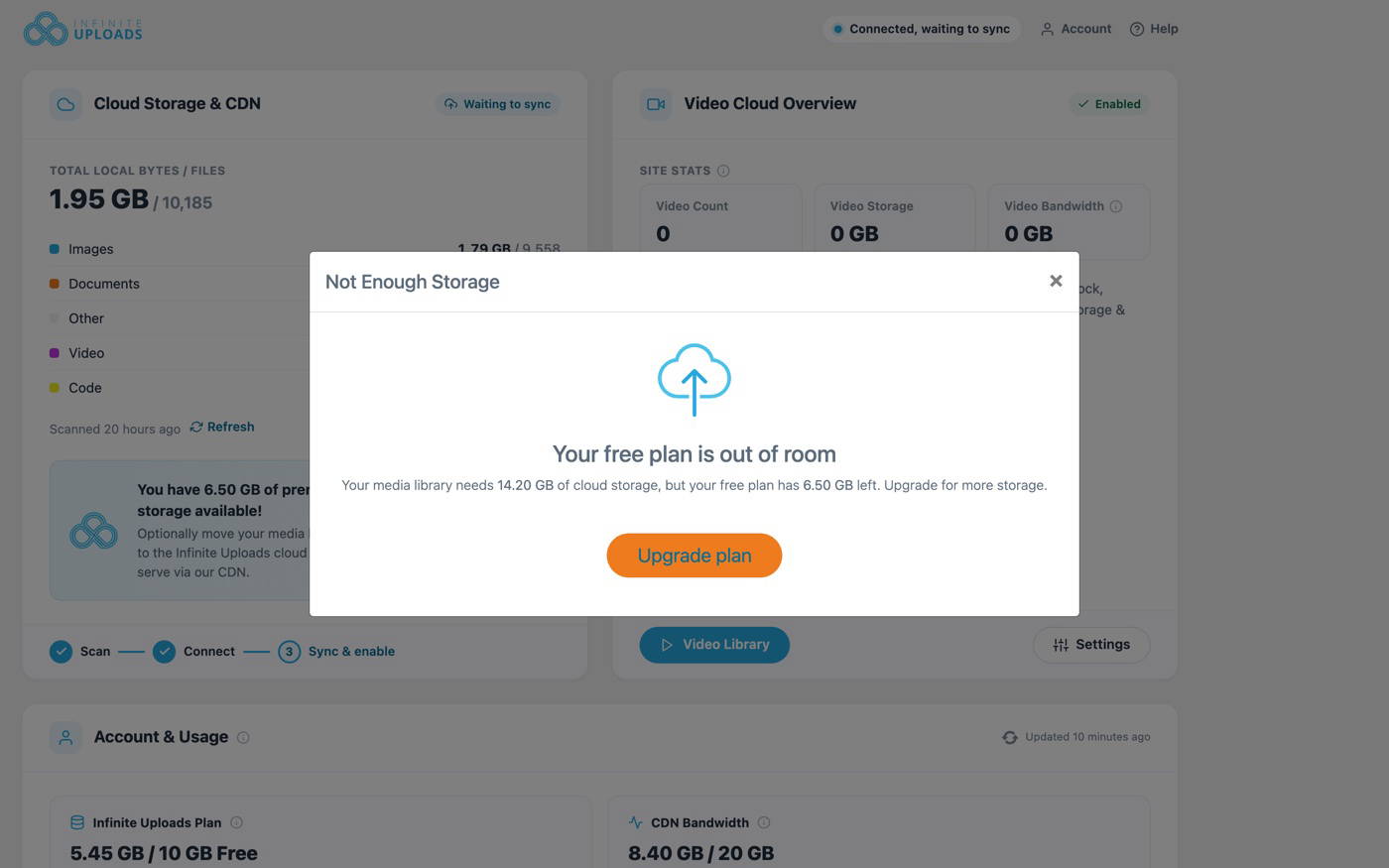
The Sync step on the Infinite Uploads screen shows the same warning with an Upgrade button. If your storage is already completely full, the message reads:
Your free plan's storage is full. Upgrade to sync more files to the cloud.
Why this happens
The Free plan includes 10 GB of storage shared across all of your connected sites. Before a sync starts, the plugin compares the size of the files waiting to sync with the storage you have left on your account. If they won't fit, nothing is uploaded.
This check applies however the sync is started: from the plugin screen, in the background, with WP-CLI, or with an AI agent.
How to fix it
Choose the option that fits your site:
- Upgrade your plan. Click Upgrade plan in the window or Upgrade on the Sync step. Then run the sync again.
- Exclude files you don't need in the cloud. Use Files to exclude in the Infinite Uploads settings to leave large folders out of the sync, then scan again. See Default File and Folder Exclusions.
- Free up storage on other sites. Because storage is shared, deleting files on another connected site also frees room for this one.
Still having trouble?
Need help syncing on the Free plan or have questions? Submit a support request and a member of our team will get back to you within 24 hours. Create a ticket at https://infiniteuploads.com/support/