

First, the reassuring part: Image Optimization is built to be safe. If we ever can't produce an optimized image for any reason, we deliver your original file instead, so pages fall back to "unoptimized," never to broken. And because the feature never touches your source files, you can turn it off instantly with nothing lost. This guide helps you pin down what you're seeing and fix it.
The fastest test: turn it off for a moment
If something looks off after enabling, the quickest way to know whether Image Optimization is the cause is to switch it off and compare:
- Open the Infinite Uploads menu and set Enable Image Optimization to No.
- Click Save Settings, then click Purge CDN Cache to clear the optimized copies.
- Reload the affected page in a private/incognito window.

If the problem is gone with optimization off, it's related to a setting below. Turn it back on and adjust. If the problem is still there with optimization off, the cause is something else on your site (a different plugin, your theme, or the media offload itself), and our general troubleshooting is the better starting point.
Common causes and fixes
Images look soft or lower quality
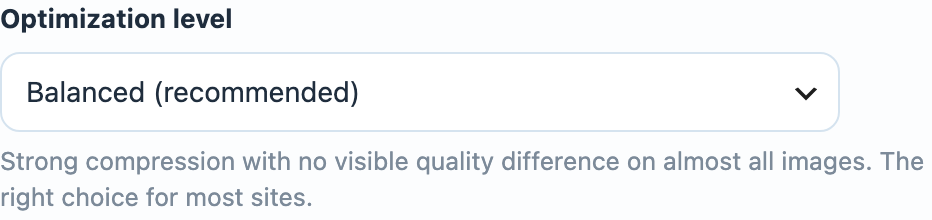
You're likely on the most aggressive compression setting. Change your Optimization level to Balanced (recommended) or Highest quality, click Save Settings, then Purge CDN Cache so cached copies rebuild. See Choosing an optimization level.
One specific image looks wrong
A particular graphic (a logo, a screenshot with fine text, an image with unusual color) can occasionally compress in a way you don't like. Add it to the Exclusions list so it's always delivered as your original, then purge. See Excluding images from optimization.
Broken image icons, or the wrong image format loading
Optimization on its own won't produce a broken image. A browser that can't display AVIF or WebP is automatically sent your original. If you do see broken images, the usual culprit is a caching layer in front of Infinite Uploads that isn't accounting for image format:
- If you run an additional CDN or proxy in front of your Infinite Uploads CDN URL (for example, proxying your custom media domain through another service), make sure it varies its cache on the
Acceptheader, or that it isn't caching image responses at all. A proxy that caches one format and serves it to every visitor can hand an AVIF file to a browser that can't show it. - Clear your page cache and any object cache, and retest in a fresh incognito window.
If broken images persist after that, don't hesitate to contact us (below). Send the page URL and a screenshot and we'll dig in.
It looked wrong right after I changed a setting, then fixed itself
That's normal. Your images are cached, so a change rolls out as each image is next requested and rebuilt. If you want a change to apply everywhere at once, use Purge CDN Cache. See Purging the CDN cache.
Clear Your Cache
If everything looks correct in settings but the page still looks wrong, be sure and clear your cache including:
- server-side object cache
- page cache
- browser caching