

Captions and chapters make the videos in your Video Library easier to follow and more accessible. You add both from a video's details in Media > Video Library: a caption file for each language on the Captions tab, and a list of chapters on the Chapters tab, which you can write by hand or generate from your captions with Smart Chapters.
Before You Start
- You need the Video Cloud enabled and at least one video in your Video Library with a status of Finished.
- Captions and chapters appear in the Infinite Uploads player, whether you embed with the shortcode or the Infinite Uploads Video block. Player v2 shows chapters on the timeline and captions in the CC menu. To check or change your player, see Video Transcoding with Infinite Uploads.
- Third-party players that use your video's HLS URL don't receive captions or chapters. See Using Third-Party Video Players with Infinite Uploads.
Add a Caption File
- Go to Media > Video Library and click the video.
- Click the Captions tab.
- Under Add a caption, choose the Language of the file. The Label fills in automatically, and you can edit it. The label is the name viewers see in the player's CC menu.
- Click the Caption file (.vtt or .srt) field and choose your file.
- Click Upload caption.
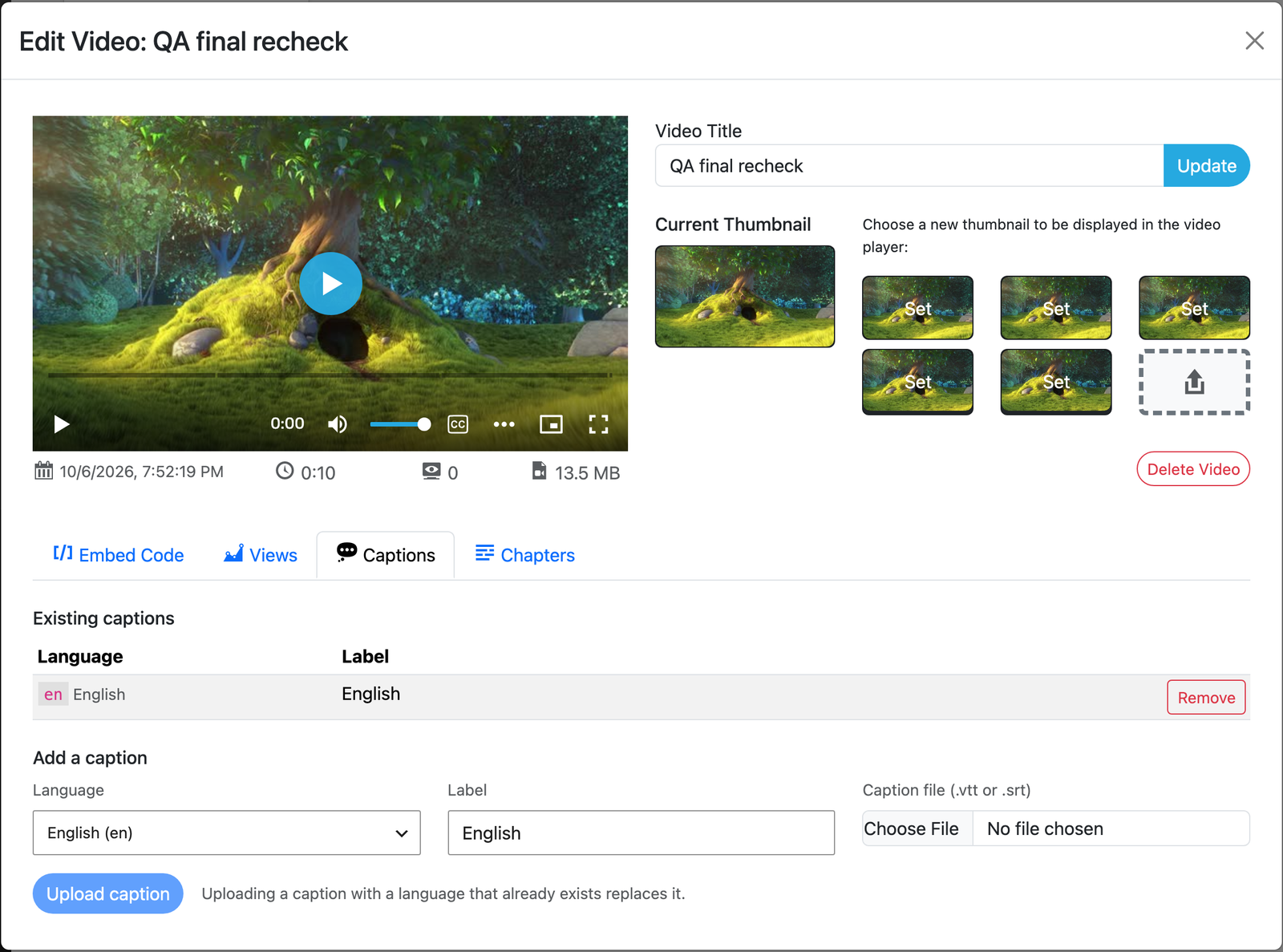
Your caption now shows under Existing captions with its language and label.
What files work
- Formats: WebVTT (
.vtt) or SRT (.srt). We convert SRT files to WebVTT for you. - Size: 512 KB maximum per file.
- Languages: English, Spanish, French, German, Italian, Portuguese, Dutch, Swedish, Polish, Russian, Japanese, Korean, Chinese, Arabic, Hindi, Turkish, Indonesian, Vietnamese, and Thai.
- One per language: Each video holds one caption track for each language. Viewers pick from the languages you've added in the player's CC menu.
If a file has the wrong extension, is over 512 KB, or is empty or malformed, the upload is refused and a message tells you why.
Remove a caption
On the Captions tab, click Remove next to the language you want to delete.
Note: There's no confirmation prompt. The caption is removed as soon as you click Remove, so keep a copy of the file if you may need it again.
Generate Smart Chapters
Smart Chapters builds a chapter list for you from the caption file you uploaded. It reads your captions, so there is no transcription step and no extra transcription cost.
- Upload a caption file for the video (see above). The Generate Smart Chapters button stays disabled until the video has a caption track, and its tooltip tells you to upload captions first.
- Click the Chapters tab.
- Click Generate Smart Chapters. The button shows "Generating…" while it works.
- Wait for "Smart Chapters ready". The new chapters appear in the list with a start time, end time, and title for each.
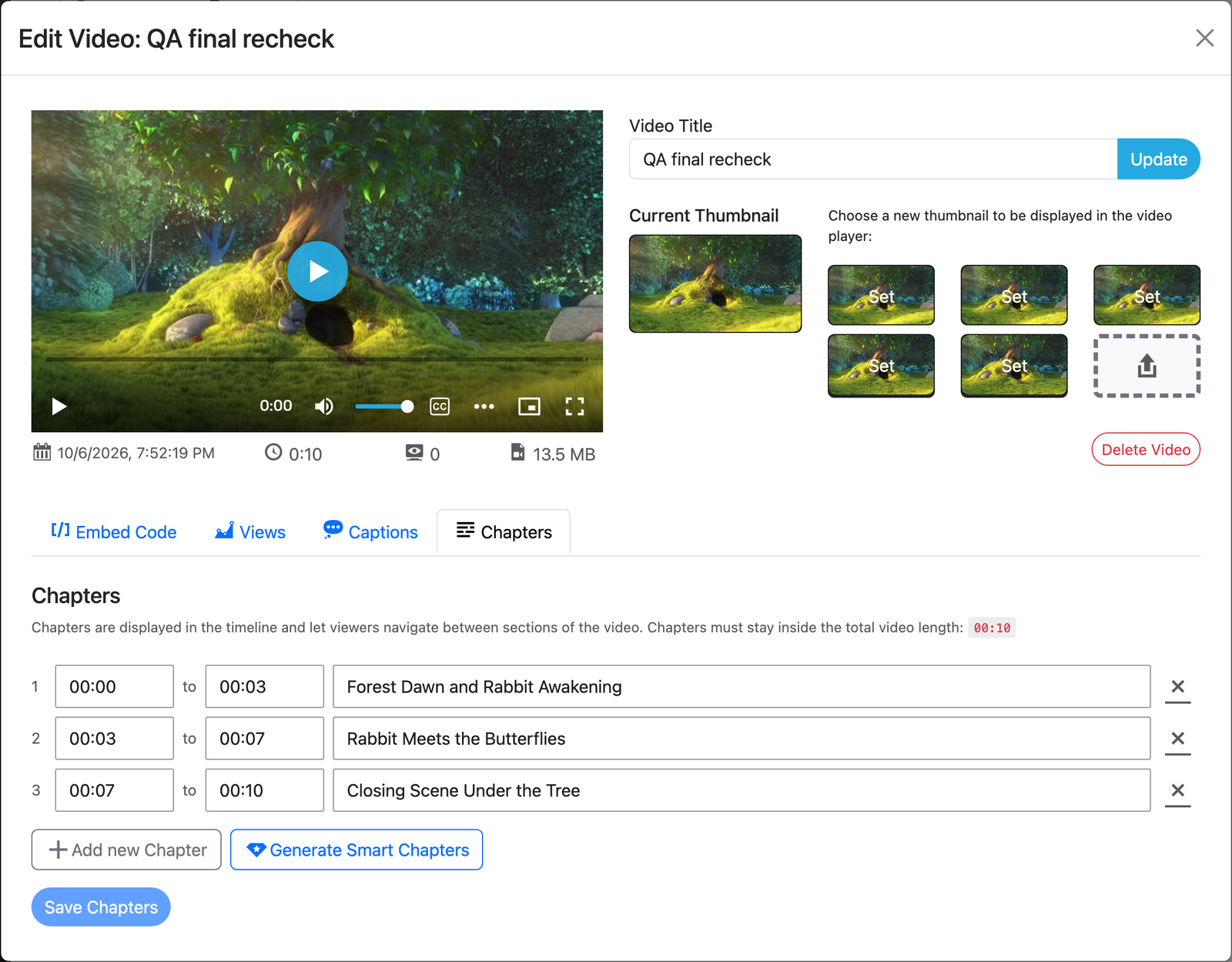
Generation usually takes a minute or less. You can close the video's details while it runs. The chapters are there when you open the video again. If you stay on the tab and it's still working after a few minutes, close and reopen the video in a minute to see the chapters.
Edit Chapters by Hand
You can edit generated chapters or build the whole list yourself on the Chapters tab.
- Click Add new Chapter to add a row, or click into an existing row to change it.
- Enter the start time, the end time, and a title. Times use
mm:ssorh:mm:ss. - Click the X at the end of a row to remove that chapter.
- Click Save Chapters. A "Chapters saved." message confirms it.
Chapters have to follow these rules:
- Each chapter must end after it starts.
- Every chapter must stay inside the video's length. The video length is shown at the top of the tab.
- A chapter can't overlap the one before it.
If a chapter breaks a rule, the plugin refuses to save and tells you which chapter to fix, for example "Chapter 2 overlaps the previous chapter."
Where Viewers See Them
- Captions: Viewers turn captions on and choose a language from the CC button in the player controls. Make sure the Captions control is checked under Player Controls in your Video Settings.
- Chapters: Chapters show on the player's timeline, and viewers use them to jump between sections of the video.
How can I verify it is working?
There are two ways to confirm your captions and chapters are showing for viewers.
From the WordPress Dashboard:
Open the video in Media > Video Library and play it in the preview at the top. Click the CC button to see your caption languages, and look at the timeline for chapter markers.
On the front end of your site:
Visit a page where the video is embedded and check the CC menu and the timeline there. If you don't see a change, clear your page cache and your browser cache and reload.
Get Support
Need help with captions or chapters, or have questions? Submit a support request and a member of our team will get back to you within 24 hours. If you are having a problem, we would love the opportunity to resolve any issues. Create a ticket at https://infiniteuploads.com/support/