

Infinite Uploads protects the files you sell with WooCommerce or Easy Digital Downloads (EDD) automatically on Business plans. The CDN only delivers those files through a signed link that works for 10 minutes, and buyers only get that link after your store has checked their purchase.
What's protected
Protection applies to your store's private download folders when the files are stored in the Infinite Uploads cloud:
- WooCommerce: files in the
woocommerce_uploadsfolder. - Easy Digital Downloads: files in EDD's upload folder (
eddby default).
If you pick a download file from the Media Library, Infinite Uploads copies it into the protected folder when you save the product. The original stays in your Media Library. For products saved before version 3.5.1, open the product and click Update once.
Everything else in your Media Library, including product photos and videos, is delivered exactly like before. Files that are still on your server are served by WooCommerce or EDD as usual.
How it works
A signed link works like a hotel key card. It opens one door, for a short window, and only after the front desk has checked you in.
- A customer clicks their download link in your store.
- WooCommerce or EDD checks the order, download limits, expiry, and login, exactly as it always has.
- If the purchase is valid, Infinite Uploads sends the customer to a signed link for the file.
- The signed link works for 10 minutes. A download that has already started keeps going after that, but the link can't be used to start a new one.
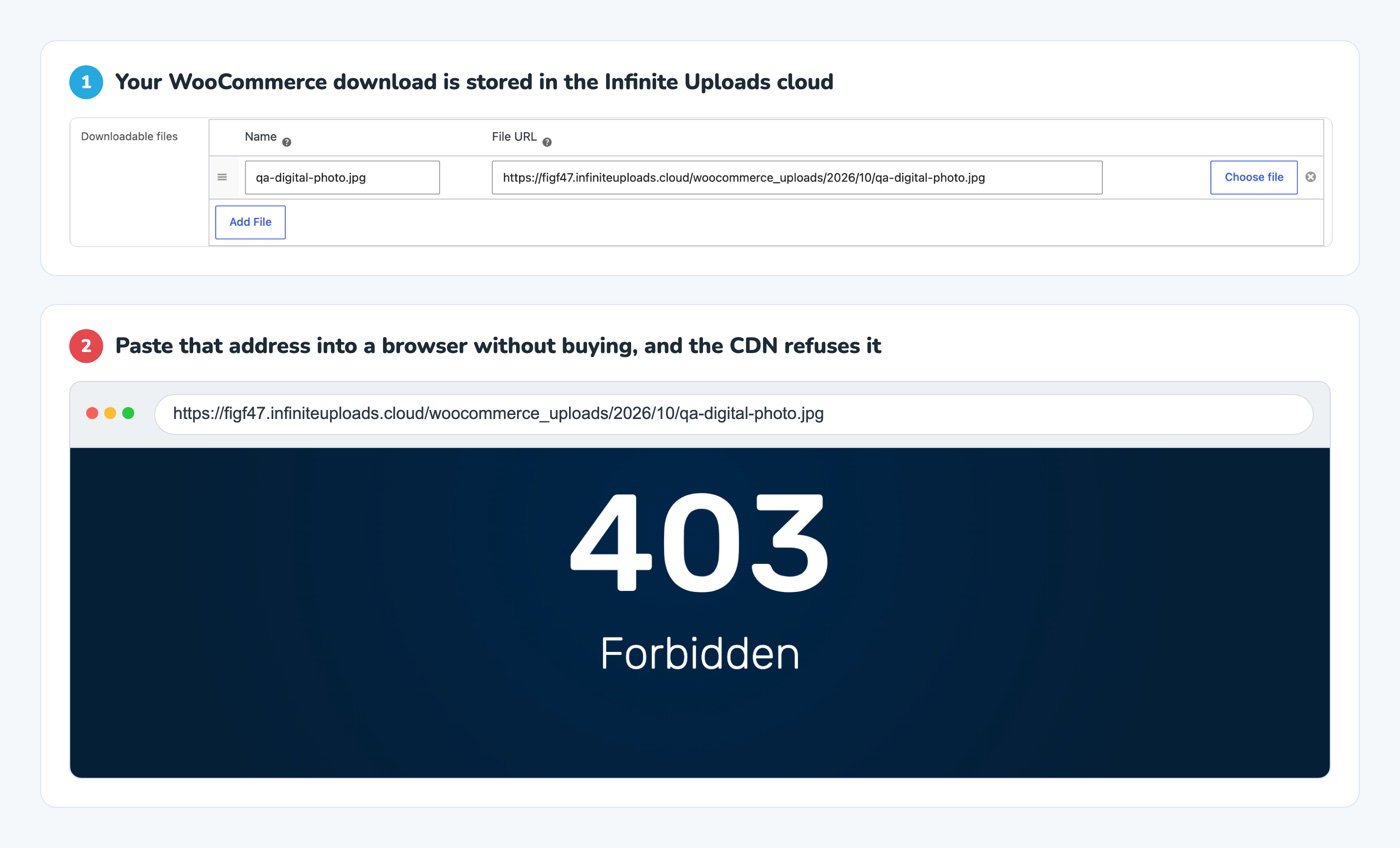
Anyone who copies the plain file address and opens it somewhere else gets an access denied error (a 403) from the CDN.
Setting it up
There's nothing to set up. Protection turns on by itself when your account is on a Business plan, Infinite Uploads is connected and enabled, and WooCommerce or EDD is active. It works with every WooCommerce file download method and with EDD.
Note: If you deactivate the Infinite Uploads plugin, we turn protection off for your store folders first. Nothing would be signing download links anymore, so leaving it on would block every customer download.
How can I verify it is working?
There are two ways to check that your store files are protected.
Download as a customer:
Place a test order (or use an existing one) and click the download link from the order. The file should download normally. If you watch the browser address bar or network panel, you'll see a CDN address ending in ?token=...&expires=....
Open the plain file address:
Copy the file's address without the token and expires part and open it in a private browser window. The CDN should refuse it with an access denied (403) error.
Common questions
Which plans include protected downloads?
Business plans. If you upgrade, protection turns on within a few minutes, the next time you open your WordPress Dashboard. Stores that already had protection turned on keep it.
What happens if I move off a Business plan?
Your store files stay protected. Buyers still get signed links and download as usual, and files in your store folders still can't be opened from their plain address.
Two things change:
- Nothing new gets protected. If you activate WooCommerce or Easy Digital Downloads after moving off Business, that plugin's folder isn't protected.
- Protection that's removed doesn't come back. It's removed when you deactivate the Infinite Uploads plugin, or when your CDN is turned off: for example if your plan is canceled, your account goes over its new plan's storage or bandwidth limit, or you've moved to the Free plan and its monthly bandwidth runs out. After that, anyone with a store file's address can download it, even once the CDN is back on.
Upgrading back to a Business plan turns protection on again the next time you open your WordPress Dashboard.
A customer says their download link doesn't work. What do I do?
Ask them to click the download link in their account or order email again rather than reusing an old address. Each click creates a fresh 10-minute link.
Can I change the 10-minute window or protect another folder?
Yes, with developer filters. See Changing Protected Download Settings With Filters.
Where can I learn more about selling large files?
See Selling Large Software Downloads (ZIP, RAR, EXE, MSI) with WooCommerce.
Get Support
Need help with protected downloads or have questions? Submit a support request and a member of our team will get back to you within 24 hours. If you are having a problem, we would love the opportunity to resolve any issues. Create a ticket at https://infiniteuploads.com/support/