

Media Cleanup scans your Media Library and shows which files are in use on your site and which look unused, so you can tidy up with confidence. This guide covers how to turn it on and run your first scan.
Note: Media Cleanup is included with our business plans, and only administrators can use it. On other plans the setting shows a Business badge, and clicking it opens an upgrade window. Media Cleanup never deletes anything for you.
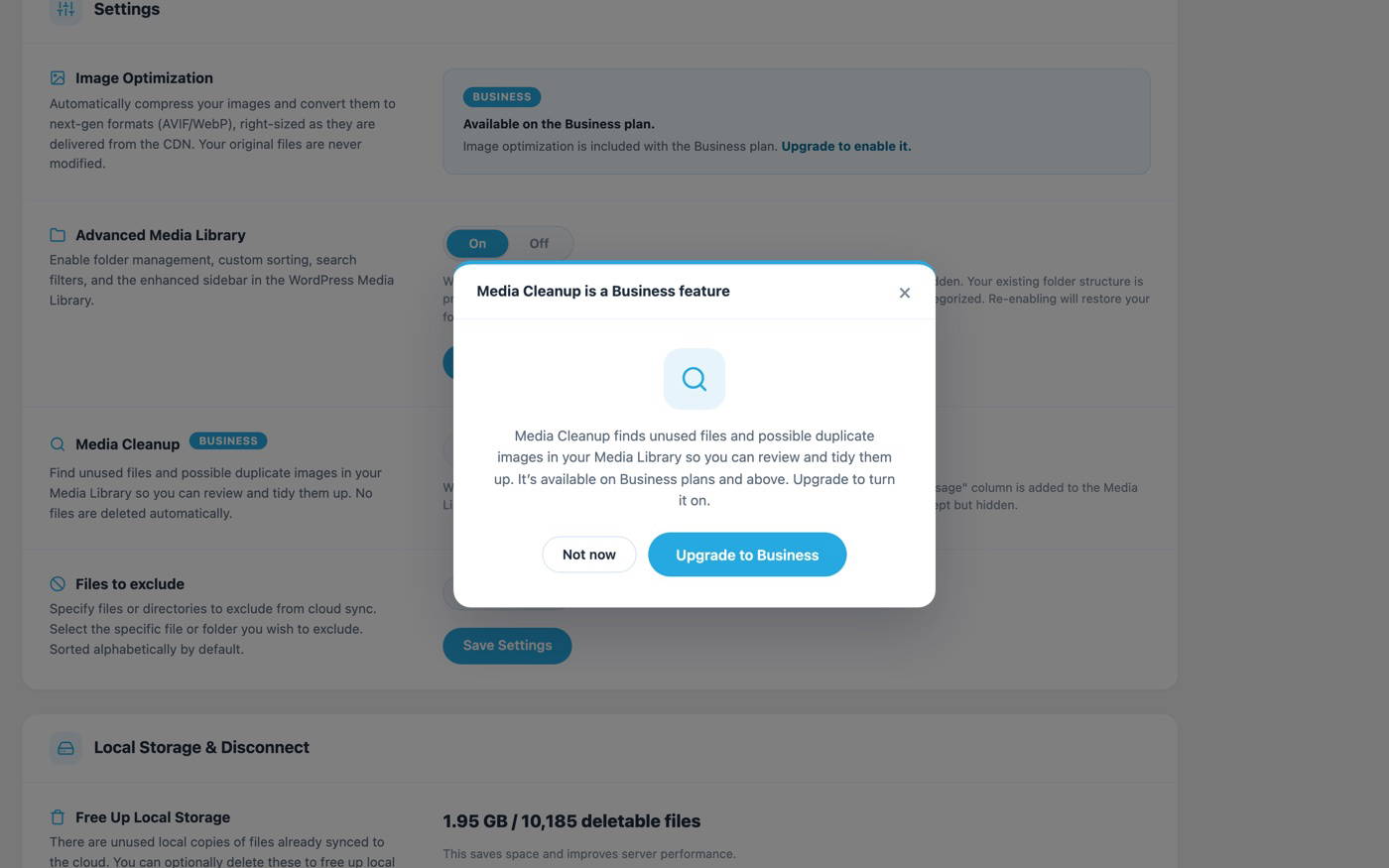
Turn it on
- From your WordPress Dashboard, open the Infinite Uploads menu.
- In the Settings card, find Media Cleanup and select On.
- Click Save Settings, then reload the page.
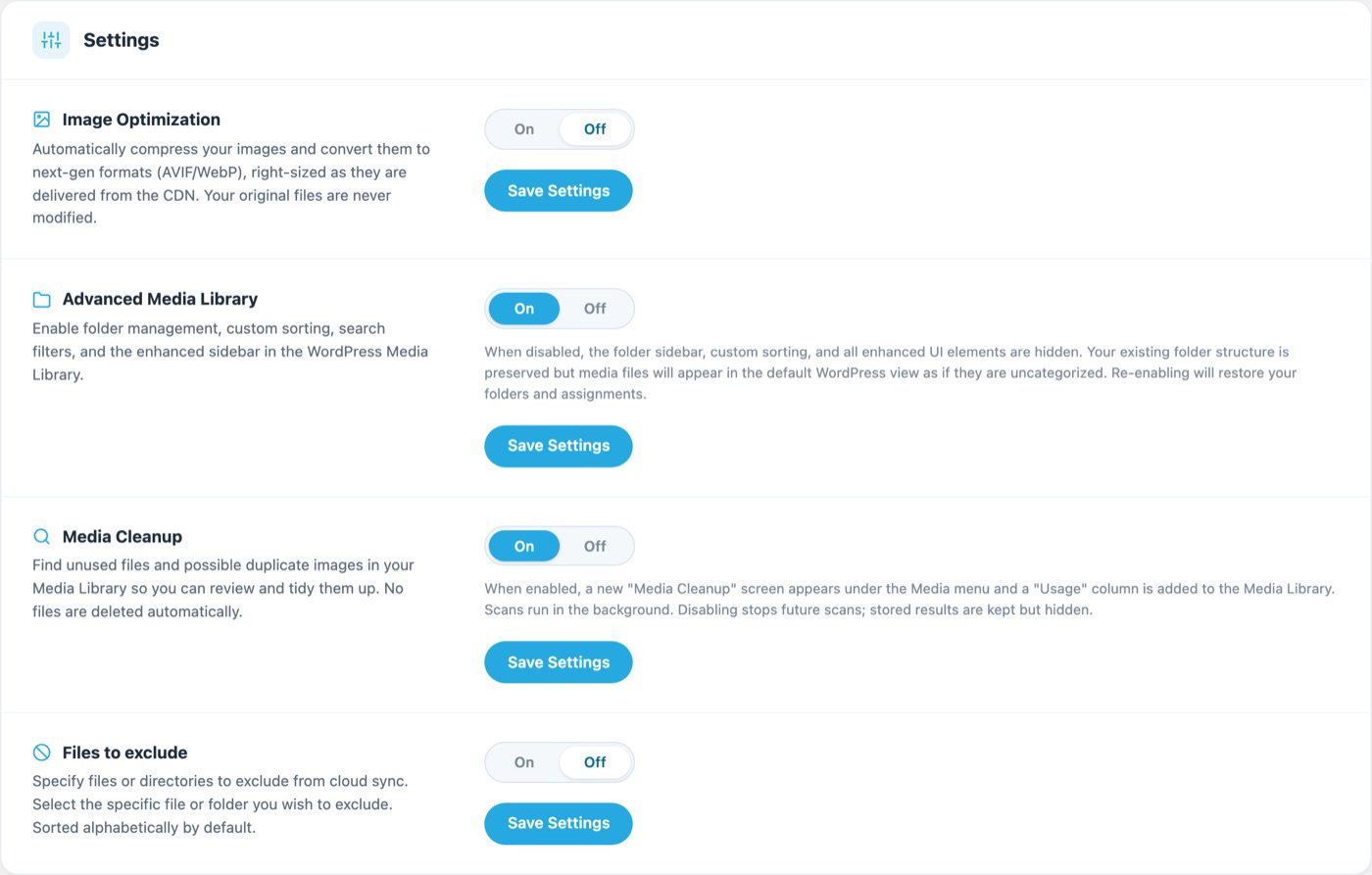
Once it's on, a new Media Cleanup screen appears under the Media menu, and a Usage column is added to the Media Library list view.
Run your first scan
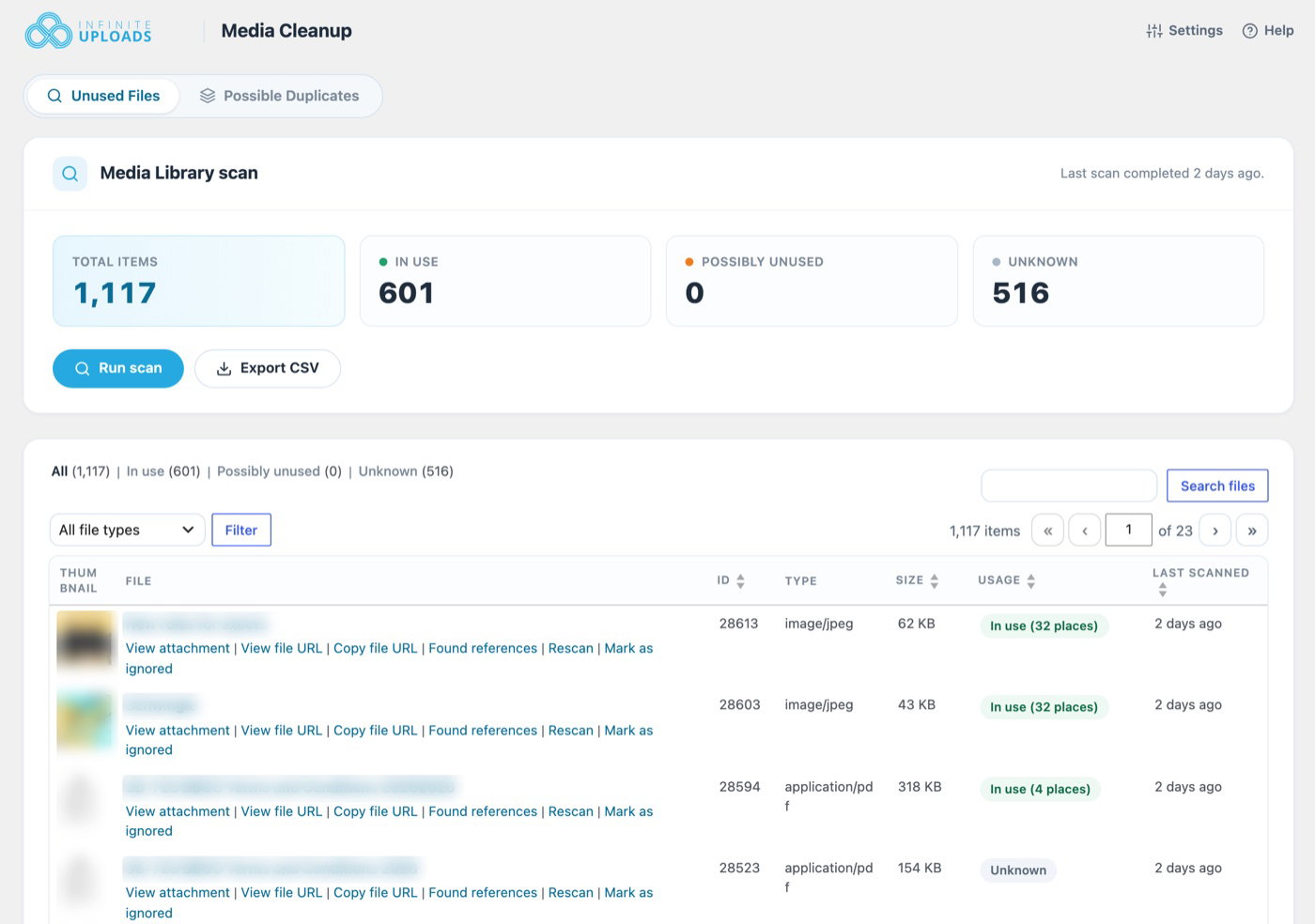
- Go to Media > Media Cleanup. The Unused Files tab opens first.
- Click Run scan and confirm.
- Watch the progress bar as the scan checks your post content, page builders, settings, and public pages.
The scan runs in the background in small batches, so you can leave the page and come back. You can Pause, Resume, or Cancel it at any time. If you cancel, your previous results are kept.
Note: If your site's background tasks (WP-Cron) aren't running, Media Cleanup shows a message and runs the scan in your browser instead. In that case, keep the tab open until the scan finishes.
Read the results
When the scan is done, the Media Library scan card shows four numbers:
- Total items: every file in your Media Library.
- In use: files we found being used somewhere on your site.
- Possibly unused: files we found no use for.
- Unknown: files we can't rule out, like PDFs that may be linked from outside WordPress.
See How Media Cleanup Decides Whether a File Is in Use for exactly what each status means, and Reviewing Media Cleanup Results for what to do next.
Turning it off
Set Media Cleanup back to Off and click Save Settings. Future scans stop and your stored results are kept but hidden, so they're there if you turn it back on.
Get Support
Need help with Media Cleanup or have questions? Submit a support request and a member of our team will get back to you within 24 hours. If you are having a problem, we would love the opportunity to resolve any issues. Create a ticket at https://infiniteuploads.com/support/