

The Possible Duplicates tab in Media Cleanup finds images that may have been uploaded more than once, like four copies of the same team photo, and groups them so you can compare them side by side.
Note: Possible Duplicates is part of Media Cleanup, which is included with our business plans and available to administrators only. Turn on Media Cleanup first. See Turning On Media Cleanup and Running a Scan.
Turn on duplicate detection
- Go to Media > Media Cleanup and click the Possible Duplicates tab.
- Click Enable Possible Duplicate Detection.
Duplicate detection only runs when you click scan, never on upload, so it doesn't slow down your uploads.
Scan for duplicates
- Click Scan for Possible Duplicates and confirm. After the first scan, the button reads Refresh Scan.
- Keep the tab open until the scan finishes. The duplicate scan runs in your browser.
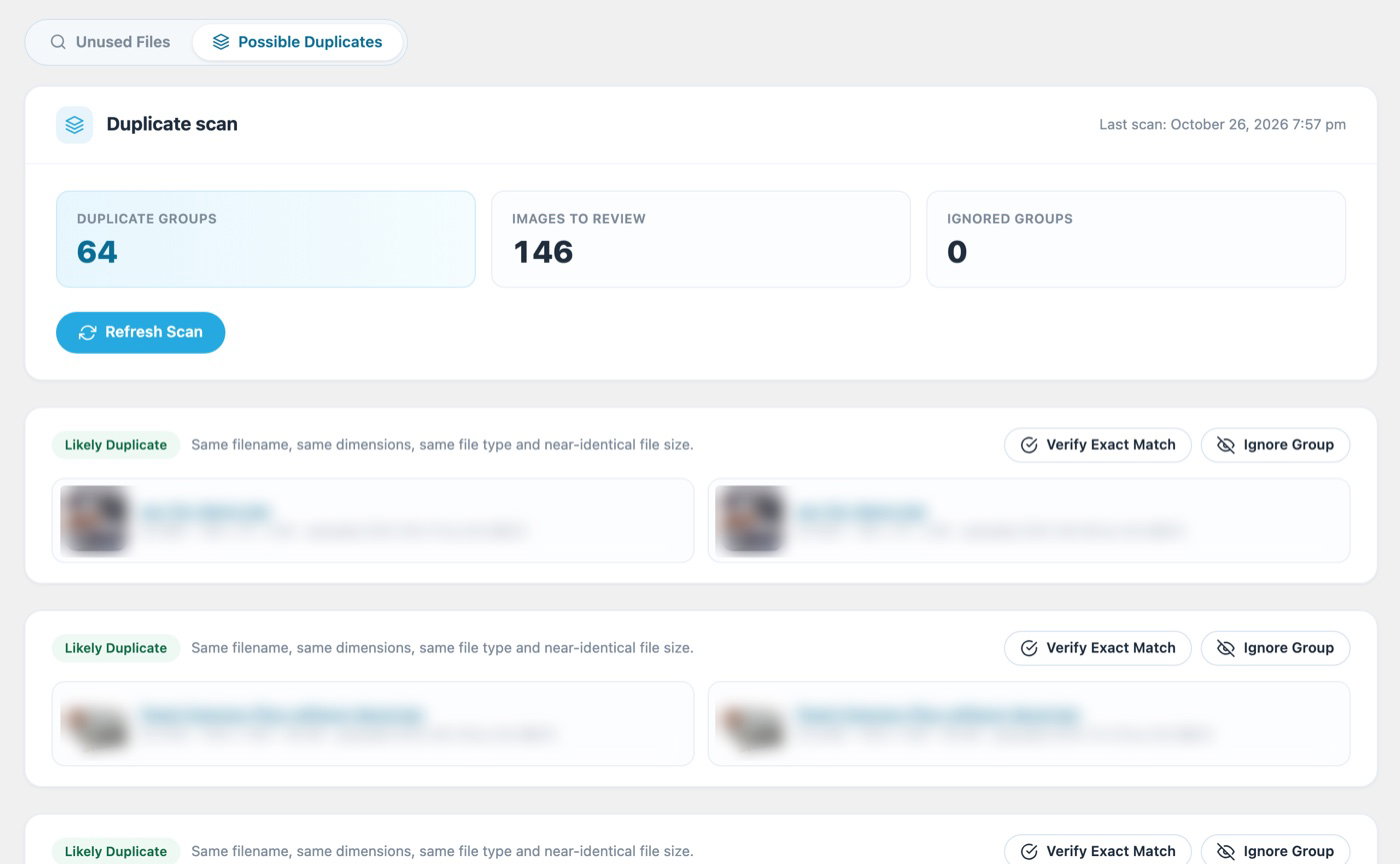
The Duplicate scan card shows Duplicate groups, Images to review, and Ignored groups. If you have more than 500 groups, the first 500 are shown. Resolve or ignore some, then scan again to see the rest.
Note: Libraries with more than 50,000 images are too large for the duplicate scan.
How images are grouped
Images are grouped when they share a file name and file type, or when they have the same file type, dimensions and exact file size under different names. Copy endings like -1, -copy, or (1) are ignored, so team.jpg and team-1.jpg count as the same name. Each group gets a label based on how closely the dimensions and file size match:
- Likely Duplicate: same file name, same dimensions, same file type, and near-identical file size.
- Possible Duplicate: same file name, dimensions, and type, or near-identical size when the dimensions are unknown.
- Needs Review: same file name and type with a similar file size, but different or unknown dimensions.
- Different filenames, but the same dimensions, file type and exact file size: the files match by content even though their names are different.
- Weak match: same file name and type only. These are hidden unless you turn on Show weak matches.
Verify an exact match
Click Verify Exact Match on a group to compare the files byte for byte. You'll see whether the files are exact duplicates, similar but not identical, or couldn't be read.
Ignore a group
If a group isn't really a duplicate, or you want to keep both files, click Ignore Group. Ignored groups are left out of the counts. Click Show Ignored Groups to see them again, and Unignore to bring one back.
Duplicate detection settings
In the Duplicate detection settings panel you can turn Show weak matches and Allow exact match verification on or off, change the Batch size, or click Disable duplicate detection.
Remember: Media Cleanup never deletes anything. Once you've decided which copy to keep, check where the others are used with Found references, then delete them from Media > Library.
Get Support
Need help finding duplicate images or have questions? Submit a support request and a member of our team will get back to you within 24 hours. If you are having a problem, we would love the opportunity to resolve any issues. Create a ticket at https://infiniteuploads.com/support/