

If you've installed Big File Uploads and your maximum upload file size in WordPress hasn't changed, you're probably trying to upload somewhere the plugin doesn't control. Big File Uploads works specifically with the WordPress Media Library. It does NOT change upload limits across your entire WordPress site.
Here's what that means in practice.
Where Big File Uploads Increases the WordPress Maximum Upload File Size
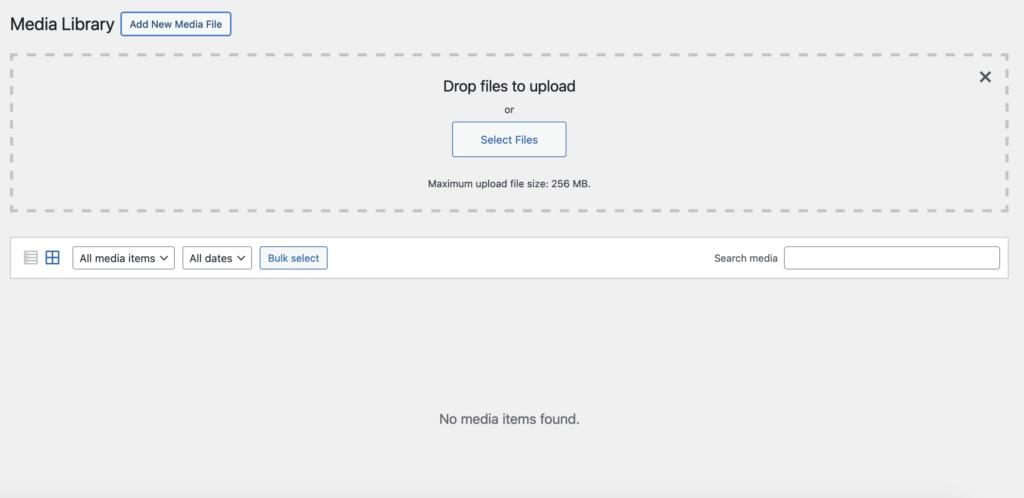
Big File Uploads increases the maximum upload file size for the WordPress Media Library and anything that uses it. This includes:
- Classic Editor uploads via the "Add Media" button.
- Block Editor (Gutenberg) uploads for Image, Video, Gallery, and Cover blocks.
- Featured Images on posts, pages, and custom post types.
- Theme Customizer uploads for logos, header images, and background images.
- Widgets that use the Media Library, like Image and Video widgets.
- WooCommerce product images, product galleries, and category thumbnail images.
- User Profile Media such as custom profile pictures added through plugins.
- Plugin and Theme Settings that pull from the Media Library for sliders, headers, and similar features.
- Multisite Main Site media uploads for the network's primary site.
- Media Library Bulk Actions for uploads and file management done directly in the Media Library.
Think of it this way: if the upload goes through WordPress's built-in media uploader, Big File Uploads handles it. If it uses its own upload mechanism, it doesn't.
Where Big File Uploads Cannot Increase the WordPress Upload Size Limit
Big File Uploads does NOT and cannot increase the upload limit in the following areas:
- WordPress Plugin Installer (uploading .zip files to install plugins).
- WordPress Form Plugins like Contact Form 7, Gravity Forms, or WPForms. These plugins use their own upload handling and bypass the Media Library entirely. If you need large file uploads through forms, check out Big File Form Uploads.
- Page Builder custom widgets and JSON imports (Elementor, Divi, WPBakery, etc.).
- Any custom plugin that handles file uploads independently without using the WordPress Media Library.
- Backup and Migration Tools like All-in-One WP Migration, UpdraftPlus, Duplicator, and similar plugins. These tools manage their own upload processes and have their own file size restrictions.
WordPress Max Upload Size Not Changing? Check These Settings
If your WordPress max upload size is not changing even in the Media Library after activating Big File Uploads, check these things:
- Go to Settings > Big File Uploads and confirm you've set your desired maximum upload size. The default matches whatever your hosting provider allows, so you may need to increase it manually.
- If you have "Customize by user role" enabled, make sure the limit is set correctly for your specific WordPress role (Administrator, Editor, etc.).
- Clear any caching plugins or server-level caching after changing your settings.
Big File Uploads bypasses the server's upload_max_filesize and post_max_size PHP limits by splitting large files into smaller chunks during upload. You do NOT need to change any PHP settings or edit your php.ini, .htaccess, or wp-config.php to use it. That's the whole point of the plugin.