

You can download the original file of any video in your Video Library with one click. You get the exact video you uploaded, in its original format and quality, saved under the video's title.
Before You Start
- You need Infinite Uploads 3.5.2 or later with the Video Cloud enabled.
- Anyone who can open Media > Video Library can download videos. By default, that's Administrators, Editors, and Authors.
- The download is the file you uploaded, not the streaming versions we create when we transcode your video. To learn more about those, see Video Transcoding with Infinite Uploads.
Download a Video
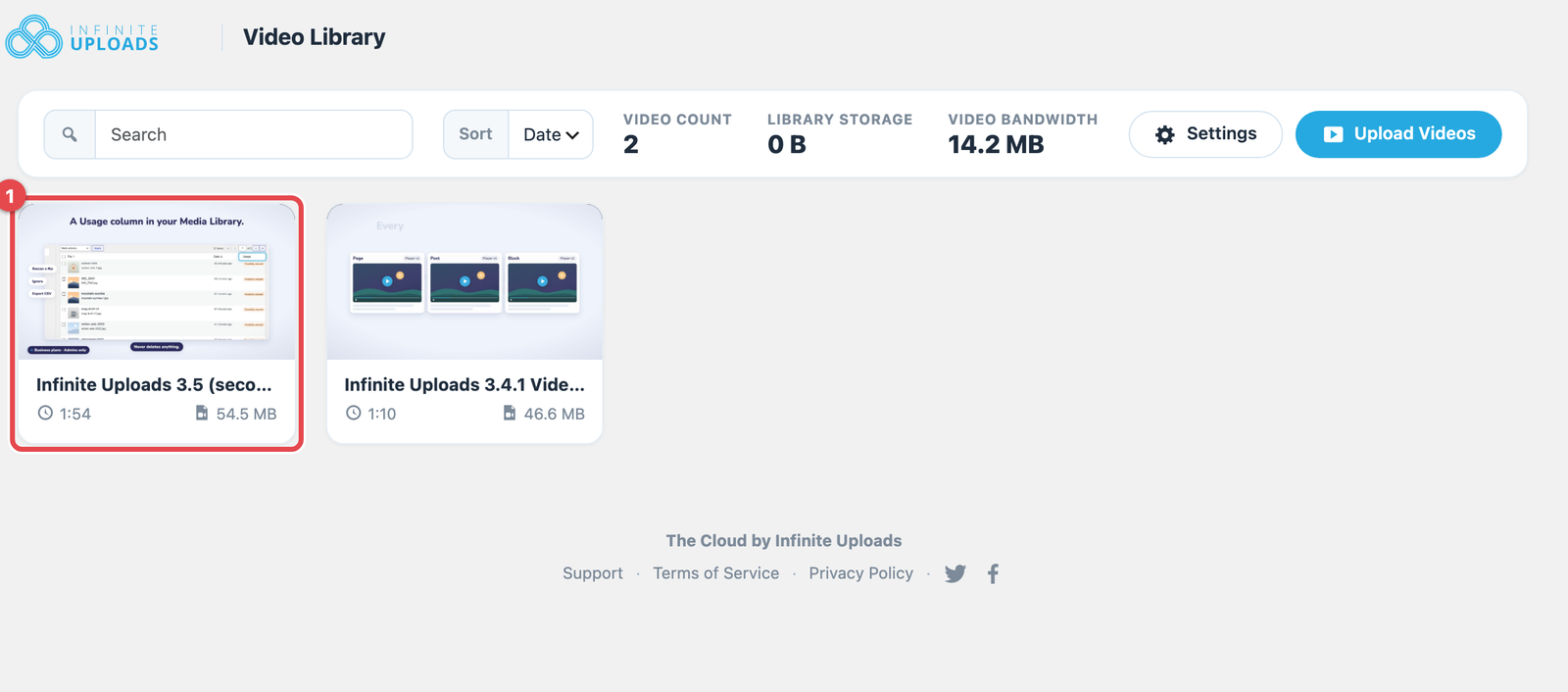
- Go to Media > Video Library and click the video.
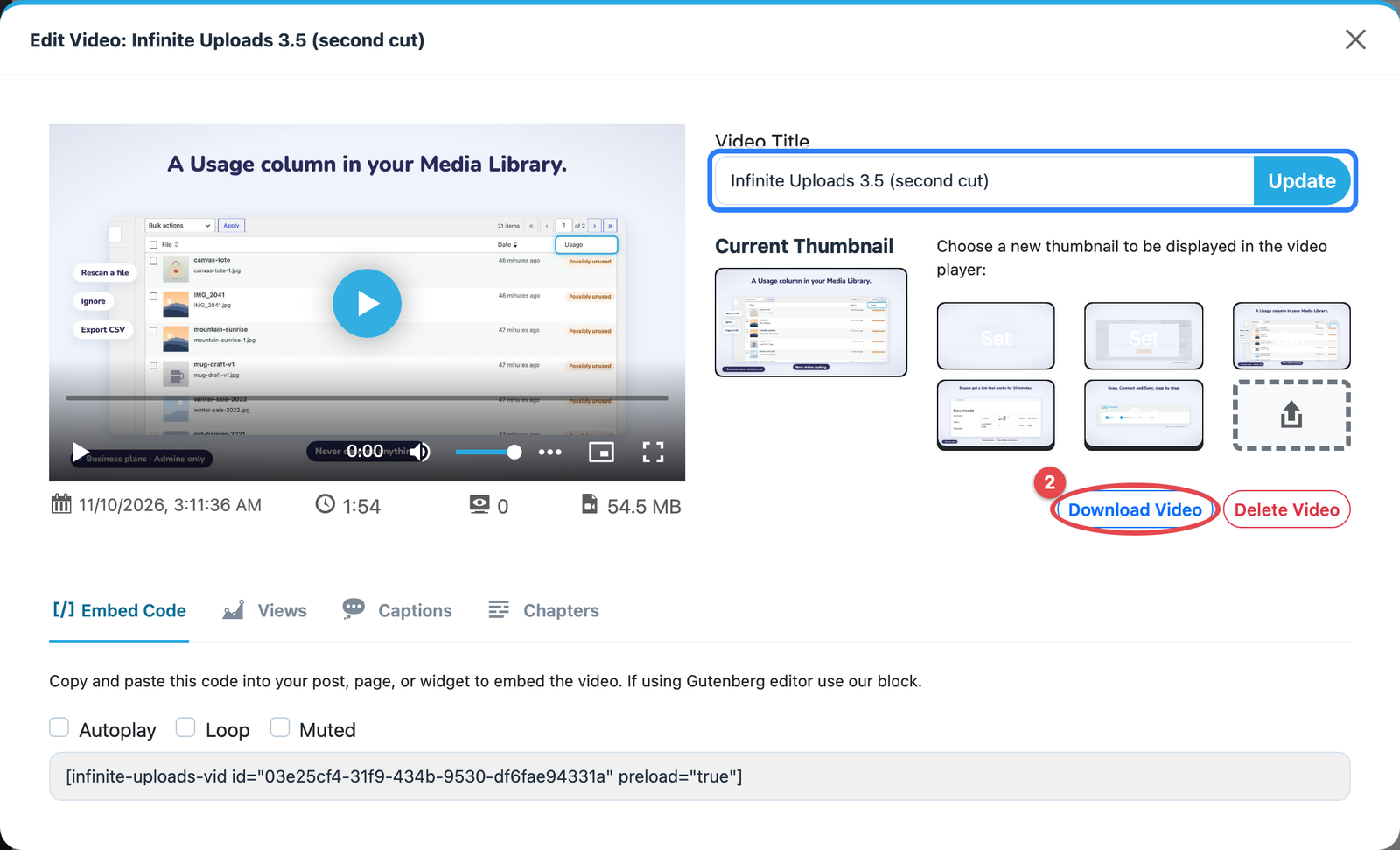
- Click Download Video, next to Delete Video.
- Your browser downloads the file. Depending on your browser settings, it may ask where to save it first.
How the File Is Named
The file is named after the video's Video Title, followed by its original file extension. A video titled "Infinite Uploads 3.5 (second cut)" that was uploaded as an MP4 downloads as Infinite Uploads 3.5 (second cut).mp4.
- Format: You get the format you uploaded, such as MP4, MOV, MKV, or WebM. We don't convert it.
- Change the name: Edit the Video Title, click Update, then click Download Video. The new title also shows for the video in your Video Library.
- No title: If a video has no title, the file is named after the video's ID.
If the Download Doesn't Start
If an error page opens instead of a download, the original upload for that video isn't stored in the cloud, so there's no file to download. The video still plays normally from its streaming versions. If you need a copy, contact our team and we'll help.
How can I verify it is working?
There are two ways to confirm your video downloaded.
From your browser:
Open your browser's downloads list. The file shows there under the video's title.
On your computer:
Open the file from your Downloads folder, or wherever you chose to save it. It plays in your video player at the quality you uploaded.
Get Support
Need help downloading your videos or have questions? Submit a support request and a member of our team will get back to you within 24 hours. If you are having a problem, we would love the opportunity to resolve any issues. Create a ticket at https://infiniteuploads.com/support/