

After a Media Cleanup scan, the results list and the Media Library Usage column help you review each file before you decide what to keep. This guide covers the tools for working through your results.
Filter and search the list
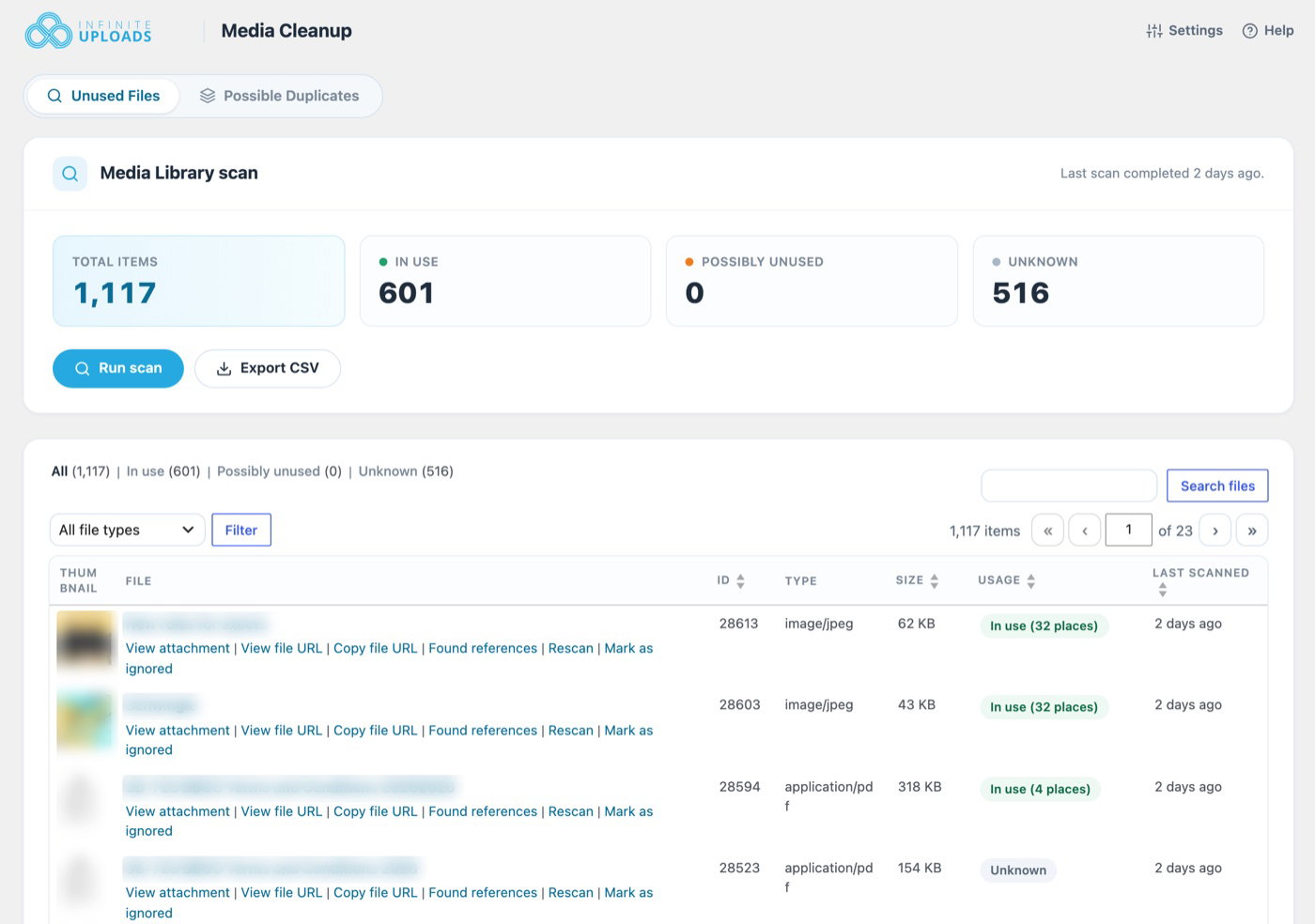
Go to Media > Media Cleanup. Below the scan card, the results list shows Thumbnail, File, ID, Type, Size, Usage, and Last scanned, 50 files per page.
- Status views: click All, In use, Possibly unused, or Unknown above the list.
- File type: choose Images, Videos, PDFs / documents, or Large files (over 5 MB), then click Filter.
- Search: type part of a file name or title and click Search files.
- Sort: click the ID, Size, Usage, or Last scanned column heading.
A good place to start is Possibly unused sorted by Size, so the biggest files are at the top.
See where a file is used
Hover a file and click Found references. A window lists every place the file was found, with the Source type, the Source (like the post or setting), and How it's used.
The other row actions are:
- View attachment: open the file's attachment page.
- View file URL and Copy file URL: open or copy the file's address.
- Rescan: check just this file again, which is handy after you edit a page.
- Mark as ignored: hide a file you've decided to keep from your review. Click Unignore to undo it.
Note: Rescan isn't available while a full scan is running.
Use the Usage column in the Media Library
Go to Media > Library and switch to the list view. The Usage column shows each file's status: In use, Possibly unused, Unknown, Ignored, or Not scanned for files uploaded since the last scan.
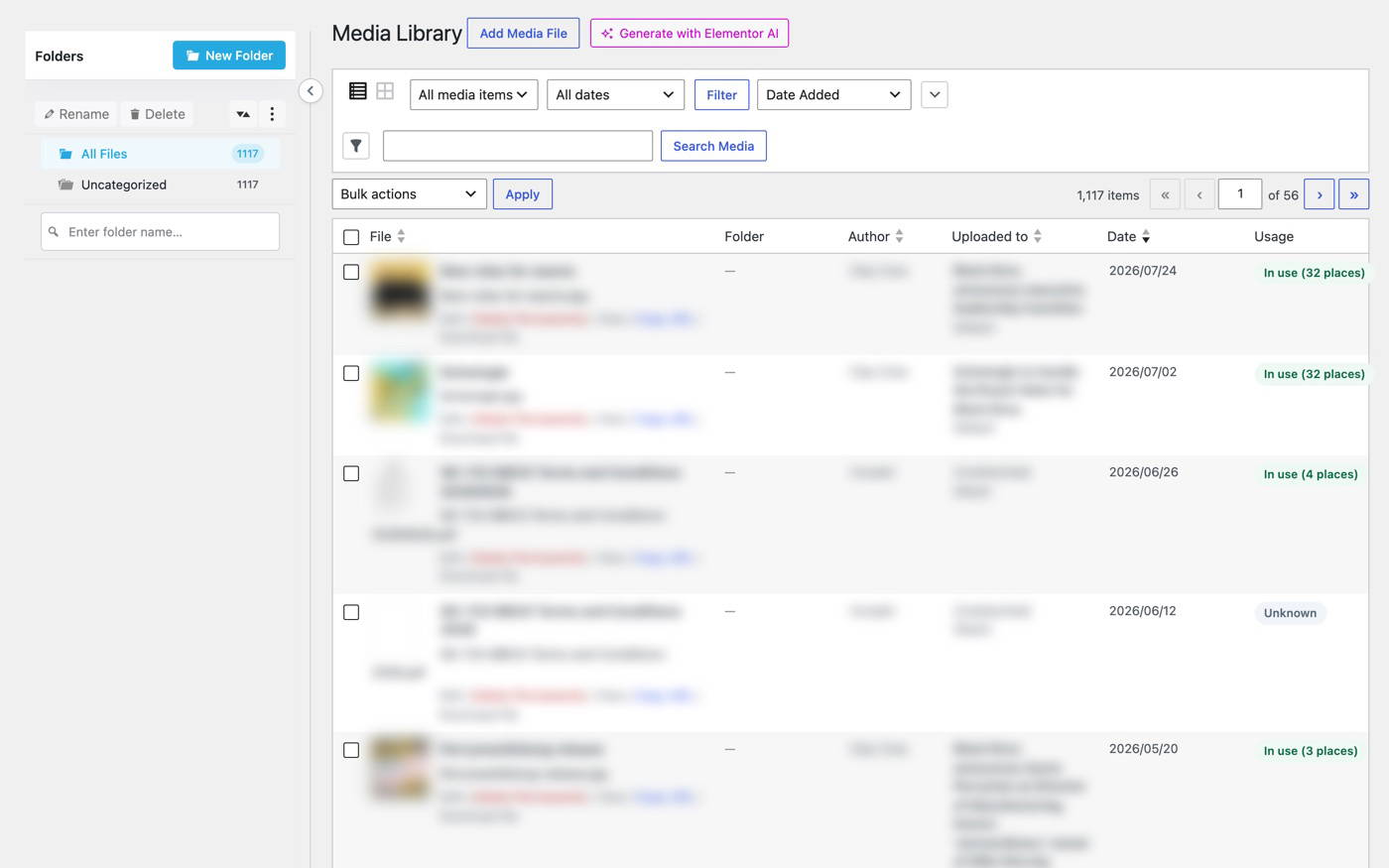
The column only appears in the list view, not the grid view.
Export to CSV
Click Export CSV on the scan card to download media-library-usage-YYYY-MM-DD.csv. It includes the attachment ID, file, type, size, usage status, references, whether it's ignored, the file URL, and when it was last scanned. It's an easy way to hand a cleanup list to a client or your team.
Deleting files you don't need
Media Cleanup never deletes anything. When you've confirmed a file isn't needed, delete it from Media > Library as usual. For how that affects files in the cloud, see Does deleting a file from the WordPress Media Library remove it from Infinite Uploads cloud storage?
Note: We recommend taking a backup of your site before deleting files in bulk.
Get Support
Need help with Media Cleanup or have questions? Submit a support request and a member of our team will get back to you within 24 hours. If you are having a problem, we would love the opportunity to resolve any issues. Create a ticket at https://infiniteuploads.com/support/