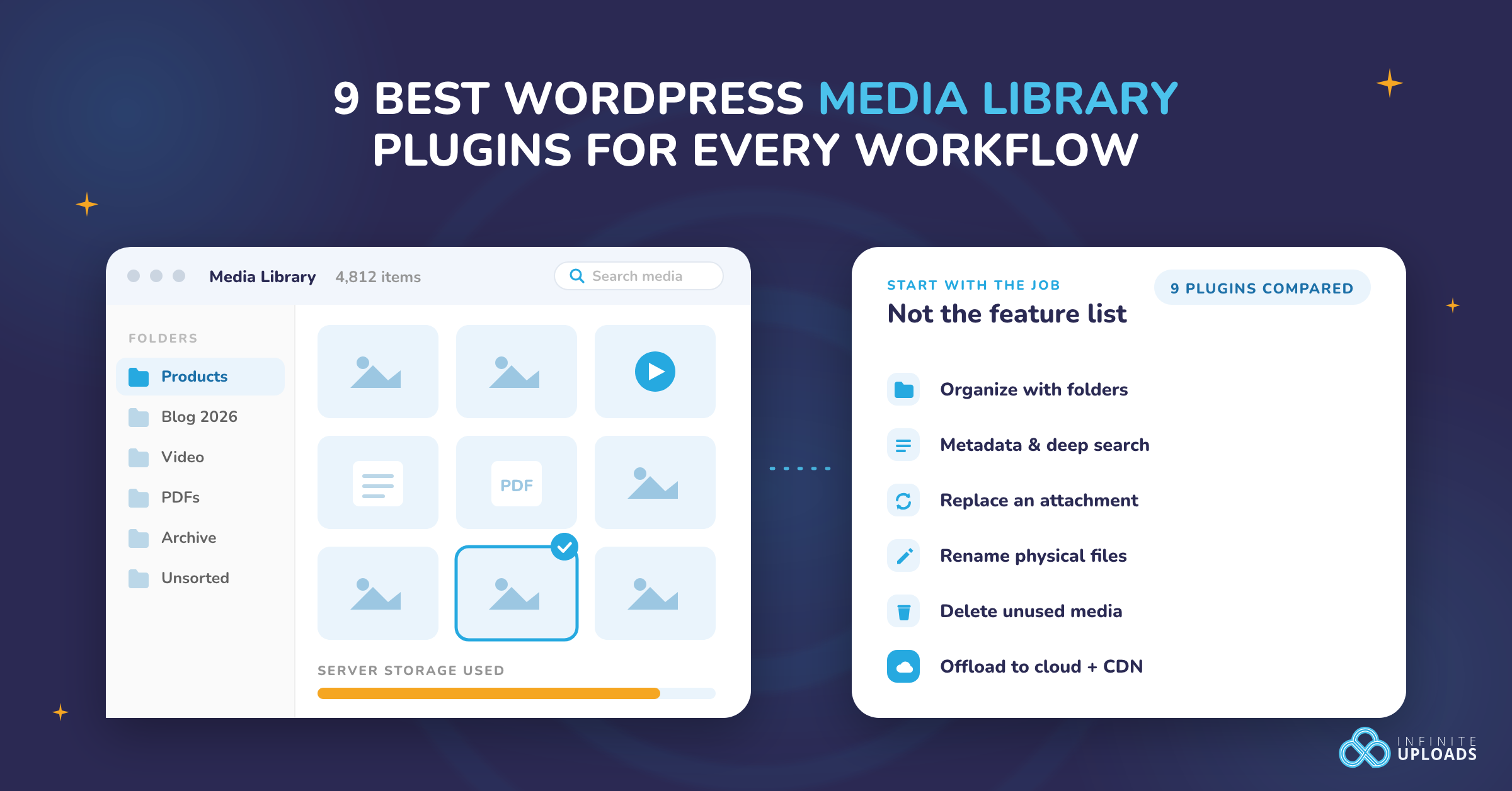
WordPress includes a Media Library, but its default tools become limiting when a site has thousands of images, videos, PDFs, and other attachments. The right plugin depends on the problem you need to solve: finding files, organizing folders, editing metadata, replacing an attachment, renaming physical files, removing unused media, or moving a growing library to cloud storage.
There is no single best plugin for every workflow. FileBird is a strong free choice for virtual folders, Media Library Assistant provides the deepest metadata and taxonomy tools, Enable Media Replace solves attachment replacement, and Infinite Uploads combines folders with cloud offload, CDN delivery, image optimization, and video hosting.
Quick comparison: the best WordPress Media Library plugins
| Plugin | Best for | Free option? | What happens to file URLs? | Main caution |
|---|---|---|---|---|
| FileBird | Polished virtual folders and drag-and-drop organization | Yes | Moving files between virtual folders does not change URLs | Some advanced sorting and integrations require Pro |
| Folders | Organizing media, pages, and posts in one folder interface | Yes | Folder assignments are virtual | Advanced subfolder features require Pro |
| Real Media Library | Advanced folder, collection, and gallery workflows | Yes | Organization is virtual | The Lite edition limits the deeper hierarchy and advanced tools |
| WP Media Folder | A premium organization suite with cloud connectors and galleries | No public free edition | Virtual folders do not inherently move files, but server sync and replacement are separate operations | Paid product with optional add-ons; test migrations carefully |
| Media Library Assistant | Attachment metadata, taxonomies, search, and bulk editing | Yes | It manages attachment data rather than moving physical files | Powerful but more technical than a visual folder plugin |
| Enable Media Replace | Replacing an existing image, PDF, or other attachment | Yes | You choose whether to preserve the file identity or replace it with a new filename | A replacement is not a backup; purge caches and verify embeds |
| Media File Renamer | Renaming physical filenames and syncing media metadata | Yes | Filenames and URLs can change | Back up and test before bulk renaming |
| Media Cleaner | Finding and removing unused or broken media | Yes | Files can be moved to the plugin's internal trash and then deleted | False positives are possible; use staging and a current backup |
| Infinite Uploads | Folders, cloud offload, CDN delivery, image optimization, video, and unused-media and duplicate scans | Free plugin and Free plan (10 GB storage, 20 GB bandwidth); paid plans for more | Folder changes preserve URLs; offload changes the delivery location automatically | Requires an Infinite Uploads account and storage/CDN plan |
How we selected these plugins
This list is organized by use case rather than treating every Media Library plugin as interchangeable. We considered:
- Whether the plugin solves a distinct Media Library problem rather than duplicating another pick.
- Current maintenance, WordPress compatibility, active installations, and public ratings where WordPress.org data is available.
- Whether folder changes are virtual or alter physical files and URLs.
- Whether a usable free version exists and which important features require payment.
- Migration, rollback, and deletion risks.
- Compatibility with the block editor and the standard WordPress media picker.
We did not install every possible premium add-on combination, and we do not treat installation counts as proof that one plugin is right for every site. They are useful maintenance and adoption signals, not a substitute for testing on staging.
Before choosing: virtual folders are not physical folders
Most WordPress Media Library folder plugins create a virtual organization layer. Moving an attachment from one virtual folder to another changes its folder assignment in the WordPress database, but it does not move the file inside wp-content/uploads or change the attachment URL. That is usually the safest approach because existing images and downloads keep working.
Physical file operations are different. Renaming a file, synchronizing server directories, deleting unused media, or replacing an attachment can affect URLs and references. Back up the database and uploads directory, test on staging, and confirm that page builders, custom fields, galleries, WooCommerce content, and cached pages still reference the correct files.
Folder organization also does not improve front-end speed by itself. It improves editorial workflow. Compression, responsive images, cleanup, cloud offload, and CDN delivery address storage and performance. See our complete WordPress Media Library management guide for the full lifecycle.
1. FileBird: best free virtual-folder experience
FileBird adds a folder tree to the WordPress Media Library and media picker. Files can be organized with drag-and-drop, uploaded directly into a chosen folder, searched by folder or filename, and browsed without changing their public URLs.
As of August 20, 2026, WordPress.org reports 200,000 active installations, a 4.7/5 rating from 1,120 reviews, version 6.5.7, and compatibility tested through WordPress 7.0.4. The current free edition supports unlimited main folders and subfolders. Pro adds features such as more advanced sorting, folder downloads, additional integrations, and organization for more post types.
Choose FileBird if: you want a polished folder interface that works in the standard Media Library and block editor without moving physical files.
Consider another plugin if: your real problem is storage capacity, attachment metadata, replacement, or deletion rather than finding files.
2. Folders: best for organizing media, pages, and posts together
Folders applies a drag-and-drop folder interface to Media Library items, pages, and posts. The free version includes unlimited folders, bulk assignment, folder search, colors, import tools for several competing folder plugins, and an undo action. Its Pro edition adds more advanced subfolder capabilities and workflow controls.
WordPress.org reports 90,000 active installations, a 5.0/5 rating from 1,516 reviews, version 3.1.9, and testing through WordPress 7.1. It was updated on August 13, 2026.
Choose Folders if: editors want one familiar folder system across media and written content.
Main limitation: it is still an organizational layer. A folder assignment does not optimize, offload, or clean up the underlying files.
For a deeper explanation of safe virtual organization, read how to create folders in the WordPress Media Library.
3. Real Media Library: best for folders, collections, and gallery workflows
Real Media Library combines visual folders with collection and gallery concepts. It supports drag-and-drop organization, direct uploads to folders, folder search, custom image ordering, and gallery creation from a folder. The Lite version provides unlimited main folders; deeper hierarchies and more advanced collection and gallery features are part of the paid product.
WordPress.org reports 100,000 active installations, a 4.8/5 rating from 289 reviews, version 4.23.0, and testing through WordPress 7.1. It was updated on August 18, 2026.
Choose Real Media Library if: folders need to feed ordered galleries or a more structured editorial workflow.
Main limitation: confirm which hierarchy, import/export, and gallery features are included in the edition you plan to use before migrating a large library.
4. WP Media Folder: best premium media-management suite
WP Media Folder is a paid suite rather than a simple free folder plugin. Its official product page lists unlimited folders and subfolders, advanced filters, media replacement, server-folder synchronization, access controls, watermarks, gallery blocks, and optional connections to services including Google Drive, OneDrive, Dropbox, Amazon S3, Google Cloud, Cloudflare, and other object-storage providers.
Plans currently start at $49, with some cloud and gallery functionality tied to product editions or add-ons. Because the product can do more than apply virtual folder labels, test server synchronization, replacement, and cloud connectors separately before enabling them on production.
Choose WP Media Folder if: you want a broad paid administration suite with folders, filtering, galleries, and multiple cloud integrations.
Main limitation: it can be more product—and more configuration—than a site needs when the only requirement is virtual folders.
5. Media Library Assistant: best for metadata and taxonomies
Media Library Assistant focuses on attachment data rather than a consumer-style folder tree. It supports WordPress taxonomies, customizable Media Library columns, bulk and quick edit, enhanced search, MIME-type controls, and extraction or mapping of IPTC, EXIF, XMP, and PDF metadata. Its shortcodes can build galleries, term lists, tag clouds, and custom attachment lists.
WordPress.org reports 70,000 active installations, a 4.8/5 rating from 201 reviews, version 3.40, and testing through WordPress 7.0.4. It was updated on August 17, 2026.
Choose Media Library Assistant if: photographers, publishers, archives, or technical teams need structured metadata and advanced attachment queries.
Main limitation: the interface and feature set are more technical than a drag-and-drop folder plugin. Define the taxonomy and metadata model before applying bulk changes.
6. Enable Media Replace: best for replacing an attachment
Enable Media Replace adds a replacement workflow to the attachment editing screen. It is useful when a PDF, product sheet, image, audio file, or other asset needs to be updated without manually finding every page that embeds it. Depending on the chosen mode, you can replace the underlying file or use a new filename and update links.
WordPress.org reports 600,000 active installations, a 4.4/5 rating from 302 reviews, version 4.2.2, and testing through WordPress 7.1. It was updated on August 20, 2026.
Choose Enable Media Replace if: the attachment is already embedded in several places and the replacement needs to retain its Media Library identity.
Main limitation: replacement is not version control. Create a backup first, verify attachment dimensions and file type, and purge page, browser, and CDN caches afterward. Our guide compares three ways to replace WordPress media files without breaking URLs.
7. Media File Renamer: best for filename cleanup
Media File Renamer can rename physical files manually, in bulk, or from media metadata. It also includes a lock system to protect names that should not change; AI-assisted naming is part of its paid feature set.
WordPress.org reports 40,000 active installations, a 4.6/5 rating from 447 reviews, version 6.3.0, and testing through WordPress 7.0.4. It was updated on August 17, 2026.
Choose Media File Renamer if: a library contains camera-generated or inconsistent filenames and you have a controlled process for validating updated references.
Main limitation: changing a physical filename is more invasive than editing an attachment title or alt text. A descriptive filename can improve maintenance, but it is not a substitute for useful page content, captions where appropriate, and accurate alt text. Back up the site and test bulk renames on staging.
8. Media Cleaner: best for unused-media cleanup
Media Cleaner scans for unused or broken media entries and can move candidates into an internal trash before permanent deletion. The developer offers additional compatibility in the Pro edition for sites whose content is stored by complex builders or plugins.
WordPress.org reports 90,000 active installations, a 4.6/5 rating from 764 reviews, version 7.2.6, and testing through WordPress 7.0.4. It was updated on August 17, 2026.
Choose Media Cleaner if: server storage contains a meaningful amount of genuinely unused media and you can review every deletion candidate.
Main limitation: unused-media detection can produce false positives when URLs are stored in theme settings, custom fields, CSS, page-builder data, external systems, or code. Never make the first scan a production deletion. Back up both files and database, test on staging, use the internal trash, and verify important templates before deleting permanently.
9. Infinite Uploads: best for cloud offload and an integrated media pipeline
Infinite Uploads combines virtual Media Library folders with cloud storage, automatic media offload, global CDN delivery, image optimization, storage scanning, and WordPress video hosting. Folder changes do not move files or change their URLs. When offload is enabled, the plugin automatically copies uploads to cloud storage and rewrites delivery to the included CDN; optional local cleanup can reclaim hosting storage.
WordPress.org reports 800 active installations, a 4.3/5 rating from 18 reviews, version 3.3.2, and testing through WordPress 7.0.4. It was updated on August 19, 2026. The plugin is free to install, but the storage, CDN, folders, and related service features require an Infinite Uploads account. Current plans start at $19 per month and include a seven-day trial.
Choose Infinite Uploads if: the problem extends beyond organization to server storage, media delivery, image formats, or hosted video. It is especially useful when a large library should stay accessible in WordPress while the underlying files are served from cloud storage and a CDN.
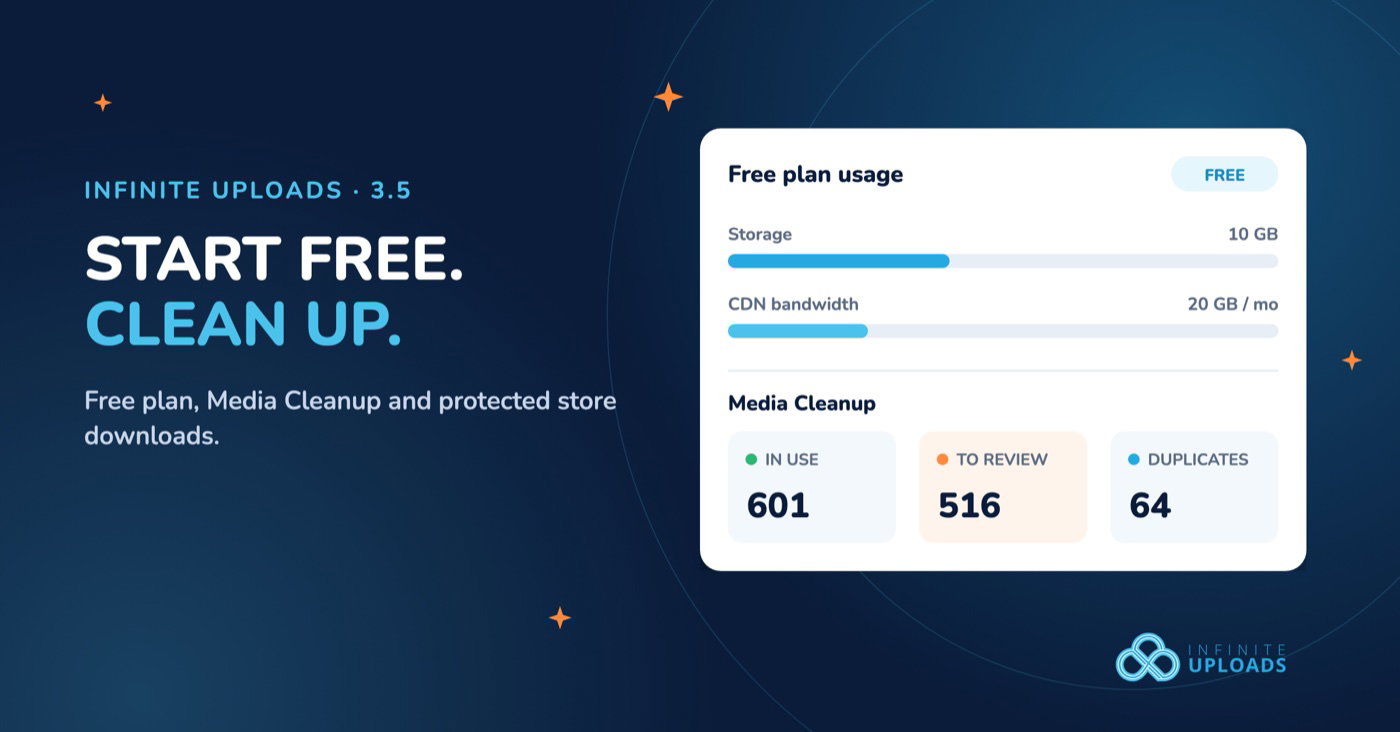
Since version 3.5, business plans also include Media Cleanup. It scans post content, page builders, settings, and public pages to show which files look unused, and a Possible Duplicates tab groups images that were uploaded more than once. It never deletes anything for you. You review the results and delete from the Media Library yourself, which is the conservative process this kind of cleanup needs anyway.
Main limitation: it is a managed service with a recurring plan, not a free standalone folder utility. Review current allowances on the Infinite Uploads pricing page and test the complete sync before removing local copies.
Learn more about WordPress Media Library folders, cloud offload and CDN delivery, and automatic WebP and AVIF image optimization.
Which plugin should you choose?
Start with the operation you need to perform:
- Find and organize files: FileBird, Folders, or Real Media Library.
- Build a premium folder, gallery, and cloud workflow: WP Media Folder.
- Search or edit attachment metadata at scale: Media Library Assistant.
- Replace an existing asset: Enable Media Replace.
- Rename physical files: Media File Renamer, after a backup and staging test.
- Delete unused media: Media Cleaner, or Media Cleanup in Infinite Uploads if your library is already in the cloud, with a conservative review process either way.
- Reduce server storage and deliver media through a CDN: Infinite Uploads.
Some sites will use two complementary plugins—for example, Media Library Assistant for metadata and Enable Media Replace for controlled updates. Avoid installing several plugins that all create competing folder taxonomies or intercept the same media modal. Test the smallest combination that covers the workflow.
For large or repeatable jobs, WP-CLI media-management commands may be more auditable than hundreds of manual edits.
Frequently asked questions
Does WordPress have a Media Library without a plugin?
Yes. WordPress core includes a Media Library for uploading, editing, filtering, and inserting images, video, audio, and documents. Plugins add workflows that core does not provide, such as virtual folders, advanced metadata, file replacement, cleanup, cloud offload, and CDN delivery.
What is the best free WordPress Media Library plugin?
For visual folders, FileBird and Folders both have capable free editions. Media Library Assistant is a better free choice for metadata, taxonomies, and advanced search. Enable Media Replace is the focused free option for attachment replacement. The best choice depends on the task, not the longest feature list.
Do Media Library folder plugins change image URLs?
Most popular folder plugins use virtual folders, so moving an attachment between folders does not change its URL or physical location. Confirm the documentation before enabling features described as physical folders, server synchronization, filename renaming, replacement, or migration.
Will organizing the Media Library speed up WordPress?
No. Virtual folders improve editorial efficiency but do not make front-end files smaller or faster. Image compression, responsive image delivery, unused-media cleanup, cloud offload, and a CDN address different performance and storage problems.
Is it safe to delete unused WordPress media?
Only after review and testing. A scanner may not detect media referenced in custom fields, CSS, JavaScript, theme options, page-builder data, email templates, external applications, or unpublished content. Use staging, create a current backup, move candidates to trash first, and verify critical pages before permanent deletion.
Can I use more than one Media Library plugin?
Yes, when the plugins solve different problems. A metadata plugin and a replacement plugin can coexist more safely than two folder plugins that both control organization. Check compatibility documentation and test the exact combination on staging.
Build a Media Library workflow that can grow
A folder plugin can make a crowded library easier to navigate, but it should be part of a larger operating process: consistent uploads, descriptive attachment data, safe replacement, controlled cleanup, backups, and an appropriate storage and delivery architecture.
If hosting storage and media delivery are the constraints, start a seven-day Infinite Uploads trial to organize the library, sync it to cloud storage, and serve it through the included CDN without rebuilding existing posts.