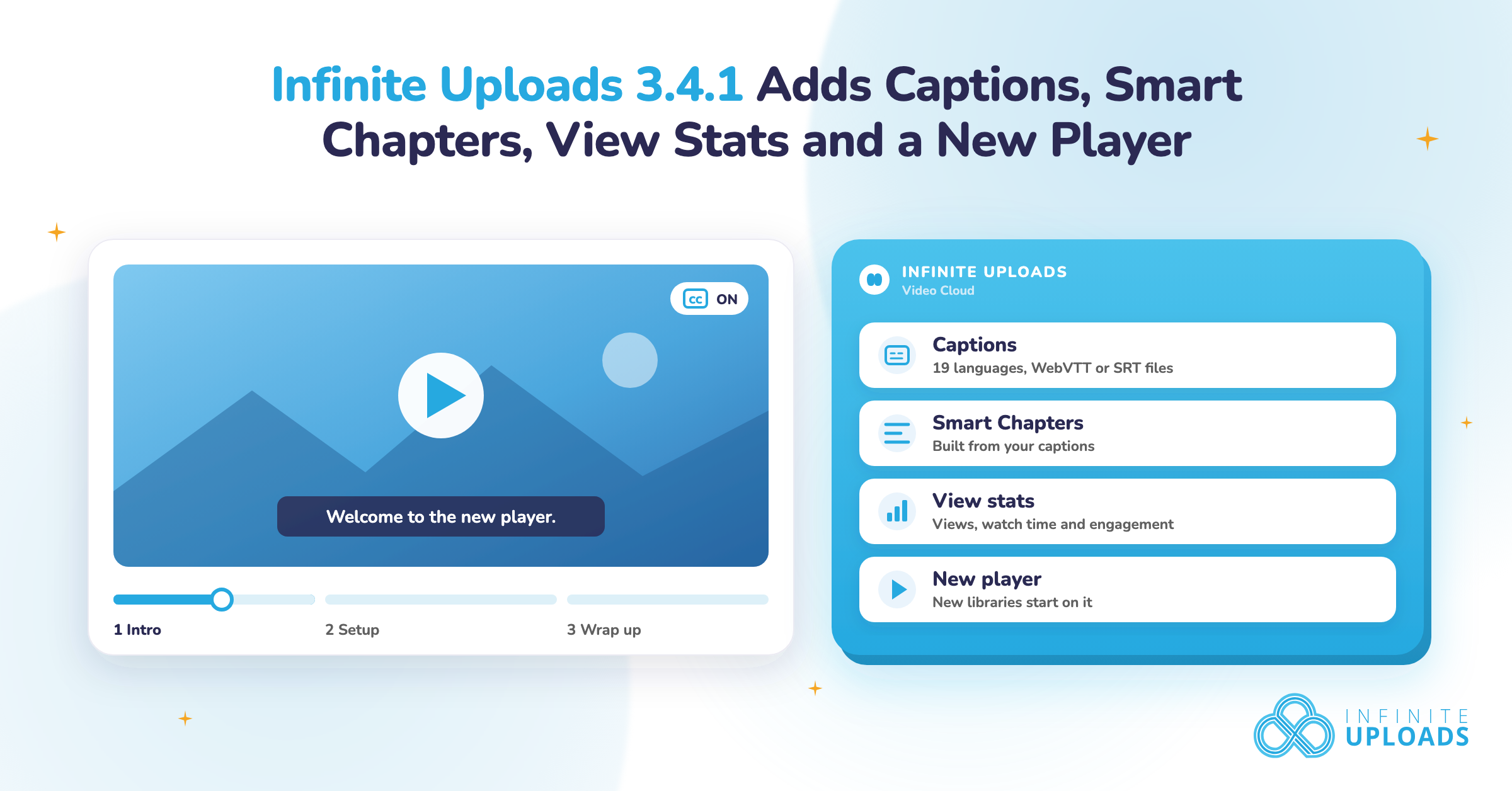
Video Cloud just got a lot more useful. Infinite Uploads 3.4.1 adds captions, chapters that build themselves, and real view stats for every video you host, plus a new player that new libraries start on automatically.
Most of this release lives in the video details screen (Media > Video Library, then click a video). It now has four tabs: Embed Code, Views, Captions and Chapters. Three of those are new, and the fourth finally does what the old Stats tab never did.
See how each video is doing
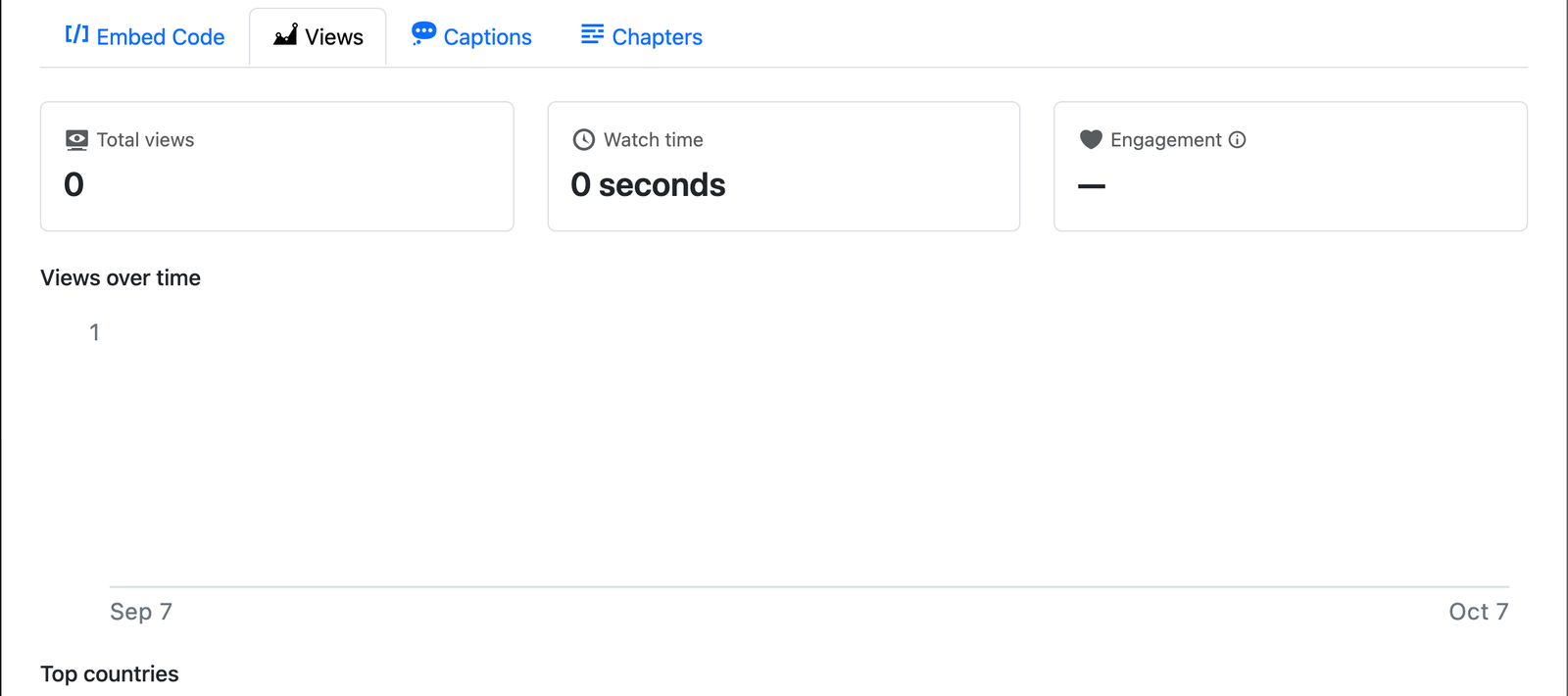
The new Views tab replaces the old Stats tab, which never really worked. Open it and you get total views, total watch time and an engagement score, then a 30-day chart of views over time and your top five viewer countries.
Engagement is a score from 0 to 100 based on how long and how people watch. A new video with no plays shows a dash instead of a made-up number, and a small help icon next to the score explains what it measures. Plays through the videos you embed with Infinite Uploads count toward these numbers.
Add captions in any of 19 languages
Captions help the viewer watching with the sound off at work, and the viewer who needs them every time. They also give you something to build chapters from, which is the next section.
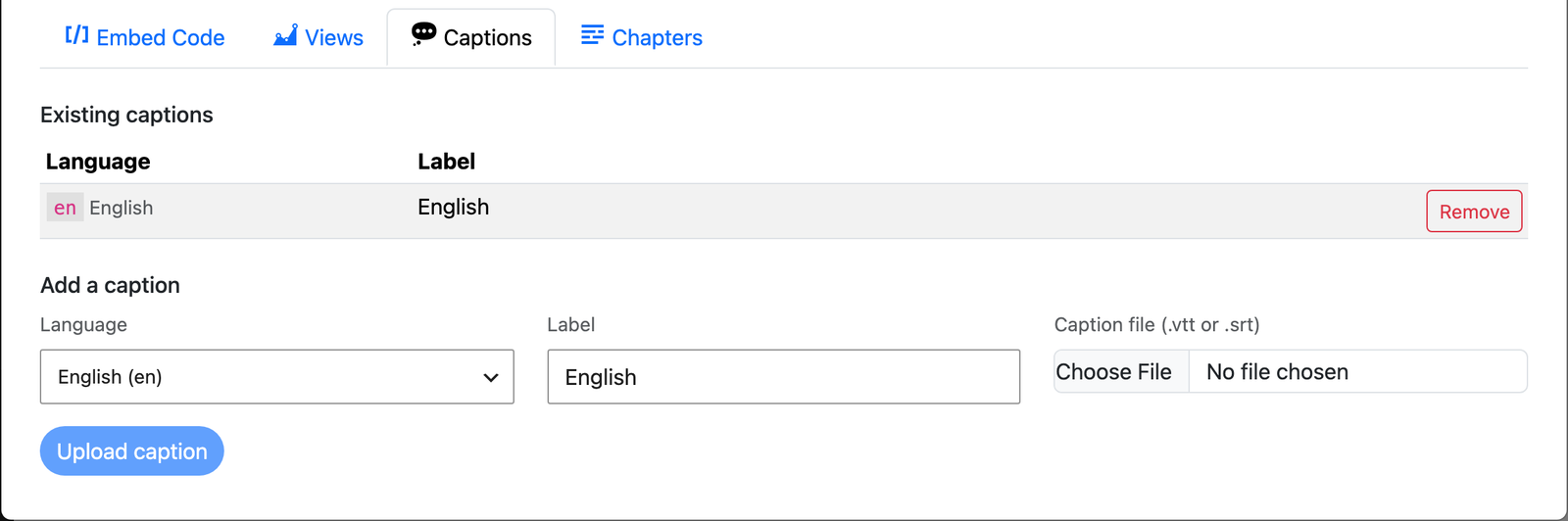
Open the Captions tab, pick a language, and upload a WebVTT (.vtt) or SRT (.srt) file up to 512 KB. If you upload an SRT, we convert it to WebVTT for you. The label fills in on its own and you can edit it. Viewers turn captions on from the CC menu in the player.
- 19 languages to pick from, including English, Spanish, French, German, Portuguese, Japanese, Arabic and Hindi.
- One caption track per language on each video.
- Remove a language any time with the Remove button.
- Bad files get refused with a plain message, whether it's the wrong file type, too large, empty or malformed.
Let Smart Chapters do the work
Chapters let viewers jump to the part they came for. Think of it as a table of contents for your video, sitting right on the player's timeline.
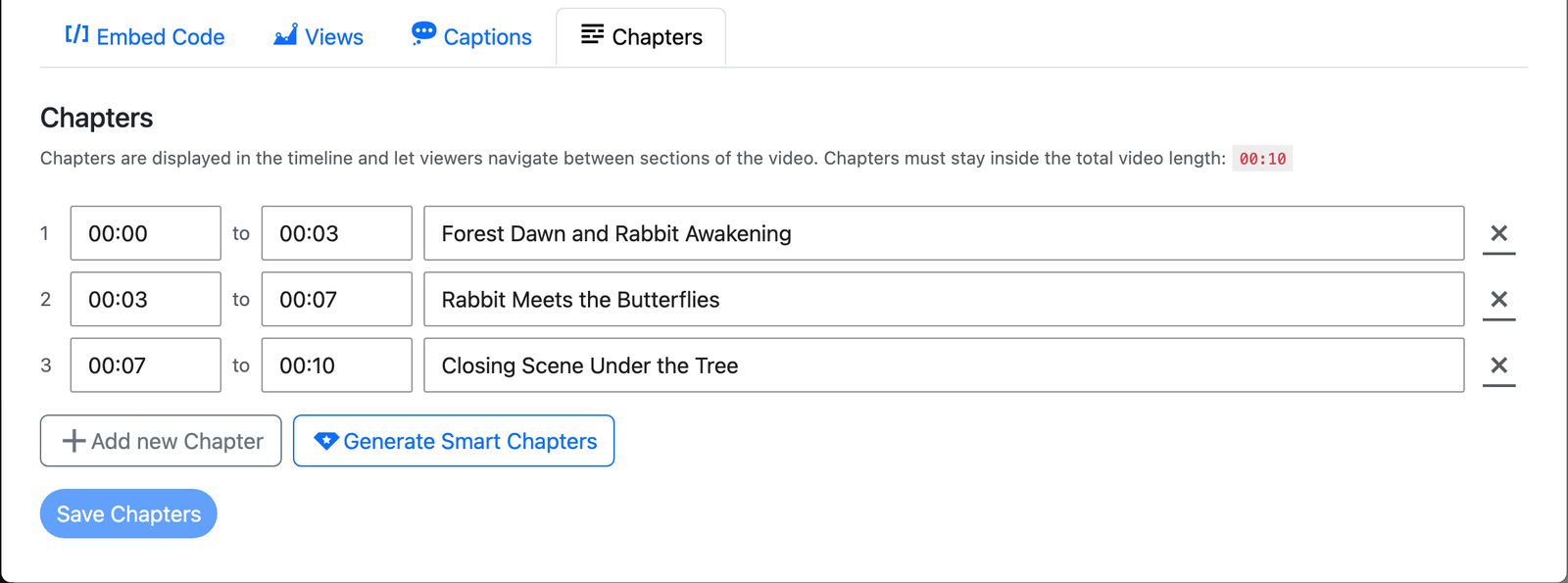
On the Chapters tab, click Generate Smart Chapters and we build the chapters from the captions you already uploaded. It reads your caption file. It never transcribes the video, so there's no extra transcription cost. That's also why the button stays grayed out until a caption track exists. Hover over it and it tells you to upload captions first.
Generating usually takes a minute or less. You can close the window while it works, and the chapters are there when you come back. Don't love a title? Edit it. You can also add chapters by hand with a title, a start time and an end time. Chapters have to stay inside the video's length and can't overlap, and the plugin tells you plainly when a range won't work.
A new player, on your schedule
Video Cloud now has a new player. It supports captions from the CC menu, chapters on the timeline, and your library's player color, controls and language settings.
- New libraries start on the new player. Nothing to set up.
- Existing libraries stay on the old player until you switch. Go to Infinite Uploads > Video Cloud, open the Player tab, choose Player v2 (recommended) and click Save Settings.
- The old player is going away. On Player v1, a banner reads "Player v1 is being retired" and counts down to December 1, 2026, with a one-click Switch to Player v2 button. On that date, any library still on v1 moves to v2 automatically.
Switching takes effect everywhere at once, including videos already embedded on your pages and posts, whether they use the shortcode or the block. You don't re-save a thing. (You need 3.4.1 for that. Sites on older versions keep the old player.) The Infinite Uploads Video block now renders on the server when the page loads, so every embed uses whatever player your library is set to.

Video Cloud is included with your Infinite Uploads storage plan, so none of this costs extra.
Fixes for real-world sites
The rest of 3.4.1 is the unglamorous stuff that bites you on a live site.
- Page builders stay styled after you switch to cloud media. Pages built with Elementor, Divi, Beaver Builder, Bricks, Oxygen or WPBakery could look unstyled or lose background images after the switch, until you cleared each builder's cache by hand. Infinite Uploads now refreshes each builder's cached CSS on every switch, in both directions.
- Beaver Builder works if you set it up after the switch. If you installed or first used Beaver Builder after moving to cloud media, its pages came up unstyled. The plugin now creates the local folder Beaver Builder needs.
- WooCommerce downloads of cloud files work. Files stored in the cloud, including ones whose local copy you removed with Free up local storage, could show WooCommerce's "File not found" page. Now WooCommerce checks the order, the download limit and the expiry like it always does, and then sends the buyer to the file on the CDN. It works with all three WooCommerce download methods.
- Background sync recovers on its own. If your host cuts a sync off partway through, it now picks back up within about five minutes instead of stopping. Large files resume too.
- AI tools ask before switching your storage. WPVibe, Novamira and Respira now ask for your approval before switching your site to cloud media or back to local, because that changes every image URL on the site.
- Background jobs stop when you deactivate. The plugin's daily background jobs now stop cleanly when you deactivate or delete it, like any other plugin.
Update and try it
Update to 3.4.1 from the Plugins screen in wp-admin. Then open a video in the Video Library and look at the new tabs.