Managing a WordPress website can be great. However, over time, your media library may become a cluttered mess of images, PDFs, and videos. If you have ever spent too long searching for one file you uploaded months ago, you are not the only one.
Direct answer: WordPress core does not provide a conventional folder interface in the Media Library. It can organize physical upload paths by year and month, while most media-folder plugins create virtual folders that group attachment records without moving the underlying files or changing their public URLs. Confirm the behavior before installing a plugin because physical-path tools have different migration and rollback risks.
In this post, you’ll learn how to organize your WordPress media library using folders. It’s simple, and you won’t need to mess with any code. Your media library will be clean, searchable, and much easier to manage.
For the broader workflow, use the WordPress media management guide. You can also compare media replacement, manage attachments with WP-CLI, and review how to offload the media library. See the current media-library folder feature and its product release note.
Why Doesn’t WordPress Support Media Folders by Default?
WordPress doesn’t allow you to create folders in the media library. In case you didn’t, now you know.
WordPress sorts your uploaded files into year and month folders. That’s okay for small websites. But if you have numerous images, videos, or PDFs, it quickly becomes a headache.
WordPress stores your uploads inside the wp-content/uploads folder. So, a picture uploaded in you WordPress media library in August 2025 might look like this:
wp-content/uploads/2025/08/image.jpg

The reason is simple. WordPress uses a flat system to store files. This makes the platform faster and easier to run on any theme, plugin, or hosting service. But the downside is you don’t get neat, custom folders.
You can use some WordPress plugins to add folder features that WordPress doesn’t give you naturally. You can create your own folders, drag and drop files, and keep your workspace organized.
Once you set one up, your media library feels way easier to manage. So, you don't need to browse randomly to find a file, and you’ll know exactly where it lives.
Virtual Folders vs. Physical Upload Paths
Virtual folders organize attachment records in the WordPress interface. The file can stay in its existing wp-content/uploads/YYYY/MM/ location, so attachment IDs and public URLs normally remain unchanged. This is usually the lower-risk choice for an established site.
Physical folder tools move files or create real directory paths. That can be useful for a storage workflow, but it can also affect URLs, responsive image metadata, migrations, offload rules, backups, and uninstall behavior. Test on staging and document how the plugin restores files before using it on production.
Limitations of the Default WordPress Media Library
Let’s look into some of the restrictions of the WordPress media library. Will focus on the sections where it controls you the most.
- You can’t group files by project or topic (e.g., “Landing Page Assets”).
- Team members upload duplicate files because they can’t find existing ones.
- It slows down publishing because you’re hunting through endless thumbnails.
- Migrating or backing up becomes messy with duplicate or unused media.
Benefits of Organizing Your WordPress Media Library with Folders
A disorganized WordPress media library looks bad and slows down your workflow. The larger your site grows, the more difficult it becomes to find the right image, video, or document.
If you’re wondering whether folders are worth it, here’s why I recommend them:
- Save Time: You don't waste time scrolling or searching randomly to find your file.
- Better Image SEO: Instead of uploading duplicates, find and reuse optimized images.
- Smoother teamwork: Folders help multiple uploaders stay consistent in teamwork.
- Backups and migrations: Organized folders reduce site migration and restoration errors.
Whether you publish content daily or run occasional campaigns, the time you save in the media library quickly adds up. A tidy media library reduces stress, keeps your site clean, and makes sure you and your team work smarter.
Create Folders in Your WordPress Media Library Using Plugins
Here’s the main part. Let’s create folders in your WordPress media library with a plugin. Using WordPress Plugins is the easiest way to do it. You can install them quickly and get a folder system that WordPress doesn’t offer by default.
Step 1: Choose and Install a Media Library Folder Plugin
First, pick a media management plugin that meets your needs. There are multiple plugins designed specifically to add folder functionality to WordPress. Some popular ones include:
| Plugins | Features | Best For | Price |
|---|---|---|---|
| Infinite Uploads | Drag & drop folders, subfolders, improved sorting, improved search, integrates well with offloaded storage | General Users, Agencies, and those with lots of sites | Paid, with one plan for unlimited sites |
| FileBird | Drag & drop folders, WooCommerce support, bulk organization. | General users | Free with paid options |
| Real Media Library | Subfolder support, sorting by author/date, galleries. | Advanced sites | Paid |
| WP Media Folder | Cloud integration (Google Drive, Dropbox), deep sorting. | Large sites | Paid |
| Folders by Premio | Unlimited folders, color coding. | Simplicity lovers | Free |
Since Infinite Uploads is beginner-friendly and works well with most themes, I use it to create folders in my WordPress media library.
Here’s how to install it:
- Go to Plugins > Add New in your WordPress dashboard.
- Search for Infinite Uploads in the search bar.
- Click Install Now and then Activate.
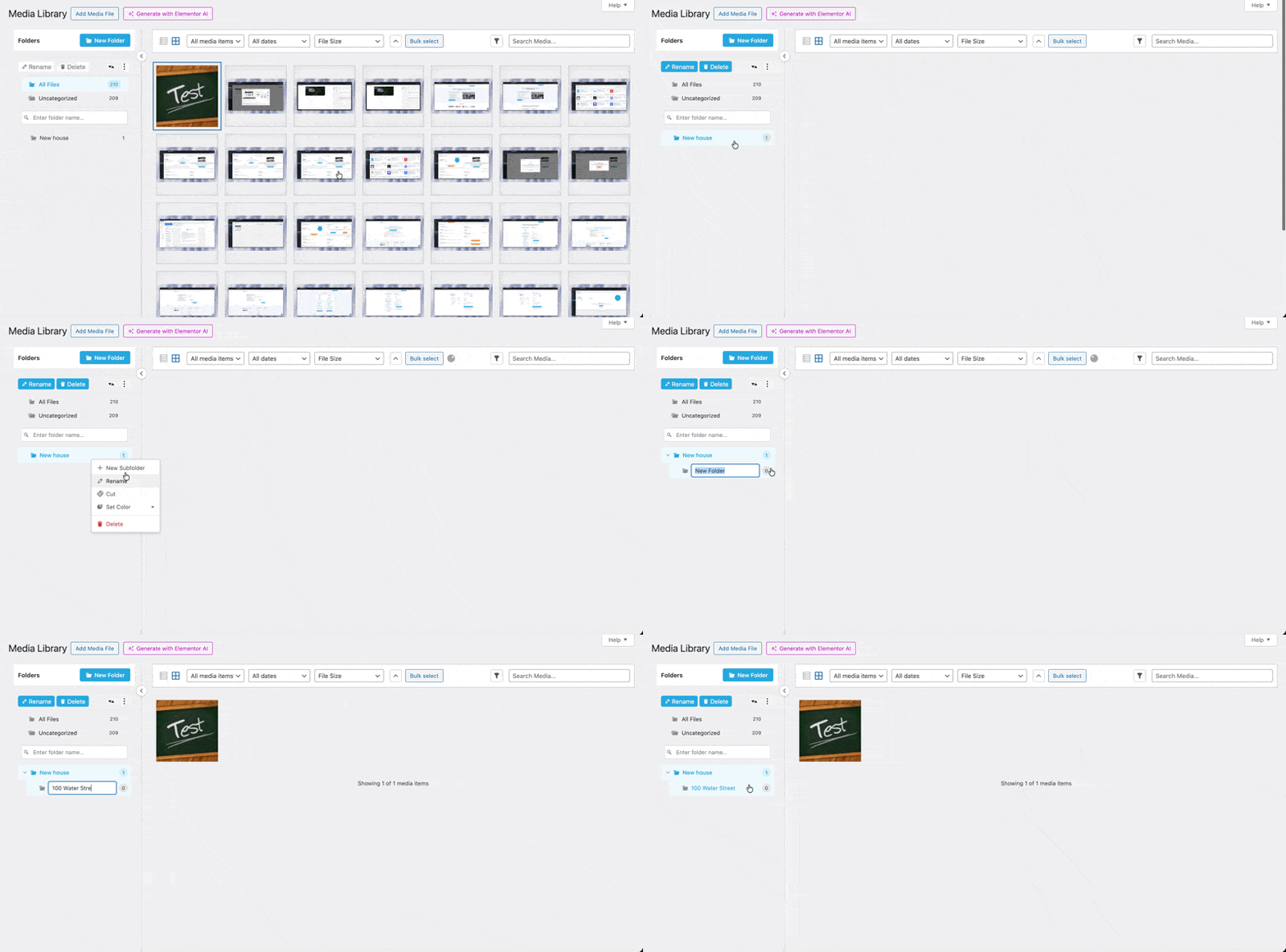
Step 2: Create Your First WordPress Media Folder
Once the plugin is activated, go to your Media Library (under Media > Library in the dashboard). You’ll notice a new sidebar that lets you create and manage folders.
To create a folder:
- Click the Add New Folder button.
- Give your folder a descriptive name, such as “Blog Images” or “Product Photos.”
- Hit Enter, and your folder will appear in the sidebar.
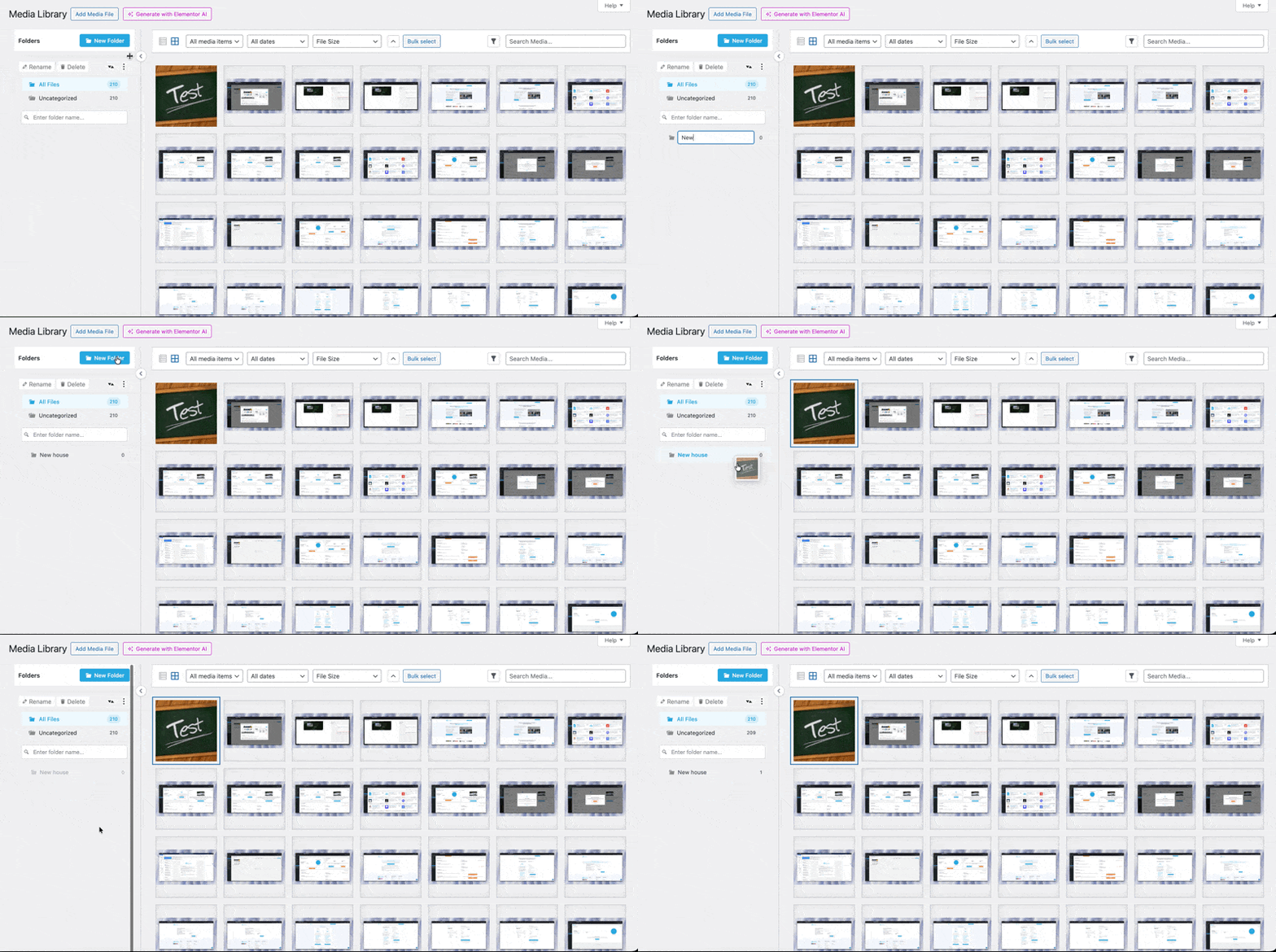
Need subfolders? Right-click on a folder and select Add Subfolder. This is great for breaking down categories further—for example, you could have a “Blog Images” folder with subfolders for each blog category.
Step 3: Organize Existing Media Files
Once you’ve created folders, it’s time to tidy up.
- Select the files you want to move. Most plugins have a bulk select tool to make this easier.
- Drag and drop the files into your chosen folder.
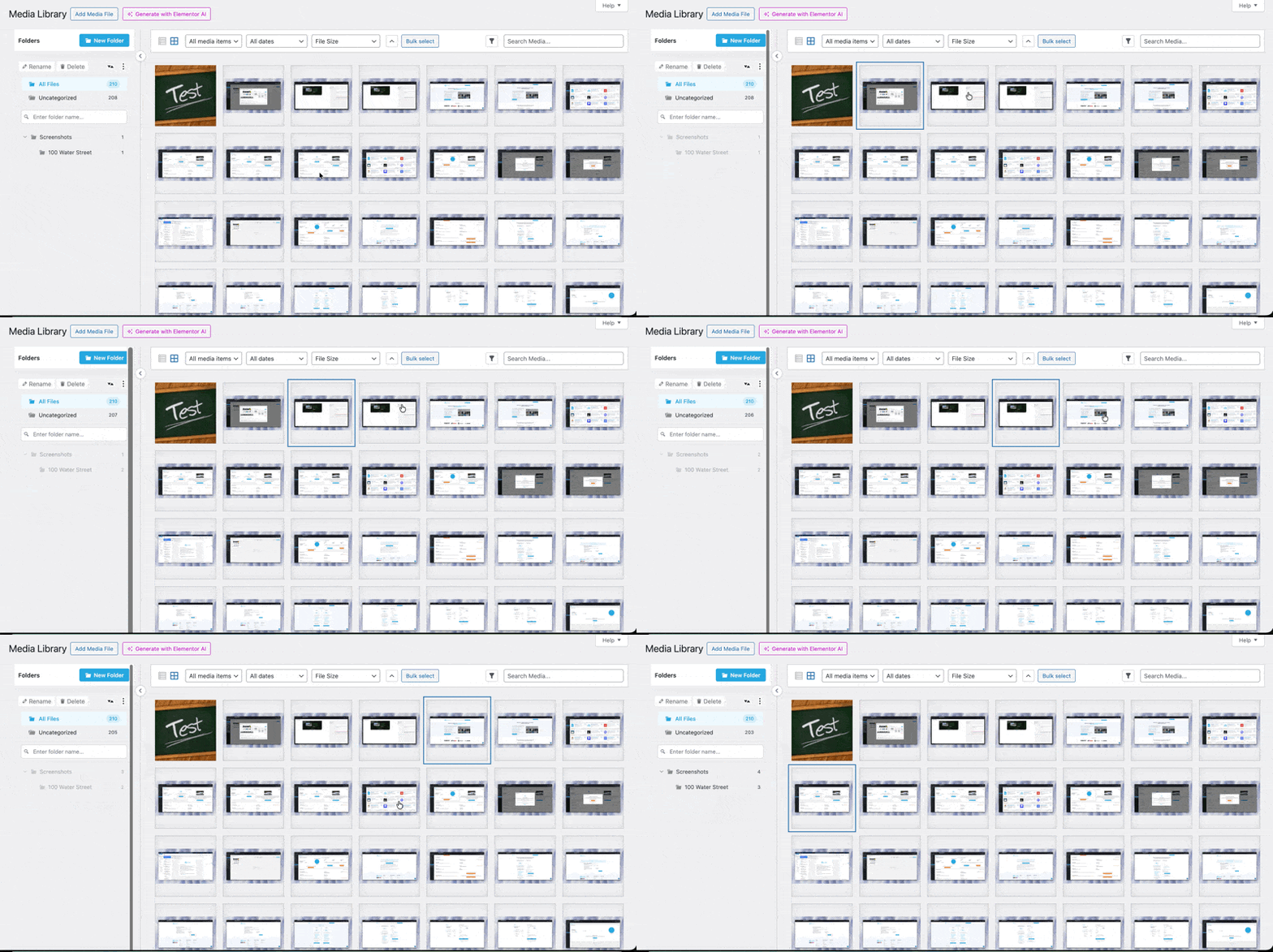
Remember, these are “virtual” folders. They don’t actually move files on your server. Plugins like Infinite Uploads or FileBird just give you a way to organize files inside the WordPress dashboard.
When you drag a file into a folder, the plugin links it there, but the file itself stays in the same spot in your uploads folder.
Your file URLs never change, so you don’t break links in posts or pages. It also won’t interfere with backups or site migrations, as the folder setup is stored in your WordPress database.
Step 4: Upload Files Directly to Your WordPress Media Folders
Going forward, you can upload new files directly into folders, ensuring your uploaded files are well-organized:
- Select the folder you want to upload to.
- Click the Upload button or drag and drop your files into the media library.
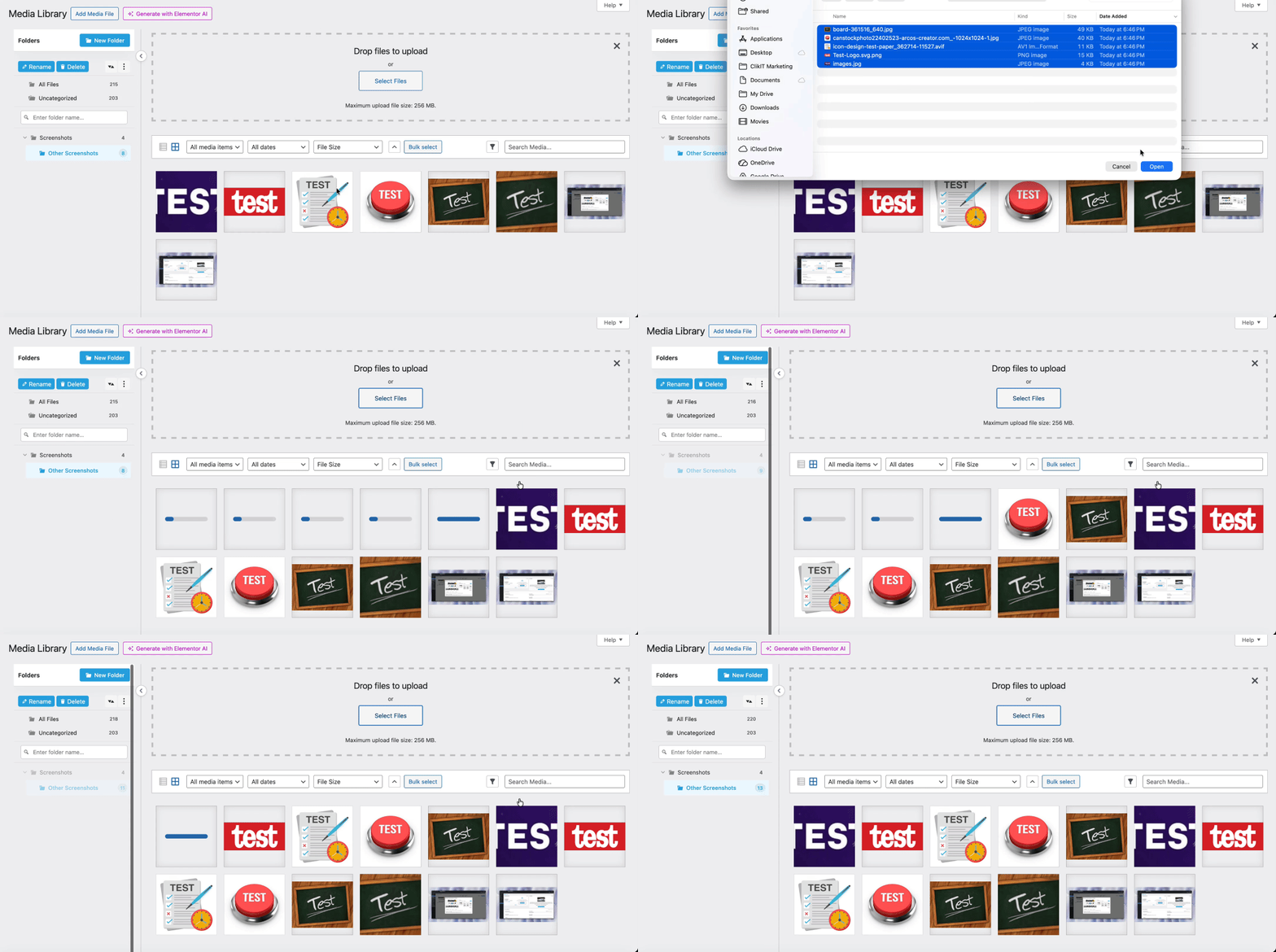
This keeps your library organized from the start, saving you the hassle of moving files later.
Pros and Cons of Creating Folders in WordPress Media Library
Creating folders in WordPress can significantly improve how you manage media files. They add structure and save time, but there are also a few drawbacks you should know before relying on them.
Let me share with you some of the benefits and drawbacks of creating a folder in WordPress.
Pros of Creating Folders in WordPress
- Makes finding files faster and easier.
- Large media libraries stay easier to manage as your site grows.
- Reduces clutter and makes your WordPress media library cleaner.
- Teams can stay consistent by using the same folder setup.
- Most plugins and themes work fine with folder plugins.
Cons of Creating Folders in WordPress
- Requires a plugin since WordPress doesn't include folders natively.
- Folders are virtual. They organize files inside the dashboard but don't change where files are stored on the server.
- Too many nested subfolders can create more confusion than they solve. One or two levels deep is usually enough.
- If you switch folder plugins, your structure may not transfer. Most folder plugins store data differently, so moving between them usually means rebuilding.
Best Practices for Media Organization
Creating folders in the WordPress media library is just the first step toward a cleaner media library. But you also need to get some of your habits right. A few simple maintenance practices can keep your WordPress folders inside the WordPress media library in perfect setup.
- Start early: If your site is new, set up folders right away. It’s easier to stay organized from the start than fix a big mess later.
- Use clear names: Choose folder names that are self-explanatory at a glance. For example, “Homepage Images” is better than “Misc” or “Folder1.”
- Clean up often: Delete unnecessary files and remove empty folders. Tools like Media Cleaner can even find unused files for you.
- Don’t overdo subfolders: Too many nested folders can be confusing. Try to stick with one or two levels.
- Train your team: Make sure everyone in your team knows the folder system.
Optimize WordPress Media Files for Search Engines
Organizing your media library also helps boost your SEO performance and make your site more known and discoverable. Here are a few simple ways to optimize your media files:
Use Descriptive File Names
Search engines look at file names to understand the context. So choose a meaningful name before uploading your image. For example, sydney-skyline-at-sunset.jpg is far better than IMG0001.jpg. Here, the clear names would help search engines understand that the image displays the Sydney skyline at sunset.
Add Alt Text For Images
Always fill in the alt text field in WordPress. Alt text helps screen readers describe images to visually impaired users, and it also tells search engines what the image shows. Keep it concise, accurate, and add a keyword if it fits naturally.
This improves accessibility and can give your page an SEO boost. If we use the previous image, then the alt tag should be, “people watching the Sydney skyline at the time of sunset from the beach.
Compress and Resize Images
Large files slow down your site, and page speed is a ranking factor. Resize images before uploading and pick the right format—JPEG for photos, PNG for graphics with transparency, and WebP for smaller, modern file sizes.
WordPress Plugins like Smush, ShortPixel, or Imagify can also automatically compress files. Optimized images make your site faster and improve the user experience.
Use WordPress Cloud Storage & Media Offloading Solution
You can create folders in your WordPress media library to keep it organized. But it only solves part of the problem. With large videos, PDFs, or images, your website starts performing poorly as your server slows down, and pages take longer to load.
That is where you should focus more on media offloading than media organization. Moving your media files to cloud storage from the hosting servers allows the hosting to breathe freely and improve performance. This reduces server load, improves Time to First Byte (TTFB), and speeds up global delivery.
Folders Solve Organization. Offloading Solves Performance.
Creating folders in your WordPress media library keeps things organized. But organization alone doesn't fix the performance problems that come with a growing site. If you've got thousands of images, large PDFs, or video files, your hosting server is still doing all the heavy lifting to store and serve them.
That's where media offloading comes in. Instead of storing files on your hosting server, offloading moves them to cloud storage and serves them through a CDN. Your server handles WordPress. The CDN handles your media. Think of it like moving boxes out of your office and into a warehouse that ships directly to your customers.
The result is lower server load, faster page speeds, and no more hitting storage limits on a $30/month hosting plan.
Infinite Uploads Does Both
Infinite Uploads is a WordPress media platform that combines media-library folders with cloud offload, CDN delivery, and video hosting.
You don't need to configure S3 buckets, set up IAM permissions, or stitch together separate plugins for storage, delivery, and organization. Install the plugin, connect your site, and your media syncs to the cloud automatically. Files are served through a global CDN with 119+ points of presence.
Plans start at $19/month (or $16/month billed annually) and cover unlimited WordPress sites. No per-site licensing. One subscription handles every site you manage.
If you're already using a separate folder plugin and a separate offloading plugin, that's two plugins doing what Infinite Uploads does on its own.
What About Other Offloading Options?
If you only need CDN delivery without folder management or video hosting, tools like Amazon S3 paired with WP Offload Media or BunnyCDN can work. S3 + WP Offload Media gives you granular control over storage and delivery, but you're configuring buckets, IAM, and DNS yourself. BunnyCDN is simpler but only caches and delivers files. It doesn't offload them from your server.
Depending on the provider and plugin combination, these workflows may require separate tools for folders, video hosting, storage, and CDN delivery, plus additional configuration or licensing.
For agencies managing multiple sites, compare the full workflow, support responsibility, and total cost before deciding whether one integrated platform or separate specialist tools fit better.
One Plugin for Folders, Cloud Storage, and CDN Delivery
Most WordPress sites end up needing at least two or three plugins to handle media properly. One for folders. One for offloading to cloud storage. Maybe another for CDN delivery. That's a lot of moving parts, and each one adds cost, configuration, and potential conflicts.
Infinite Uploads handles all of it. Folders in the media library, cloud storage, and global CDN delivery in a single plugin. Install it, connect your site, and your media is organized, offloaded, and served fast to visitors worldwide.
One subscription. Unlimited WordPress sites. No per-site licensing.
Infinite Uploads organizes your media library into folders, stores everything in the cloud, and delivers it through a global CDN. You solve the clutter problem and the performance problem at the same time.