WordPress 7.1 shipped on August 19, and I keep seeing the same line on LinkedIn and in Facebook groups: "WordPress now optimizes your images, no plugin needed." It doesn't. We've run 7.1 on our own sites since the release candidate, read the developer notes line by line, and the honest version is more useful than the hype. Here's what core actually does to your images now, what it leaves alone, and where Infinite Uploads picks up.
The short version. WordPress 7.1 moves the resizing and compressing of NEW uploads from your server into your browser, and only in Chrome and Edge. It does not touch the images already in your library, it does not convert anything to WebP or AVIF unless a developer turns that on, and it still serves every file from your own host. Infinite Uploads does the opposite job: it optimizes your whole existing library at delivery, in AVIF and WebP, from a CDN, without storing a single extra copy.
What WordPress 7.1 actually does to your images
The feature is called client-side media processing. Before 7.1, you uploaded a photo and your server's PHP made the thumbnail, medium, and large copies. Now the browser does that work before the file even leaves your machine, using a WebAssembly build of the libvips image library. Think of it as the difference between mailing a raw roll of film to a lab and developing the prints at home before you ship them. Same prints, but the lab (your server) doesn't do the work anymore.
What you get from that, straight from the release notes:
- Slightly smaller JPEGs on upload. libvips compresses better than the GD and Imagick libraries most hosts use. Core puts the JPEG saving at roughly 15%.
- iPhone photos just work. HEIC files are decoded in the browser and uploaded as a web-ready JPEG, with the original HEIC kept alongside it.
- Big animated GIFs become video. An opaque animated GIF gets an MP4 or WebM companion so the page doesn't load a 20 MB GIF.
- No more PHP memory failures on huge images. The server never opens the image, so the "out of memory" upload error a lot of you have hit simply can't happen on this path.
- Uploads survive a bad connection. Drop wifi mid-upload and it retries instead of failing. We showed that one on video in our 7.1 Media Library rundown.
All of that is good. I'd take it over the old server path every day. It's just not image optimization in the sense that a site owner means it.
What 7.1 doesn't do, and why the LinkedIn posts are wrong
Four things, and each one matters for a real site.
It only touches new uploads. Nothing in 7.1 goes back through the 3,000 photos already in your library. If your site was slow on August 18, it was exactly as slow on August 20. The developer notes are clear that processing happens "before a file is uploaded," and that's the whole scope.
WebP and AVIF are off by default. The browser can convert to those formats, but only if a developer adds the image_editor_output_format filter to your theme or a plugin. Out of the box, a JPEG goes in and a JPEG comes out. Regular site owners never see that switch.
It only runs in some browsers, on some machines. Client-side processing needs Chrome or Edge 137 or newer. Firefox and Safari fall back to the old server path. It also switches itself off on devices with 2 GB of RAM or less, on single-core devices, on 2G connections, and when the browser sends a Save-Data header. Everyone in those cases gets the pre-7.1 behavior, quietly, with no notice. So whether your images get the better compression depends on which laptop your editor happened to upload from that day.
It changes nothing about delivery. Your images still sit on your hosting plan and still get served from that one server to every visitor, whether they're in Ohio or Osaka. 7.1 is an upload feature. The part of image performance your visitors actually feel happens after upload, and core doesn't go there.
I firmly believe the "no plugin needed" crowd hasn't read the notes. What shipped is a nicer upload pipeline. Call it that.
What Infinite Uploads image optimization does instead
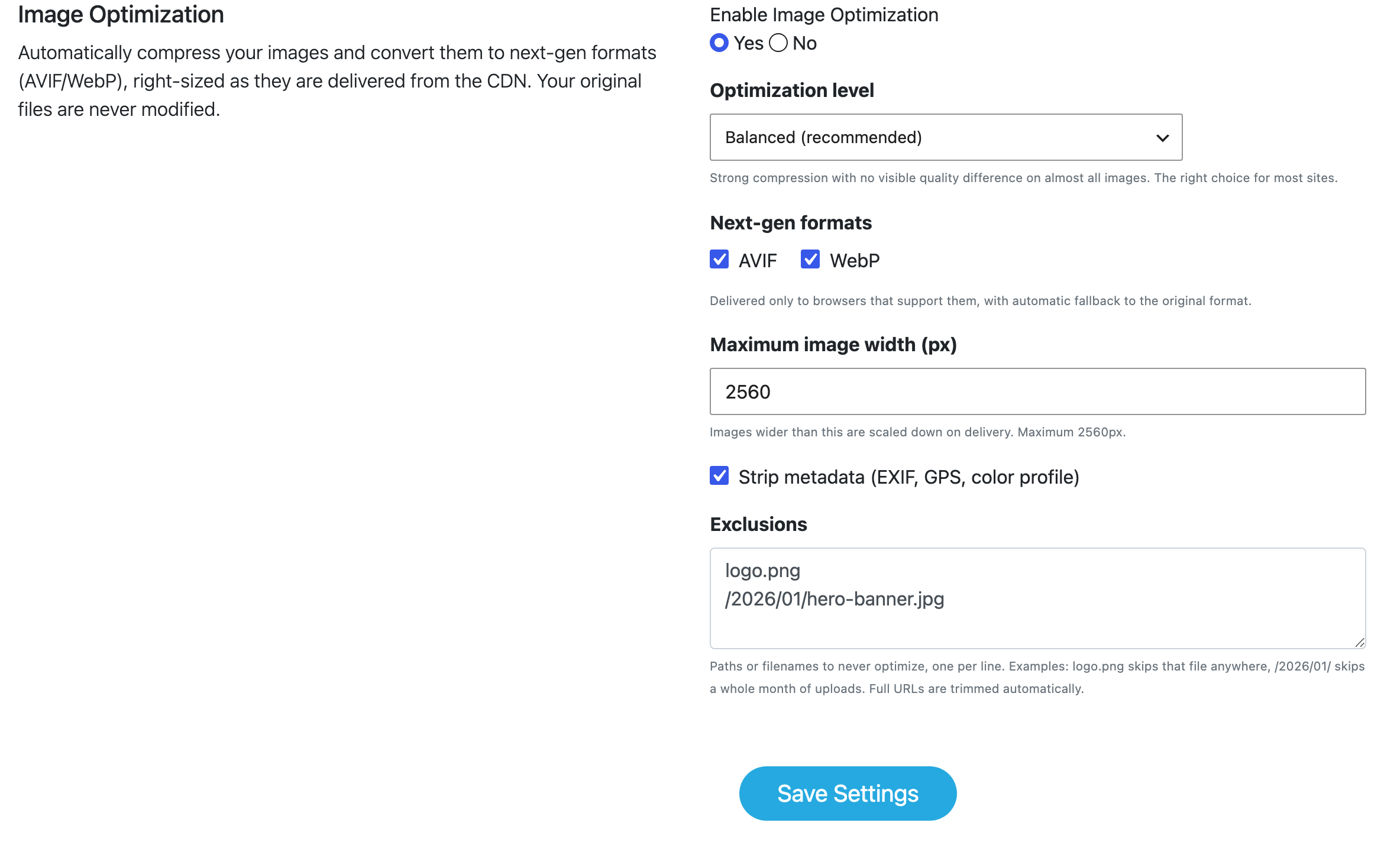
We shipped image optimization in early August, about two weeks before 7.1, and we built it around the exact gaps above. It doesn't touch your uploads at all. It works at delivery. When a visitor requests an image, our CDN converts it to AVIF or WebP (whichever that visitor's browser supports), scales it to a sane maximum width, caches the result on the edge, and serves it. Your original file never changes and you store zero extra copies.
If 7.1 is developing your prints at home before you mail them, this is a print shop in every city that makes the right size print the moment someone asks for it, and keeps a copy on the shelf for the next person. The negative stays in your drawer, untouched.
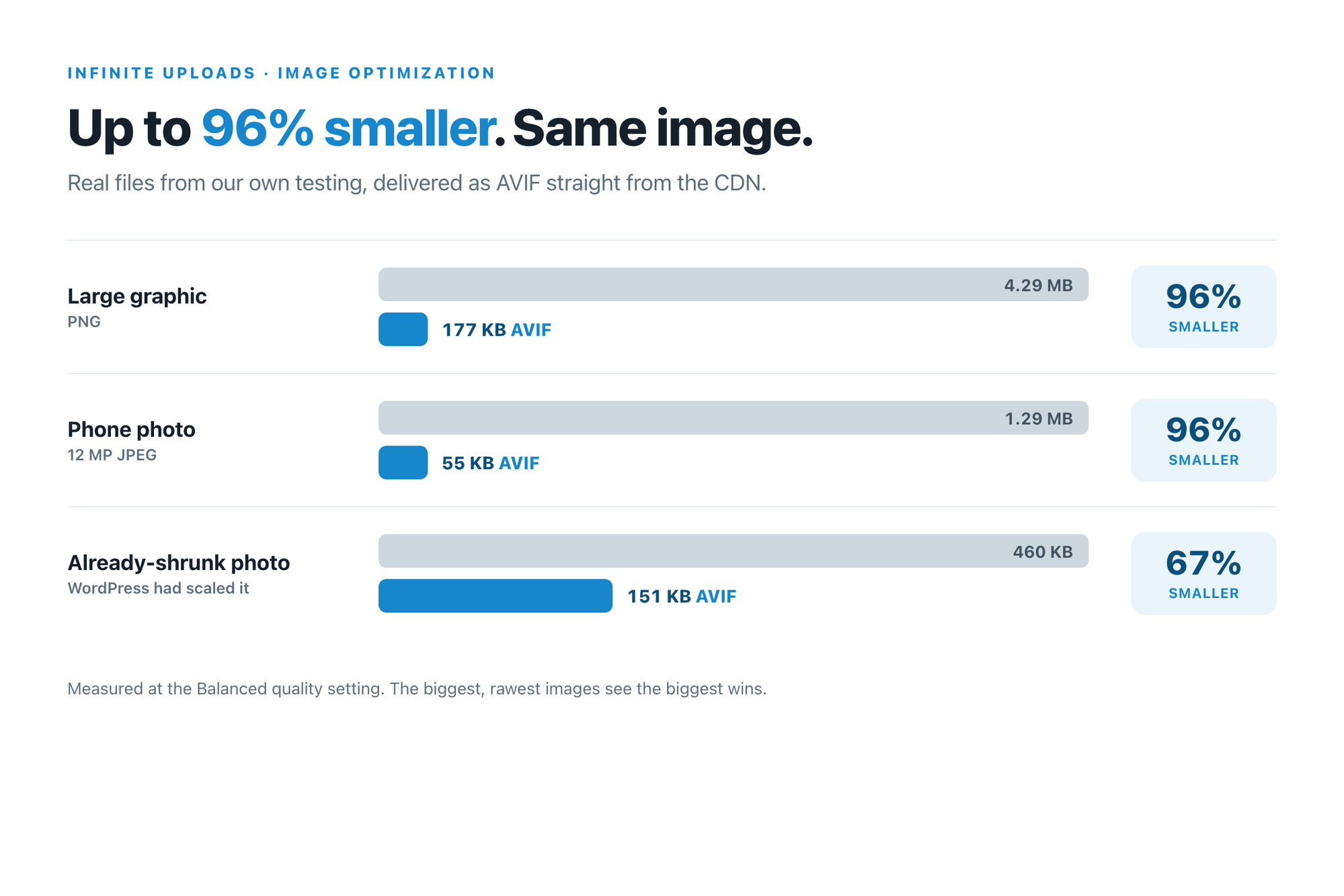
The numbers from our own testing, measured on the Balanced setting with real images delivered live from the CDN:
- A 12 megapixel phone photo went from a 1.29 MB JPEG to a 55 KB AVIF. 96% smaller.
- A photo WordPress had ALREADY downsized went from 460 KB to 151 KB. 67% smaller. That's the row that matters here, because it's the case 7.1's better compression is supposed to cover.
- Across the real photos and graphics on a live site, 45% to 80% smaller.
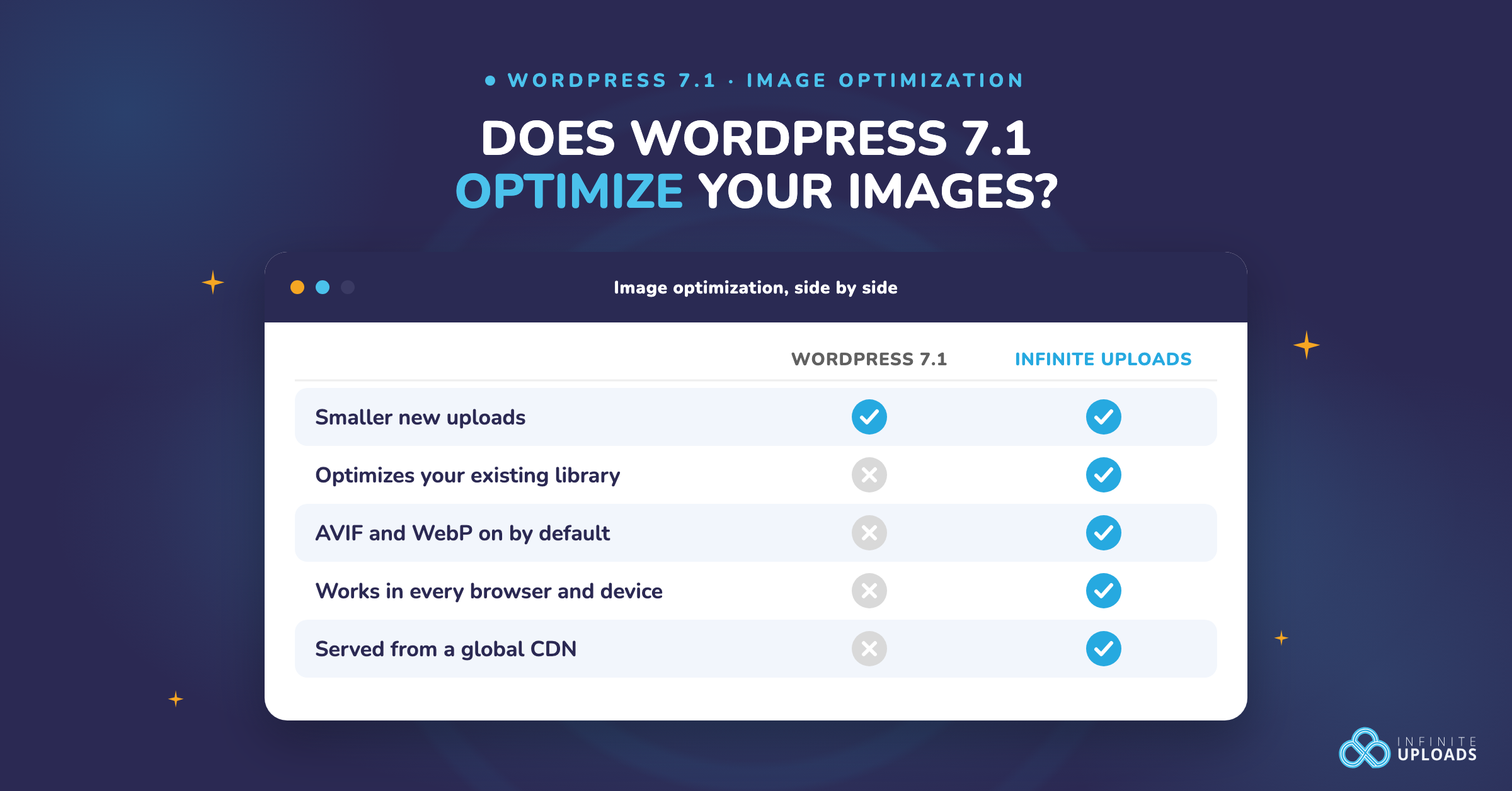
Side by side
| What you want | WordPress 7.1 | Infinite Uploads |
|---|---|---|
| Smaller new uploads | Yes, about 15% on JPEGs, in Chrome and Edge only | Yes, 45% to 96% at delivery, every browser |
| Optimize the images already in your library | No | Yes, every image, the next time it's requested |
| WebP and AVIF | Only if a developer adds a filter | On by default, picked per visitor |
| Works for every editor on every device | No. Falls back on Firefox, Safari, low RAM, slow connections | Yes. Nothing depends on who uploaded |
| Extra copies stored | One set of sizes per image, on your server | None. Built on the fly, cached on the CDN |
| Served from a CDN | No | Yes, from our global network |
| iPhone HEIC uploads | Yes, converted to JPEG in the browser | Yes, offloaded like any other file |
| Cost | Free with the update | Included with Business plans, from $24 a month |
Which one do you need
If you run a small site, upload a few images a month from Chrome, and your pages already load fast, take the 7.1 update and move on. You got a better upload pipeline for free and there's nothing else to do.
If you've got years of photos in the library, a store with product images, a portfolio, or a client who uploads 4 MB screenshots from Safari, 7.1 didn't fix anything you'd notice. Your existing images are the same size they were in July, and they still ship from one server. That's the case Infinite Uploads was built for. And the two aren't competing. Run 7.1 for the upload side, run Infinite Uploads for delivery, and every image on the site gets both.
For agencies, the browser gating is the part to think about. When compression depends on which browser and which laptop each client uses, you can't promise a result. Delivery-side optimization removes the variable. Every image, every visitor, same outcome.
How to turn each one on
WordPress 7.1. Update from Dashboard, then Updates. Back up first or run it on staging. Client-side processing is on automatically in Chrome and Edge 137 or newer. There's no setting to find.
Infinite Uploads. Offload your media first, since optimization happens on the CDN and the CDN needs your files. Then open the Infinite Uploads menu in wp-admin, go to Account and Settings, set Enable Image Optimization to Yes, and click Save. Your library starts optimizing as visitors load pages. Image Optimization is included with Business plans, and the feature page has the full settings breakdown.
Take the update. Just don't mistake it for the fix.