Since release in 2015, Big File Uploads has been a one trick pony. It made uploading big files to WordPress easier, and it did it very well! But, we heard from user feedback and found that people were wanting a way to set different upload limits by file type. We already set a new upload limit based on user role, so could it not extend it to file types? That never made much sense. A product photo and a conference recording aren't the same kind of file, so why should they share the same ceiling?
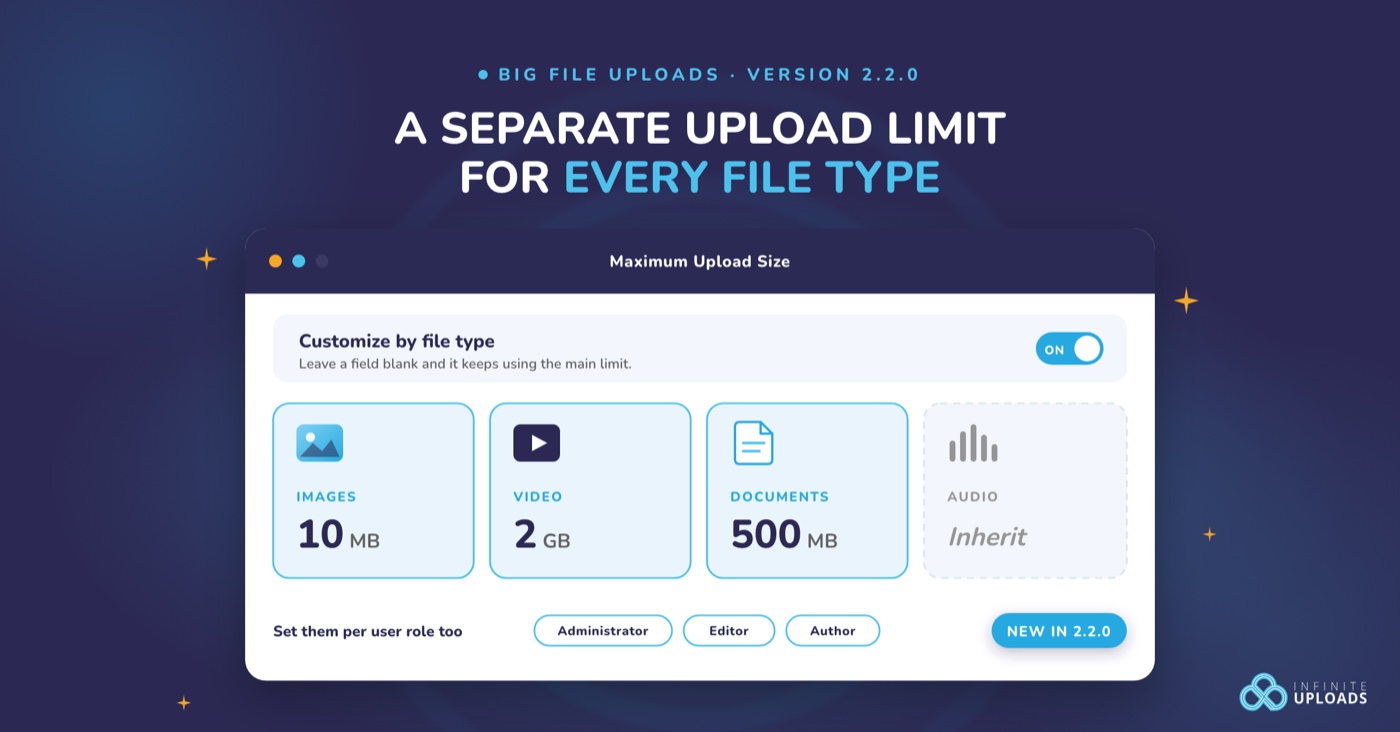
Big File Uploads 2.2.0 fixes that. You can now set a separate maximum upload file size for images, audio, video, documents, archives, and code, and you can do it for every user role on the site.
Why one upload limit was never enough
Big File Uploads exists to raise the WordPress maximum upload file size past whatever your host set, which is why it runs on over 150,000 sites. The catch is that raising the limit high enough for video raises it for everything. Set it to 2 GB so your team can upload webinar recordings, and now every 40 MB camera original from someone's phone sails straight into the media library too.
Those oversized images are the ones that quietly eat your storage. We wrote about how WordPress image sizes eat your server storage, and the math only gets worse when the originals are huge to begin with. WordPress creates a whole set of resized copies for every image you upload, so one bloated photo turns into six or seven bloated files.
A single limit forces you to pick between two bad options. Keep it low and video uploads fail. Raise it and images get a free pass. Per-type limits let you say 10 MB for images, 2 GB for video, and stop thinking about it.
How the new limits work
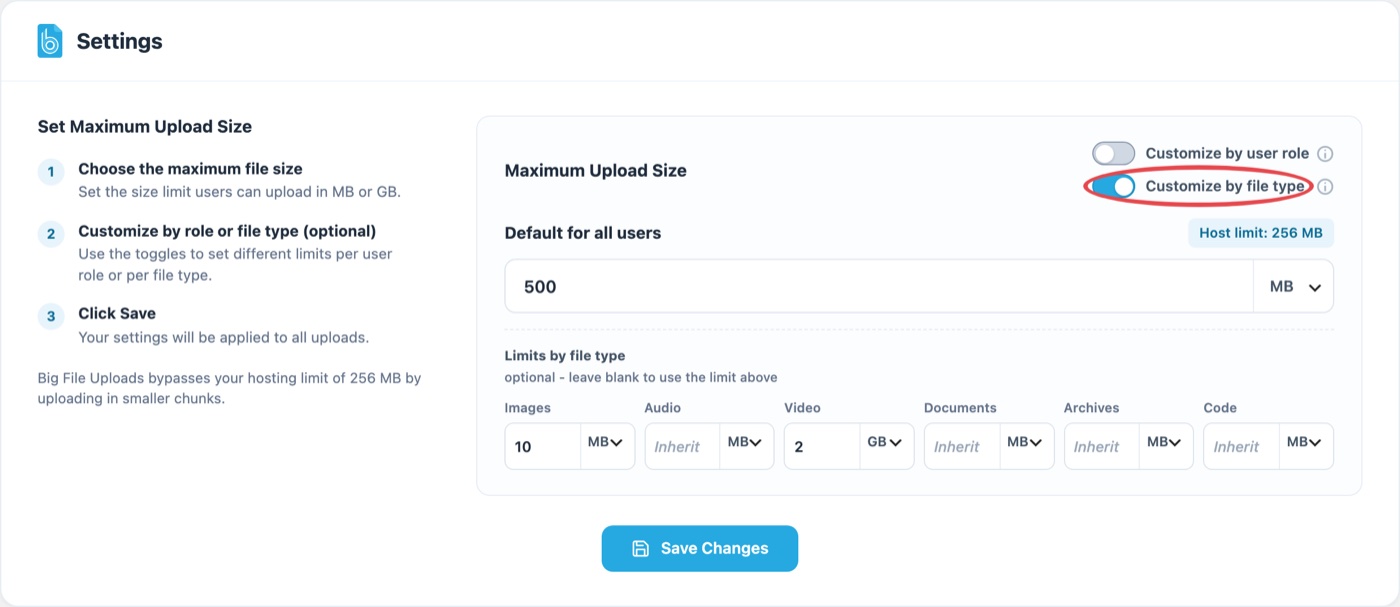
The main limit still does the job it always did. The new part is a second layer underneath it. When you turn on Customize by file type, you get a field for each type, and any field you fill in overrides the main limit for that type only. Leave a field blank and that type keeps inheriting the main limit. Nothing changes until you type a number.
Think of it like a post office with one counter. The old way, every package got weighed against the same rule. Now the clerk has a different maximum for letters, boxes, and crates, but still only one counter, and anything without its own rule falls back to the general one.
It stacks with the per-role limits you may already be using. Turn on both toggles and every role gets its own main limit AND its own per-type overrides. An Author can be capped at 5 MB for images while an Administrator gets 20 MB, and both can still upload a 2 GB video if that's what you decide.

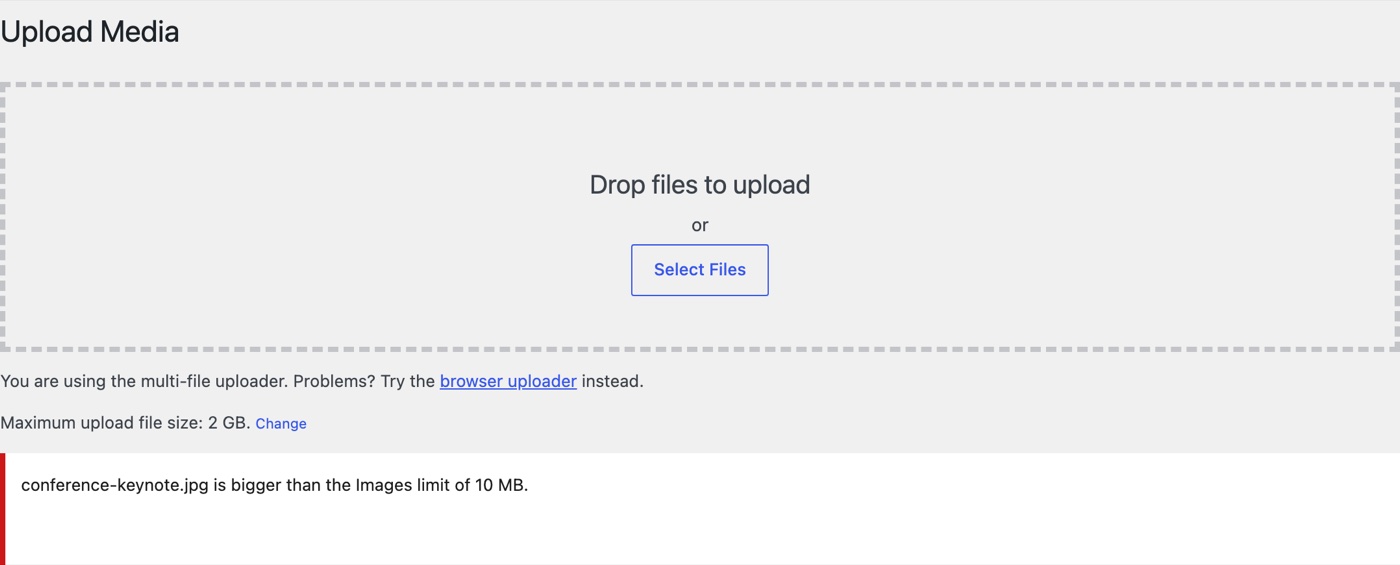
The limit is enforced in two places. When you pick a file in the media uploader, your browser checks it on the spot, so an oversized file is turned away before a single byte uploads, with a message that names the type and the limit it hit. Then the server checks it again as the chunks arrive. Big File Uploads sends large files in small pieces to get around server timeouts, and the size check now runs on every piece, including the first one.
Setting it up takes about a minute
- Update Big File Uploads to 2.2.0, then go to Settings and click Big File Uploads.
- Set your main limit in the Maximum Upload Size box. This is the fallback for any type you don't customize.
- Switch on Customize by file type. A row of fields appears under the main limit, one per file type.
- Fill in the types you want to control and pick MB or GB for each. Leave the rest blank.
- If you want different rules per role, switch on Customize by user role too. Each role gets its own section with the same fields.
- Click Save Changes.
One detail worth knowing. The Code type only shows up if your site actually allows code files like CSS or JavaScript to be uploaded through the media library. On a stock WordPress install, administrators and editors can, so you'll see it. If a security plugin has locked those uploads down, the field stays out of your way. A limit for files that can't be uploaded would just be clutter.
For developers
2.2.0 also adds a bfu_upload_limit filter. It hands you the resolved limit in bytes, the filename, and the settings scope in play (a role key or "all"), and whatever you return is what gets enforced. If you need a rule the settings screen can't express, like a bigger limit for one specific folder or one specific user, that's where it goes.
Where the big files should actually live
Per-type limits keep the wrong files from piling up. They don't change the fact that the right files, the 2 GB videos and the giant PDFs you genuinely need, still land on your web server and get served from it on every visit. That's the part Infinite Uploads handles. It moves your media library to the cloud and delivers it through a CDN, so your server stops doing storage and delivery work it was never good at. Big File Uploads gets the file in. Infinite Uploads keeps it from weighing your site down.
Big File Uploads 2.2.0 is free, as always. Grab the update, flip the toggle, and give your images a limit that actually fits them.