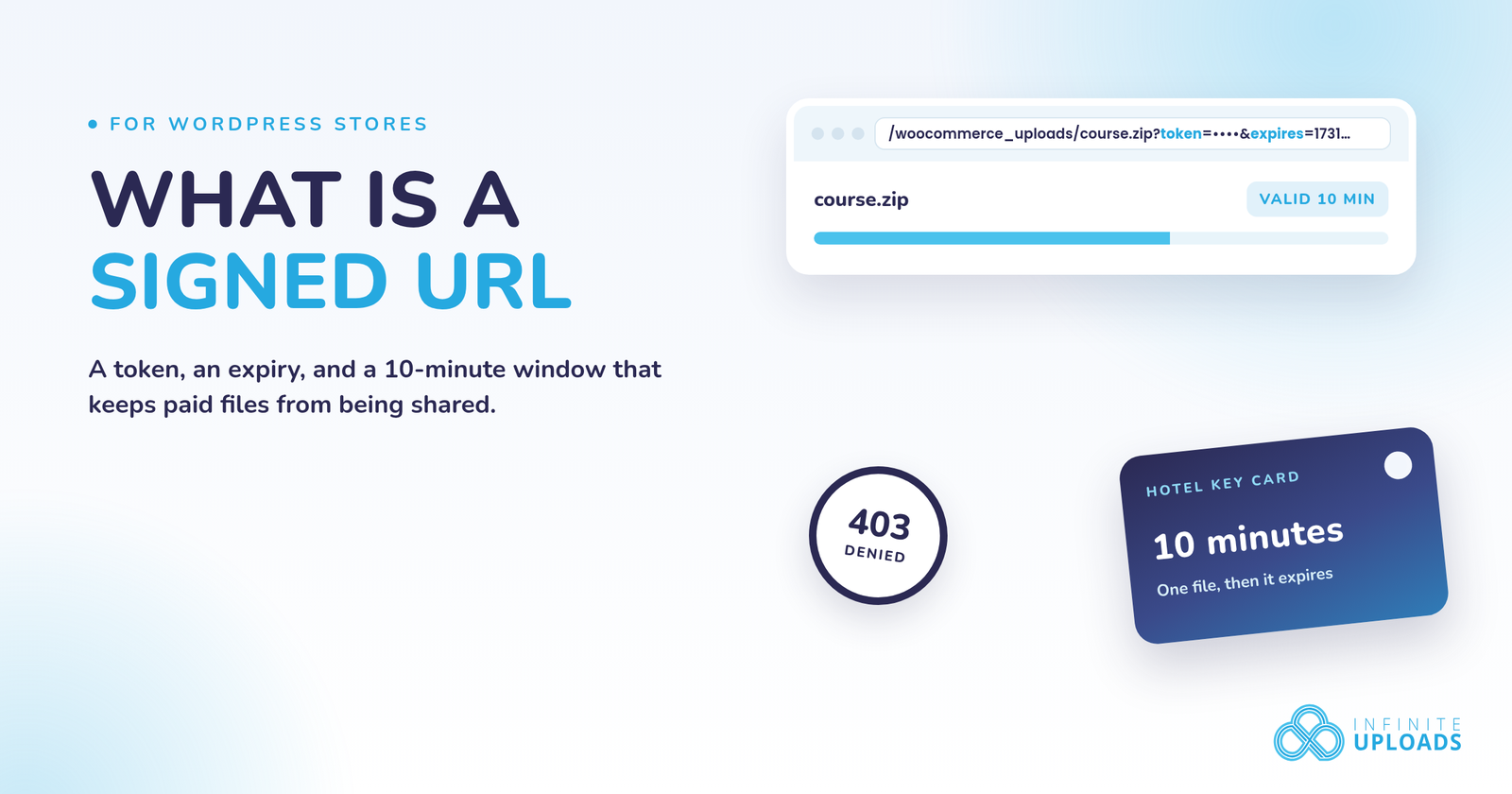
If you sell files from a WordPress store, a signed URL is what stops a paying customer's download link from turning into a free download for everyone else.
A signed URL is a regular file address with two extra pieces on the end: a token and an expiry. The CDN checks both before it sends the file. If the token is missing, the signature doesn't match, or the time has run out, the request is refused. That's an access denied error, a 403.
That's the short version. Here's why the expiry matters, and how WooCommerce and Easy Digital Downloads stores actually use it.
Why a signed URL expires
I keep coming back to the same comparison, because the technical description is easy to skim past. A signed link works like a hotel key card. It opens one door, for a short window, and only after the front desk has checked you in.
The token is the card. The expiry is the checkout time. After that window, the card doesn't open the door anymore. A download that has already started keeps going. Anyone who tries to start a new download with the old link is turned away, and the buyer just clicks their download link again to get a fresh one.
The problem a public download address creates
Without that protection, a file you sell can sit at a public address on the CDN. A customer buys your product, copies that address, and posts it on a forum. Anyone with the link can fetch the file. Your store never gets a chance to check whether they paid.
That's the leak. The store already did its job when the original buyer clicked download. The file address itself was still open.
If the files are still on your server, WooCommerce or Easy Digital Downloads serves them as usual. Signed download URLs apply when those store files are stored in the Infinite Uploads cloud.
How WooCommerce and Easy Digital Downloads already check the purchase
WooCommerce and Easy Digital Downloads already gate the download. When a buyer clicks the link from their order email or account, the store checks the order, any download limits, the expiry date, and whether they need to be logged in. That doesn't change.
A signed URL sits after that check, not instead of it. If the purchase is valid, Infinite Uploads sends the buyer to a signed link for that one file. The CDN then checks the token and the expiry. The store still decides who is allowed to start a download. The signed link decides whether the file itself can be fetched. Nothing changes for your customers.
It works with every WooCommerce file download method, and with Easy Digital Downloads. The folders that get locked are the private ones: woocommerce_uploads for WooCommerce, and EDD's upload folder (edd by default). If you pick a file from the Media Library when you save a product, Infinite Uploads copies it into that protected folder. The original stays in your library. For products saved before version 3.5.1, open the product and click Update once.
Product photos, videos, and the rest of your Media Library stay public and are delivered from the CDN exactly like before.
How to check that a store is protected
Here's how I check it, in two steps. This is also the method in the Infinite Uploads docs.
- Place a test order, or use an existing one, and click the download link. The file should download as usual. If you watch the browser address bar or the network panel, the CDN address should end in ?token=...&expires=....
- Copy the same file's address without the token and expires part, and open it in a private browser window. The CDN should refuse it with an access denied (403) error.
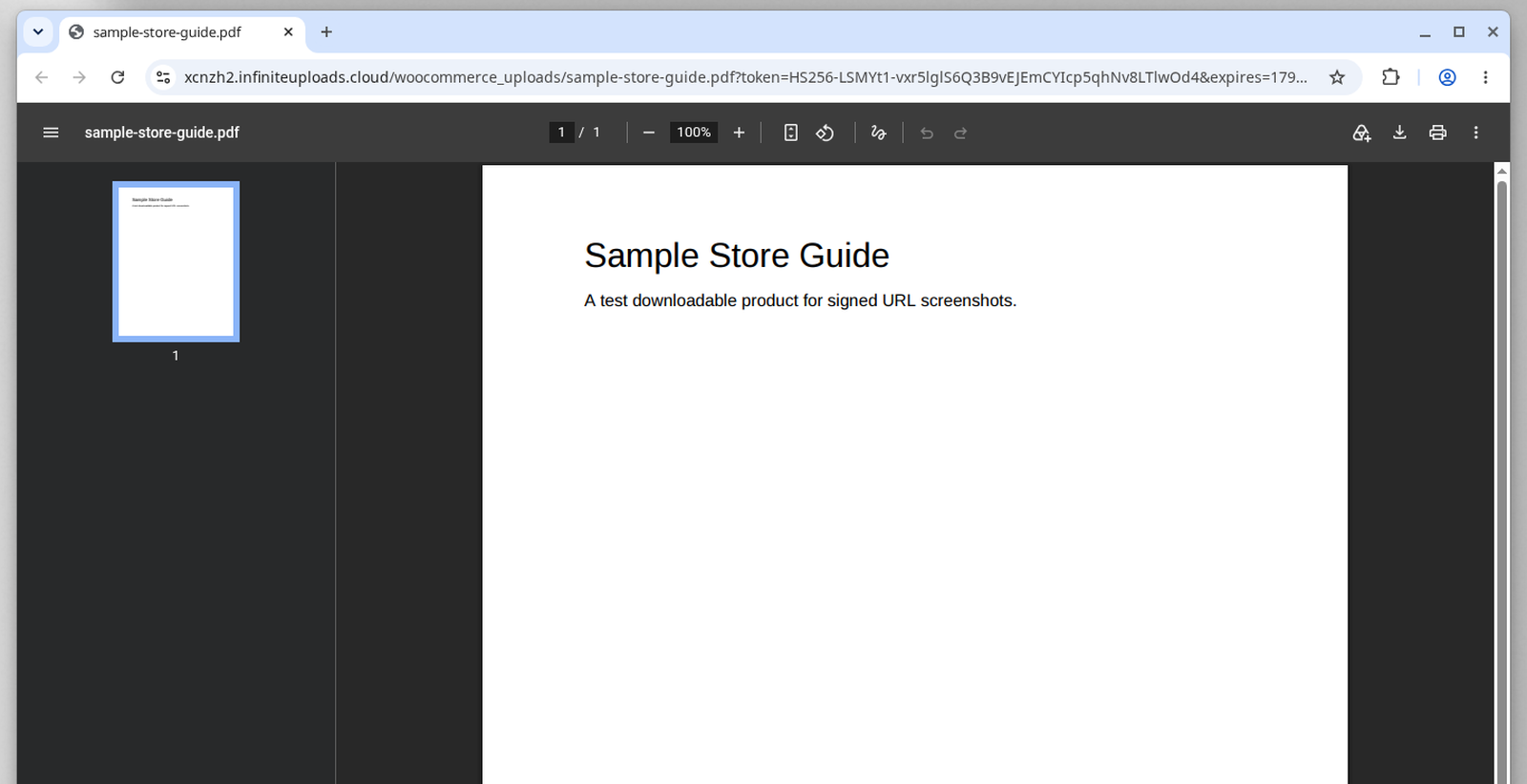
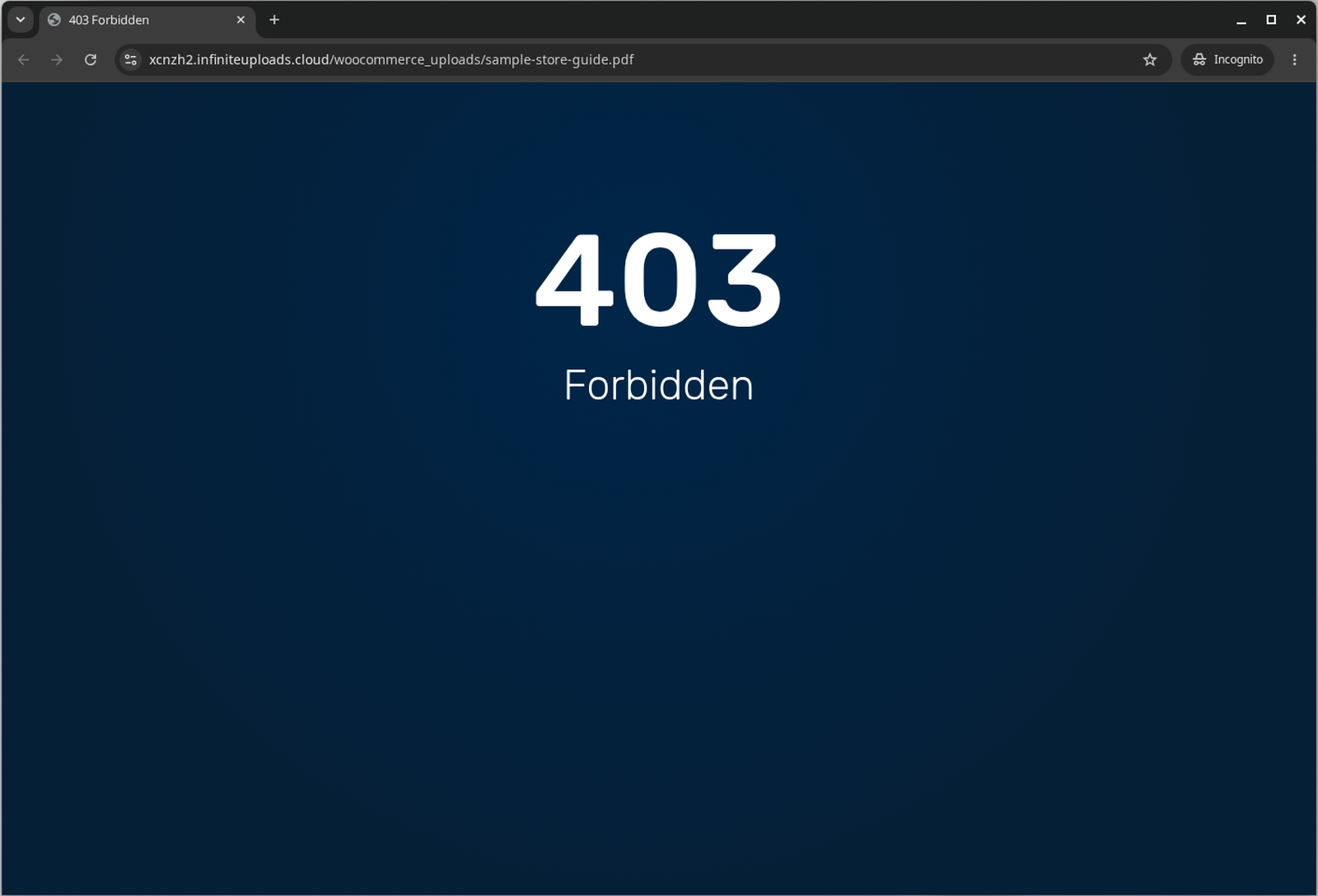
If the first link downloads and the plain address comes back 403, the store is protected.
How to turn it on with Infinite Uploads
There's nothing to configure. Signed download URLs turn on by themselves on a Business plan when Infinite Uploads is connected and enabled, and WooCommerce or Easy Digital Downloads is active. Infinite Uploads 3.5 added protected store downloads, and the docs walk through the same behavior.
Each signed link works for 10 minutes. That's 600 seconds. Developers who need a longer window can change it with the infinite_uploads_signed_url_ttl filter. The value is in seconds, and the minimum is 60. This example makes links last 30 minutes:
add_filter( 'infinite_uploads_signed_url_ttl', function () {
	return 1800;
} );
A download that has already started keeps going after the link expires, so you only need a longer window if customers wait a while before they click. The filters doc also covers protecting another folder, which you should only do for folders whose downloads already go through WooCommerce or EDD.
Frequently asked questions
Does a started download stop after 10 minutes?
No. A download that has already started keeps going after the signed link expires. The expired link just can't be used to start a new one. If a customer says their download link doesn't work, ask them to click the download link in their account or order email again. Each click creates a fresh 10-minute link.
What happens if I deactivate Infinite Uploads?
Infinite Uploads turns protection off for your store folders first, so customer downloads never get blocked. Once the plugin is off, nothing would be signing those links anymore, and leaving protection on would refuse every download.
Does this slow down product photos?
No. Protection covers the store's private download folders. Product photos, videos, and the rest of your Media Library are delivered from the CDN exactly like before.
Want signed download URLs on your WooCommerce or Easy Digital Downloads store?
Signed download URLs are included with every Business plan, with no add-on to buy. You can try Business free for 7 days at $24/mo billed yearly ($288/yr) or $29/mo billed monthly. The trial includes the features of the plan you choose.