You open Media, then Library, and instead of your photos you get a wall of gray boxes. Or a spinner that never stops. Or a library that looks fine except every image from before March is just gone. It almost always shows up right after something changed: a migration, a new domain, a switch to HTTPS, a plugin update. The usual advice is a list of ten fixes to try in random order. I'd rather you spend two minutes figuring out WHICH problem you have, because each one has a different cause and a different fix.
The short version. Gray boxes mean WordPress knows about your files but the browser can't reach them, usually a wrong URL after a migration. A spinner or an empty grid means the request that loads the library is failing, usually a plugin conflict or a PHP error. Files missing from the library but sitting on the server means they were never added to the database. Library fine but images broken on your pages means the URLs inside your posts are stale.
First, figure out which problem you have
The Media Library isn't a folder view. It's a catalog. Every image you upload gets a card in the database that says "this file lives at this address." Your actual files sit in wp-content/uploads. Think of a library's card catalog: if the cards point at the wrong building, or the books were never catalogued, or the card drawer is jammed, you get the same result at the desk. No book. The fix depends on which of those happened.
| What you see | What it means | Jump to |
|---|---|---|
| Grid loads, but thumbnails are gray or broken | The catalog is fine, the browser can't reach the files | Problem 1 |
| Spinner forever, or an empty grid | The request that loads the library is failing | Problem 2 |
| Some images are missing entirely | The files were never added to the catalog | Problem 3 |
| Library looks fine, images broken on the site | The URLs saved inside your posts are stale | Problem 4 |
One quick test settles Problem 1 versus Problem 2. Click the list-view icon at the top left of the library (or go to /wp-admin/upload.php?mode=list). List view is built on the server, while the grid is filled in by JavaScript. If list view shows your files and the grid doesn't, you're in Problem 2.
Problem 1: the grid loads, but the thumbnails are blank
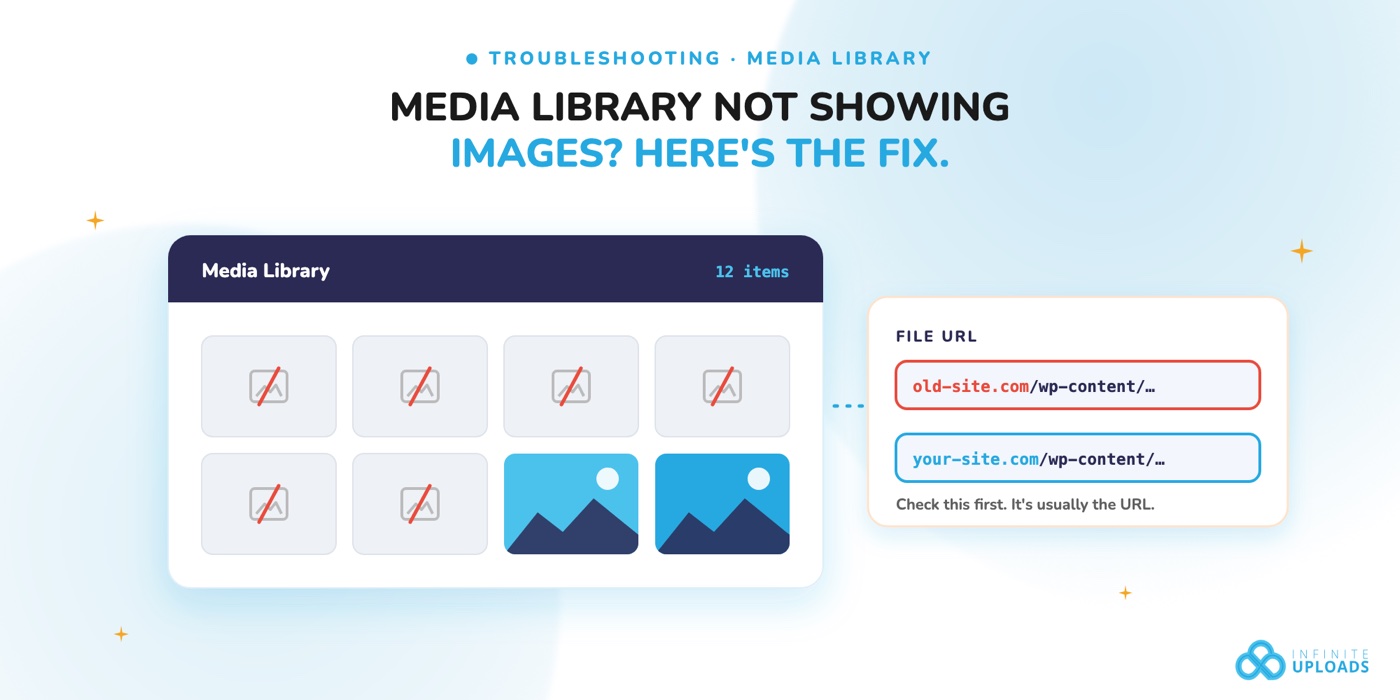
This is the most common one, and it's the easiest to diagnose once you know where to look. We reproduced it on a clean WordPress 7.1 site: 12 photos, all working, then one setting changed to point at the site's old domain. This is what you get.
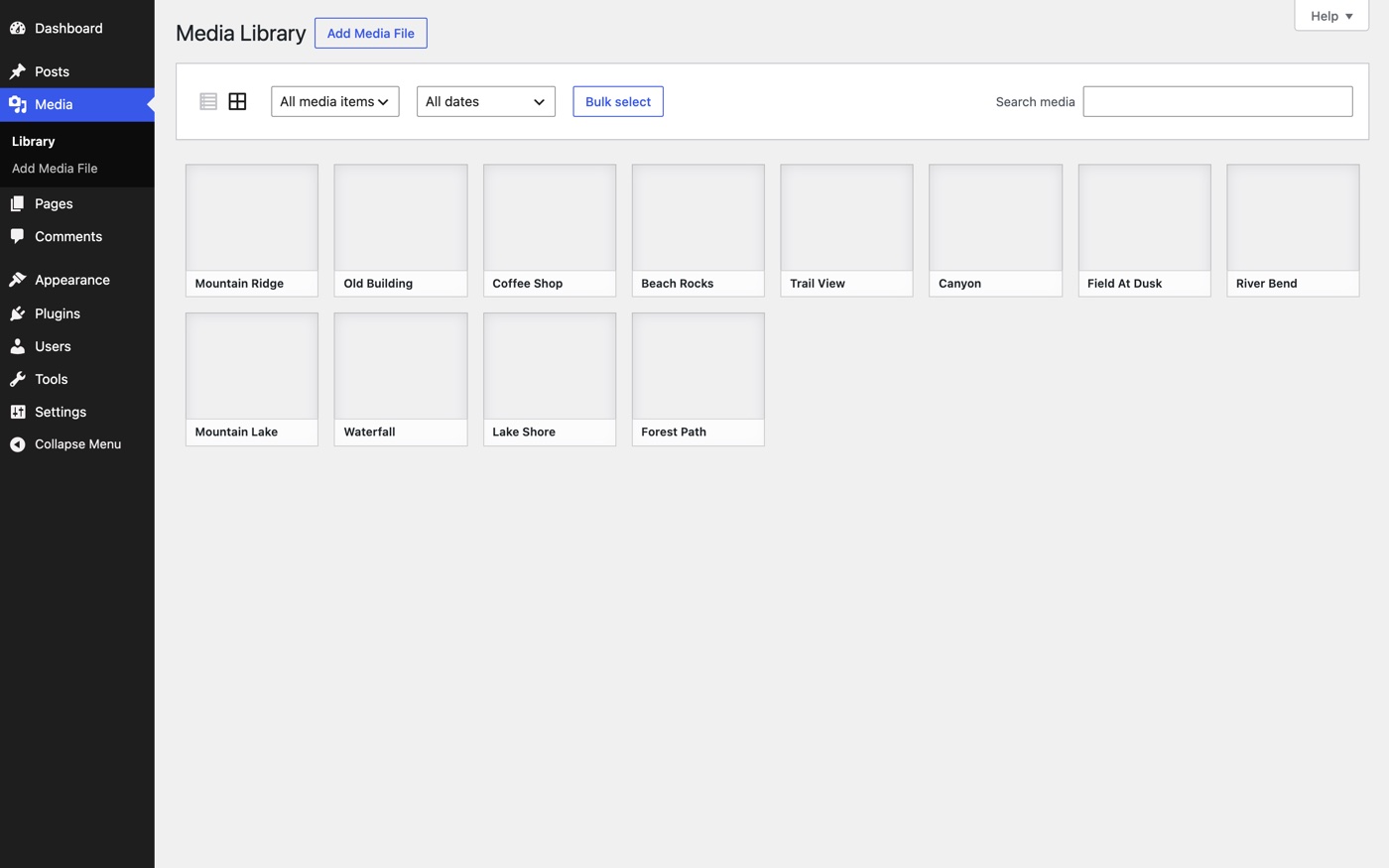
Click any of the gray boxes and look at File URL in the Attachment details panel. That address is where WordPress is telling the browser to look.

Now copy that URL into a new tab. What comes back tells you the cause:
- The URL has the wrong domain, or http instead of https. Classic post-migration problem. Check Settings, then General, and make sure both addresses are the live site. Then go to Settings, then Media. If you see a field called "Full URL path to files," WordPress is using a custom upload URL that someone set years ago. Clear it and save. That field only appears when it's been set, which is exactly why people never find it. Old URLs baked into the database need a search and replace: Better Search Replace works, or
wp search-replace 'https://old-site.com' 'https://new-site.com' --dry-runif you have WP-CLI. Drop the dry run flag once the counts look right. - The URL is right, but you get a 403 Forbidden. The server is refusing to hand the file over. Usually permissions: folders under uploads should be 755 and files 644. A host migration or a security plugin can tighten those until nothing loads. The other culprit is hotlink protection (in cPanel or Cloudflare) set up without your own domain on the allowed list.
- The URL is right, but you get a 404. The file isn't where the card says it is. If the original loads but the -300x200 version doesn't, only the resized copies are missing, which happens after an import or a theme change. Regenerate them with the Regenerate Thumbnails plugin or
wp media regenerate --only-missing. If the original is missing too, the file didn't make it across in the migration. Copy that year and month folder again from the old host or your backup. - The URL points at a CDN or a cloud bucket. Your media is offloaded, and either the file isn't in the bucket or the CDN cached a 404 before the file got there. Re-run the offload plugin's sync, then purge the CDN. If you're on Infinite Uploads, our doc on why an image is or isn't showing up walks through it.
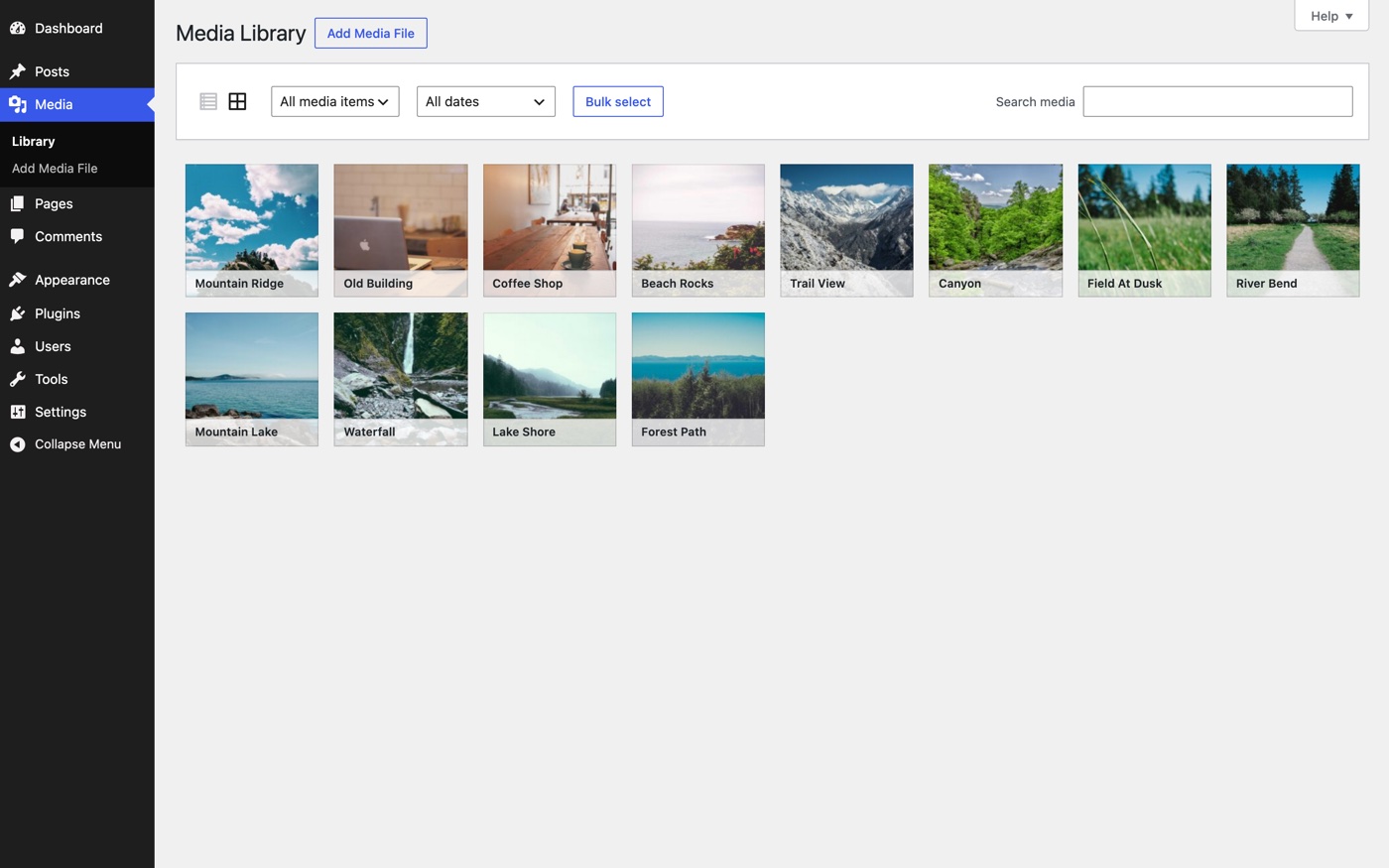
In our test, clearing that one setting brought all 12 thumbnails straight back. No files moved.
Problem 2: the library spins forever or shows nothing
The grid doesn't come with the page. After the screen loads, your browser asks WordPress for the list of files through a background request to admin-ajax.php (the action is called query-attachments). If that request fails, you get a spinner or an empty grid, even though list view works fine.
You can see exactly why it failed in about 30 seconds. In Chrome, right-click the page, choose Inspect, open the Network tab, and reload. Type admin-ajax in the filter box and click the request. The status code is the answer:
- 403. Something blocked the request before WordPress saw it. A security plugin, a firewall rule, or ModSecurity on the host. Check the security plugin's log first, then ask your host.
- 500. PHP crashed while building the list. Turn on logging by adding
define( 'WP_DEBUG', true );anddefine( 'WP_DEBUG_LOG', true );to wp-config.php, reload the library once, and read wp-content/debug.log. The last error names the plugin or theme file. - 200, but the response starts with a warning or HTML. A plugin is printing a PHP notice into the response, which breaks the data the grid expects. Same log trick finds it. Make sure
WP_DEBUG_DISPLAYis off on a live site.
If the request succeeds and the grid still won't draw, switch to the Console tab. A red JavaScript error there means a plugin or theme broke the page's scripts. The fastest way to find it without taking your site down is the Health Check & Troubleshooting plugin: its troubleshooting mode disables plugins and switches the theme for you alone, while visitors see the normal site. Turn plugins back on one at a time until the library breaks again.
Problem 3: images are on the server but not in the library
Back to the card catalog. Files copied into wp-content/uploads by FTP, a file manager, or a migration that moved the files but not the database never got a card. WordPress doesn't scan the folder, so they don't exist as far as the library is concerned. That's also why "everything before a certain date is missing" after a move: the old site's attachment records didn't come across.
The clean fix is to migrate the database along with the files, so the cards come with the books. If that's not possible, wp media import adds files to the library, but it copies them into the current month's folder, so you end up with duplicates. A plugin like Media Sync registers files where they already sit instead. Either way, test it on a staging copy first.
One thing that looks like Problem 3 and isn't: since WordPress 7.1, the grid loads more images as you scroll instead of showing a Load more button. If you only see the first batch, keep scrolling. You can switch back to the old button in your user profile.
Problem 4: the library is fine, but images are broken on your pages
Here the catalog is right and the files are reachable, but your posts still hold the old addresses. WordPress saves the full image URL inside post content at the moment you insert it, so a domain change doesn't update posts you wrote last year. The same search and replace from Problem 1 fixes it. Page builders keep their own copy: Elementor stores URLs in its own data and has a Replace URL tool under Elementor, then Tools, for exactly this. After any fix, purge your caching plugin and CDN, or visitors keep getting the old broken page for hours.
How to stop it happening next time
Nearly every case above starts with files and URLs getting out of step during a move. Move the database and the files together, with a migration tool that runs search and replace for you. Don't add files by FTP and expect them to appear. And don't delete files from the server or a storage bucket directly; delete them from the library so the card goes with the book.
Gray boxes are scary. They're almost never lost files. Check the File URL first.