You drag your backup onto the Import screen of All-in-One WP Migration and get hit with a line like "Your host restricts uploads to 64 MB." Or the upload races to 100%, and then just sits there. Either way, your migration is stuck, and the .wpress file is the problem.
Here's the part most guides skip. A .wpress file is mostly your media library. Leave the media out of the export, and the file can shrink to a fraction of its size. On the test site I used for this post, an export dropped from 1 GB to 270 MB. Below I cover both ways out: raising the limit, and making the file small enough that the limit stops mattering.
All-in-One WP Migration Upload Limit: The Short Answer
The limit isn't coming from All-in-One WP Migration. Your host sets it. The Import screen just reports WordPress's upload cap, which is the smaller of two PHP settings, upload_max_filesize and post_max_size. ServMask, the plugin's developer, says the same in their upload limit guide, and adds that the free plugin has no import size cap of its own. You have three ways out:
- Raise the PHP limit above the size of your .wpress file, using one of the methods below, or by asking your host.
- Make the .wpress file smaller by leaving the media library out of the export, and keep your media in Infinite Uploads so nothing gets left behind. That's my favorite, because it also fixes slow imports.
- Buy ServMask's paid Unlimited Extension, which ServMask says uses chunked transfer to get under web server, CDN and firewall limits (Unlimited Extension).
One more trap. The number on the Import screen is PHP only. Layers in front of PHP, like Nginx, a firewall or Cloudflare, can still reject an upload that looks small enough. ServMask lists these in the same guide, including Cloudflare's 100 MB upload cap on its free plan.
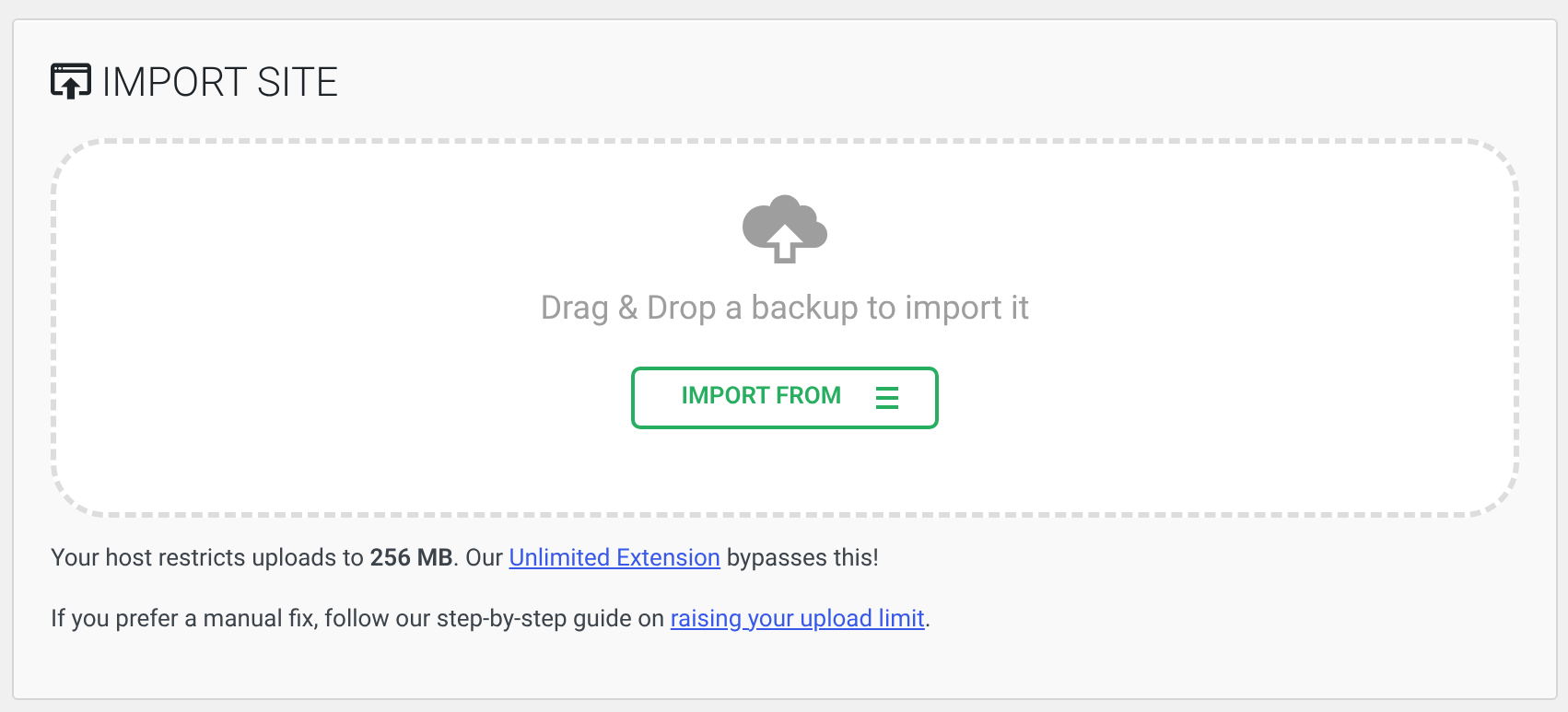
That line is the number to beat. Yours will show your own host's value.
How to Bypass the All-In-One WP Migration Free Version Import Limit
"Bypass" is a strong word for what's really a host setting. You aren't breaking a plugin lock. You're raising a server limit, or sending a smaller file. I'll start with how to check your number, then the quickest fix on Apache hosting.
Checking the Current Upload Limit
- In your dashboard, open All-in-One WP Migration, then Import. Note the limit in the line that starts with Your host restricts uploads to.
- Open Tools, then Site Health, then the Info tab, and expand Server. Find
upload_max_filesizeandpost_max_size. The Import number should match the smaller of the two. - As a third check, open Media, then Add New. WordPress shows the maximum upload file size there too.
If the Import number is already bigger than your .wpress file and the upload still fails, the block is in front of PHP. Skip ahead to asking your host about web server and CDN limits. If you're not sure how big your file is, check your downloads folder. The .wpress file lives where you saved the export.
Using the .htaccess File
If your site runs on Apache, you can raise the limit in the .htaccess file in your WordPress root folder. Back up the file first, because a typo can take the whole site down. Add these lines, using a number bigger than your .wpress file (ServMask's example is 512M):
php_value upload_max_filesize 512M
php_value post_max_size 512M
php_value memory_limit 256M
php_value max_execution_time 300
php_value max_input_time 300
Save, then reload the Import screen. The number should jump. If it doesn't, your host probably doesn't read .htaccess for PHP settings, which is common on Nginx and LiteSpeed. Use the next section instead.
Increasing Max Upload File Size
Pick the one method that matches your host, and then check Site Health and the Import screen again. Stacking all of them just makes a mess.
- .user.ini: works on LiteSpeed, Nginx setups and many shared hosts. Create or edit a file named
.user.iniin your WordPress root withupload_max_filesize = 512Mandpost_max_size = 512Mon separate lines. - php.ini: if you can edit the server's php.ini, use the same two lines there.
- Hosting control panel: most panels have a PHP settings screen. In cPanel it's Software, then Select PHP Version, then Options.
- Ask your host: if the settings are locked, ask support to raise
upload_max_filesizeandpost_max_sizeto at least the size of your .wpress file. Also ask whether Nginx or a firewall caps upload size.
A couple of old tips to skip. Putting ini_set lines for those two settings in wp-config.php does nothing, because PHP won't change them at runtime (ServMask explains why). And the old trick of defining AI1WM_MAX_FILE_SIZE in the plugin files is gone. ServMask says the constant was removed years ago, and the plugin's WordPress.org page says the upload limit is set by your hosting company. Editing plugin files only risks breaking your site.
You may also have Big File Uploads installed. That plugin only raises the limit for the regular WordPress media uploader, not for the All-in-One WP Migration Import screen, so it won't fix this error.
How to Fix All in One WP Migration Import Stuck Issues (Fastest Solution)
Raising the limit gets the file uploaded. It doesn't make a 5 GB file any faster to process. And an import that sits at 100% often just means the server is still working through a big file. The fastest fix is to stop moving the media library at all.
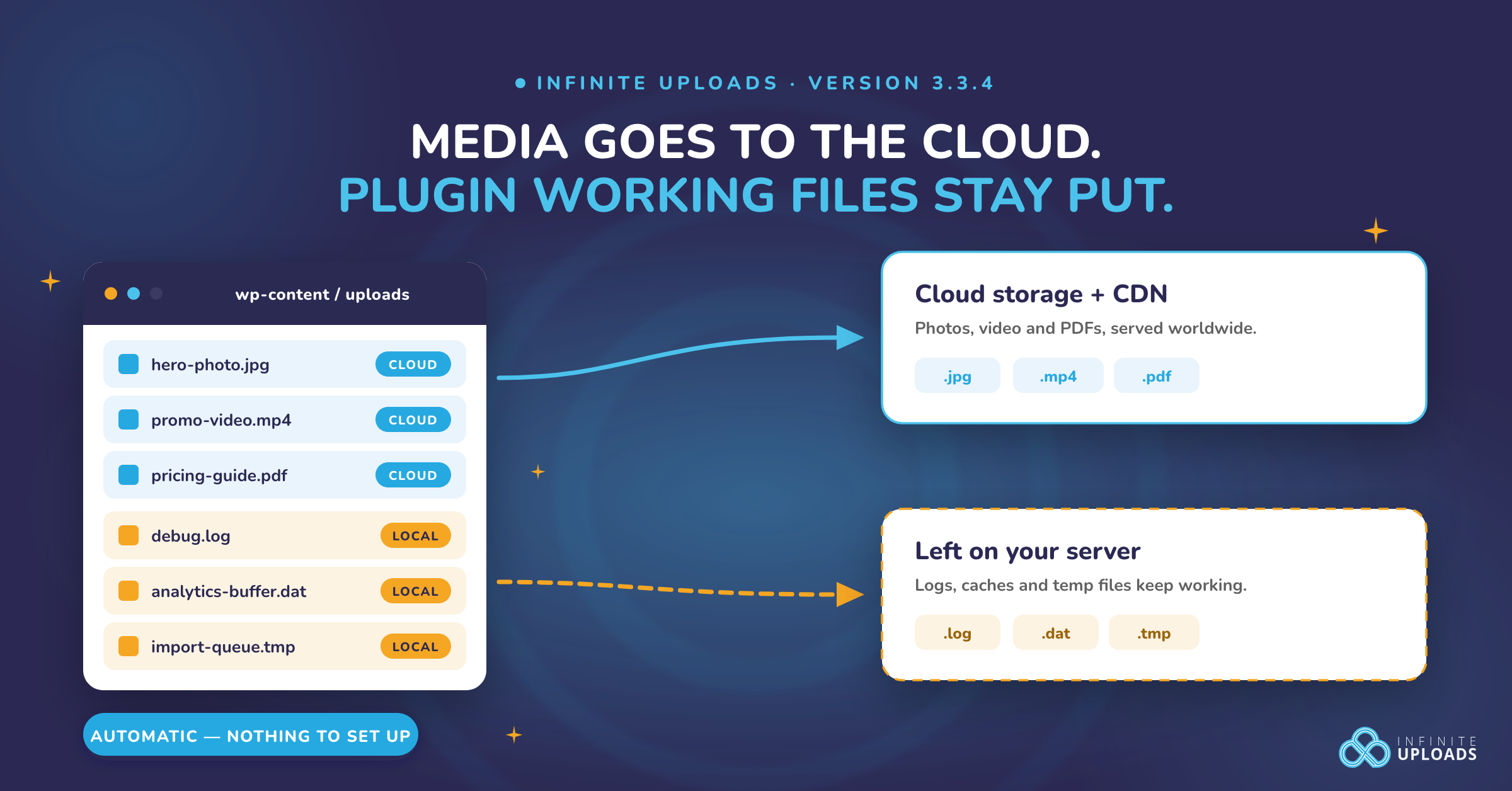
Here's how that works. Infinite Uploads syncs your uploads to the cloud and serves them from there, so your media doesn't have to travel inside the .wpress file. The export carries your database, themes and plugins. Your images and videos stay where they are, already online. Read it as a split: WordPress files go in the backup, media goes in the cloud.
The order matters. Sync first, export second. Once you exclude the media library from the export, the cloud copy is the only copy that's coming along.
Setting Up Infinite Uploads
Do this on your source site, the one you're exporting from. If you already use Infinite Uploads and your media loads from the cloud, skip to the export.
- Install and activate the free Infinite Uploads plugin from the WordPress plugin directory.
- Open Infinite Uploads in your dashboard and click Connect. Sign in or create an account and pick a plan. You can try any plan free for 7 days. Plans start at $8.25/mo billed yearly ($99/yr) for 25 GB of storage.
- Let the plugin scan your media library, then start the sync. A big library can take many hours, so leave the tab open. If your host gives you WP-CLI, the plugin says that's the fastest way to sync.
- When the sync finishes, enable cloud delivery so your media serves from the cloud. Then check the front end: an image URL should contain
infiniteuploads.cloudor your custom CDN domain. - Optional: at the bottom of the plugin settings, click Delete on Free Up Local Storage to remove the local copies of anything already synced. It frees up space on your host. After that your media lives only in the cloud, so use Download & Disconnect in the plugin settings before you ever deactivate Infinite Uploads.

That's the Connect screen from the plugin. For the full walkthrough, see connecting and configuring the plugin.
Exporting Your Site with All In One WP Migration
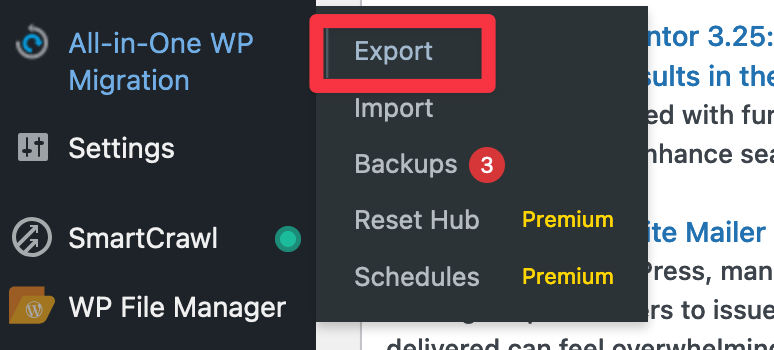
- Make sure All-in-One WP Migration is installed, and click Export in its menu.
- Expand Advanced options and tick Exclude media library. Older versions of the plugin call this Do not export media library.
- Click Export To, choose File, and download the .wpress file when it's ready.
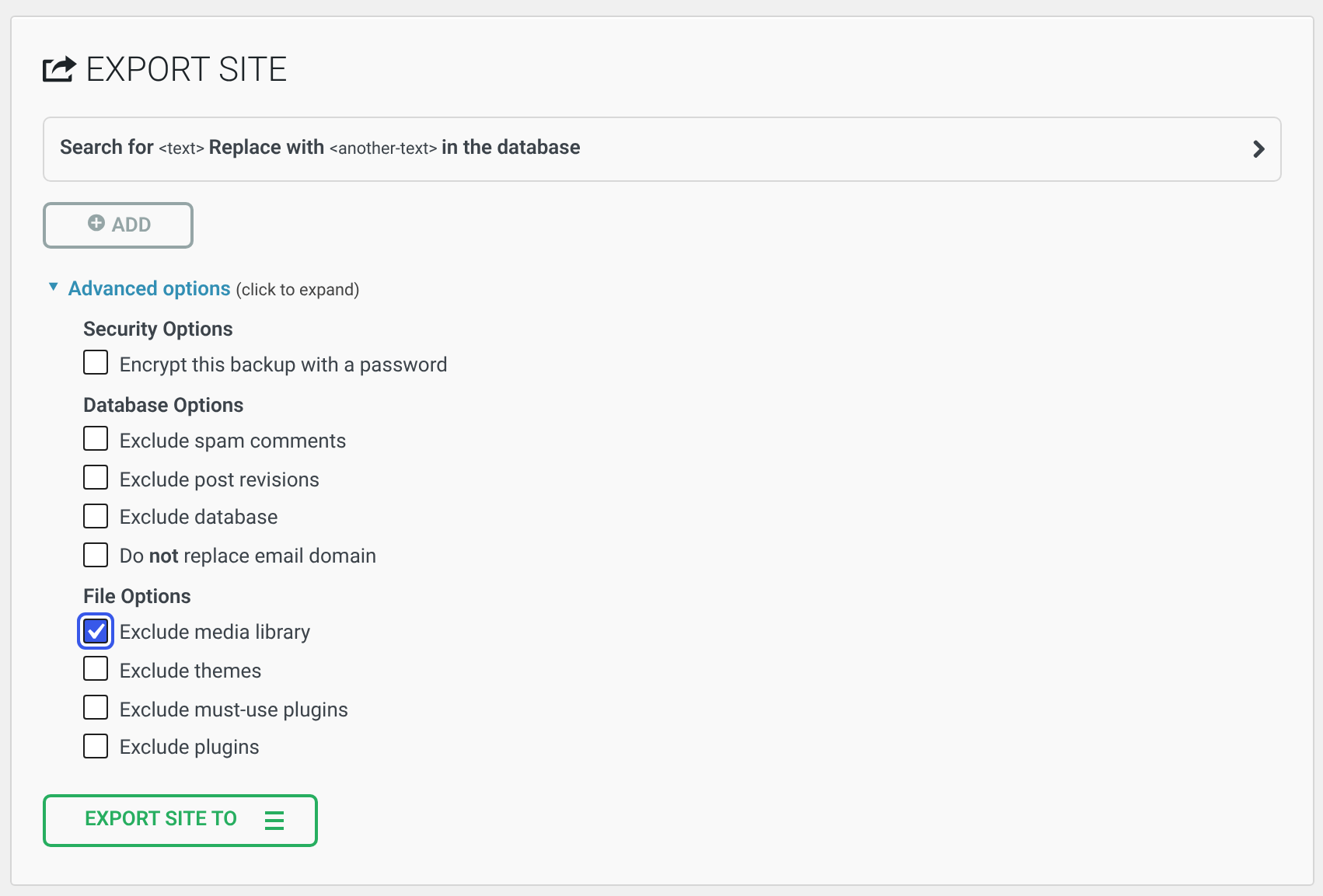
With the media left out, the file holds only the database, themes and plugins. It's smaller to download, smaller to upload, and quicker to unpack on the other side. It also fits under host limits that the full file never would.
If the Import Still Sticks at 100%
A small file helps, but a stuck import can have other causes. ServMask's guide to imports stuck at 100% suggests this checklist:
- Wait an extra 30 to 60 seconds after the bar hits 100%. The server may still be moving the file into place.
- Raise
max_execution_timeto your upload time plus 30 to 60 seconds, or to 0 if your host allows it. Setmemory_limit,upload_max_filesizeandpost_max_sizeabove the backup size. - Open your browser's developer tools and look for JavaScript errors in the console.
- Ask your host whether it caps the size of a single uploaded file. ServMask has seen packages limited to 64 MB or 128 MB.
- Check
wp-content/plugins/all-in-one-wp-migration/storage/error.logfor the actual error.
Importing the File to the Destination Site
- Install All-in-One WP Migration on the destination site and open Import.
- Click Import From, choose File, and pick the .wpress file you downloaded. Confirm the prompts.
- When it finishes, log in to the destination site and open Infinite Uploads. It should show as connected, and your media should load from the cloud like before.
- Spot check a few posts. Image URLs should contain
infiniteuploads.cloudor your custom CDN domain.
One catch. Anything uploaded to the source site between your export and your import will be in the cloud, but not in the destination's database. It won't show in the destination's Media Library. So pause uploads on the old site while you move. The Infinite Uploads staging and migrations guide covers this in detail.
Understanding the Maximum Upload File Size Limit
The destination is its own server, so it has its own limit. A brand new host can start with a low one. Check the Import screen on the destination before you upload anything, and raise it with the methods above if it's lower than your .wpress file. Because the export left the media behind, you're usually asking for a few hundred MB, not several GB.
The video below walks through this workflow. A heads up: it shows an older version of the Infinite Uploads connect screen, so follow the written steps above where they differ.
When Both Sites Need to Stay Live
After the import, the destination inherits the source's Infinite Uploads connection, so both sites use the same cloud storage. If you're retiring the old site, that's perfect. If both sites stay live, deleting media on one can remove it from the other. In that case, on the destination, disconnect Infinite Uploads and connect it again through the normal sign-in flow. The plugin creates a fresh site with its own storage. Download a local copy of any production media you still need on the destination first.
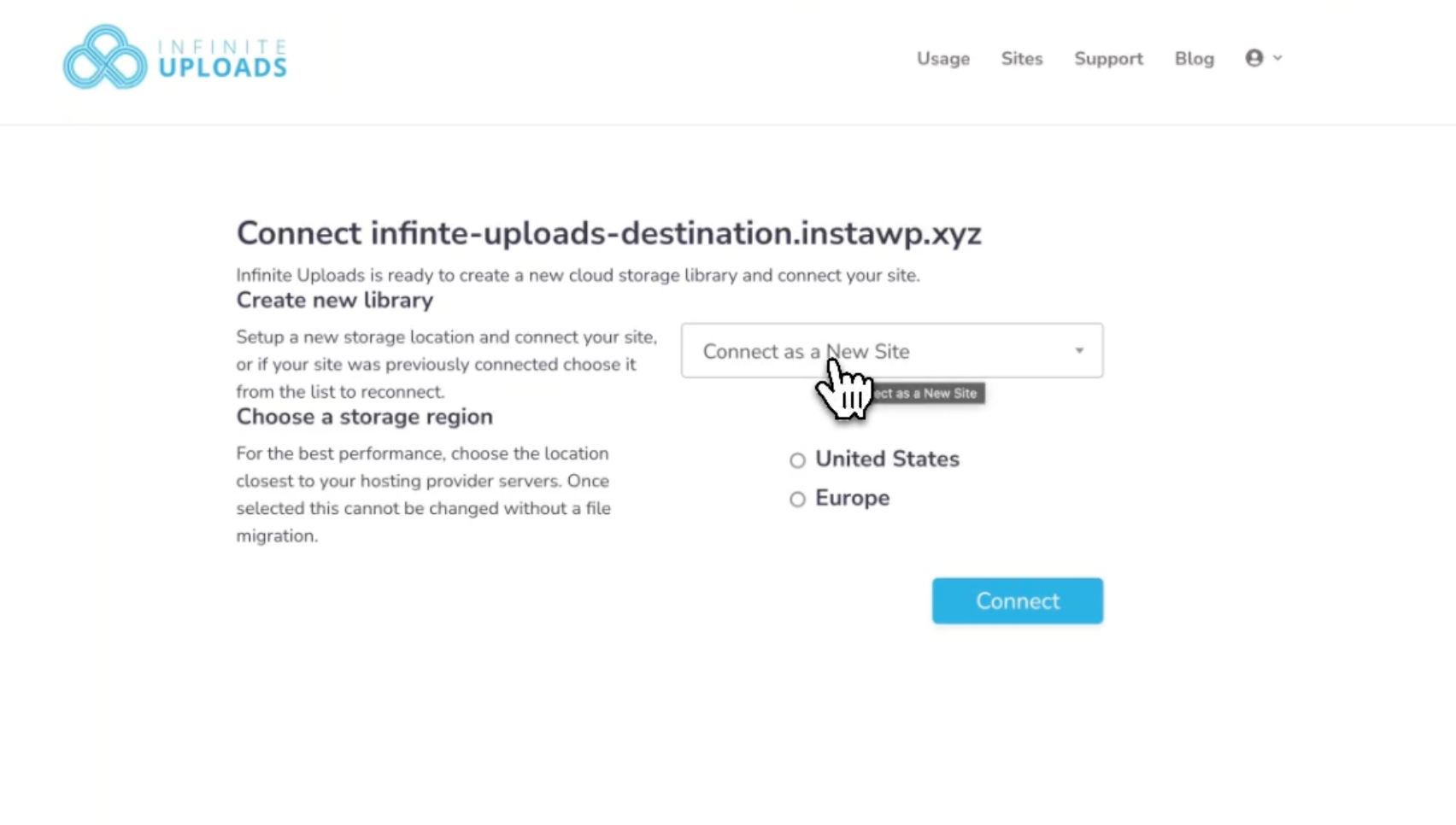
That screenshot is from an older version of the connect page, so your screen may look a little different.
Stop Hauling Your Media Library Around
The upload limit is your host's, and you can raise it. But the smarter move is a lighter backup. With your media synced to Infinite Uploads, your All-in-One WP Migration file carries only what WordPress needs, and your images and videos keep loading from the cloud the whole time.
Plans start at $8.25/mo billed yearly ($99/yr) for 25 GB of storage and 50 GB of CDN bandwidth, and you can try any plan free for 7 days. Simple Sync does the copying for you.
Related migration guides
Plans start at $8.25/mo billed yearly ($99/yr) for 25 GB of storage and 50 GB of bandwidth, and you can try any plan free for 7 days. See the plans or start your free 7-day trial.