If you've built a form in Fluent Forms Pro with a file upload field, you've probably already noticed that the Max File Size setting in the field editor doesn't actually control as much as it looks like it does. You can set it to 500MB. Your server will still reject a 50MB file. That's not a bug in Fluent Forms. It's a WordPress and PHP problem that affects every form plugin, and most site owners hit it eventually.
This guide covers why it happens, why the usual fixes either don't work or aren't available to most people, and how to remove that ceiling entirely without touching your server.
Why Fluent Forms Pro Has a File Upload Size Limit
The file upload field in Fluent Forms Pro is a Pro-only feature. The free version doesn't include it. If you're on the free version and can't find the file upload field in your editor, that's why. Once you have Fluent Forms Pro, you can add both a File Upload field and an Image Upload field to any form. The Image Upload field is also Pro-only and is built specifically for photo submissions, it shows a thumbnail preview inside the form after a user selects a file, so they can confirm they've attached the right image before submitting.
Both fields give you real controls: accepted file types, a per-file size limit in KB or MB, a maximum file count, custom error messages for each validation rule, and conditional logic. You can restrict uploads to specific formats — images (JPG, PNG, GIF), audio (MP3, WAV), video (AVI, MOV, MKV), PDF, documents (DOC, DOCX, XLS, PPT), ZIP archives, CSV, and more. You can make the field required or optional. You can choose between a button interface or a drag-and-drop dropzone. Files land in wp-content/uploads/fluentform/ by default and appear in the Entries dashboard tied to each submission.
The problem is that none of those settings change what PHP allows through. PHP has two directives that govern file uploads: upload_max_filesize and post_max_size. Both live in php.ini at the server level. Whatever those values are set to, that's your hard ceiling. A file that exceeds either one gets rejected before WordPress ever sees it. The error the user gets is usually something like "413 Request Entity Too Large," or sometimes nothing useful at all. The form just fails silently.

Most shared hosts set upload_max_filesize somewhere between 2MB and 64MB. Managed WordPress hosts like WP Engine, Kinsta, and Flywheel set their own limits and often won't let you raise them at all. Even if your host does give you access to php.ini or .htaccess, raising those values increases PHP memory allocation and execution time across the board, and on a multisite install it affects every site on the server. It's not a clean fix.

The real solution isn't raising the PHP limit. It's bypassing it entirely.
How Chunked Uploading Solves This
Chunked uploading splits the file into smaller pieces on the client side before anything is sent to the server. Each piece goes up in a separate HTTP request, small enough to pass through PHP without triggering the size limit. The server receives all the chunks, reassembles them into the complete file, and hands it off to the form's normal processing pipeline. No single request ever exceeds the PHP ceiling.
This is how large file transfers work on Google Drive, Dropbox, and YouTube. It's the correct approach to large file uploads on the web. Most WordPress form plugins don't do it by default because it requires a custom JavaScript uploader, server-side chunk handling, and reassembly logic, significantly more work than a standard HTML file input.
Big File Form Uploads handles all of that. It hooks directly into Fluent Forms Pro's rendering and processing pipeline and replaces the standard file upload field with a chunked uploader automatically.
Increasing your Fluent Form File Upload Limit
Big File Form Uploads is extremely easy to set up, and it actually extends the functionality of the Big File Uploads plugin. Big File Form Uploads doesn't have its own interface; it uses the upload size you've configured in Big File Uploads. Install Big File Form Uploads (and make sure Big File Uploads is installed), then head into Big File Uploads to set the maximum upload size. That limit applies to both your media library uploads and all of your forms.
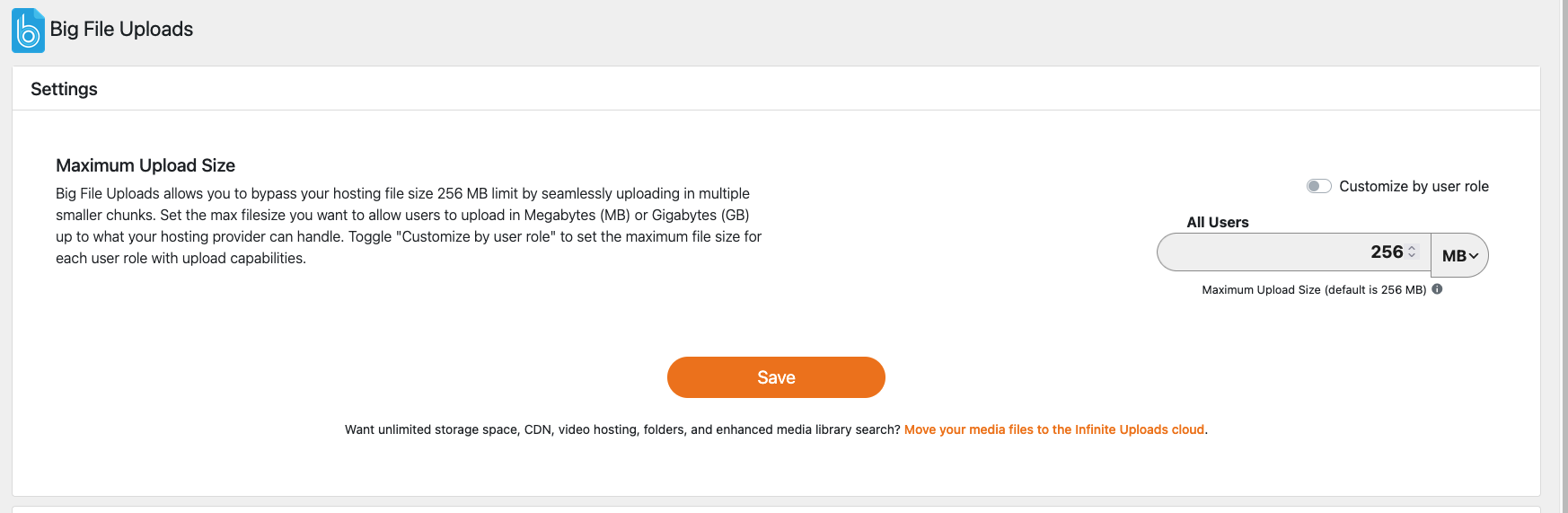
Once you have the upload size set in Big File Uploads, you can move onto setting up your Fluent Forms File Upload field.
Setting Up the Fluent Forms Pro File Upload Field
Before Big File Form Uploads does anything, you need a working Fluent Forms Pro file upload field. Here's how to set one up if you haven't already.
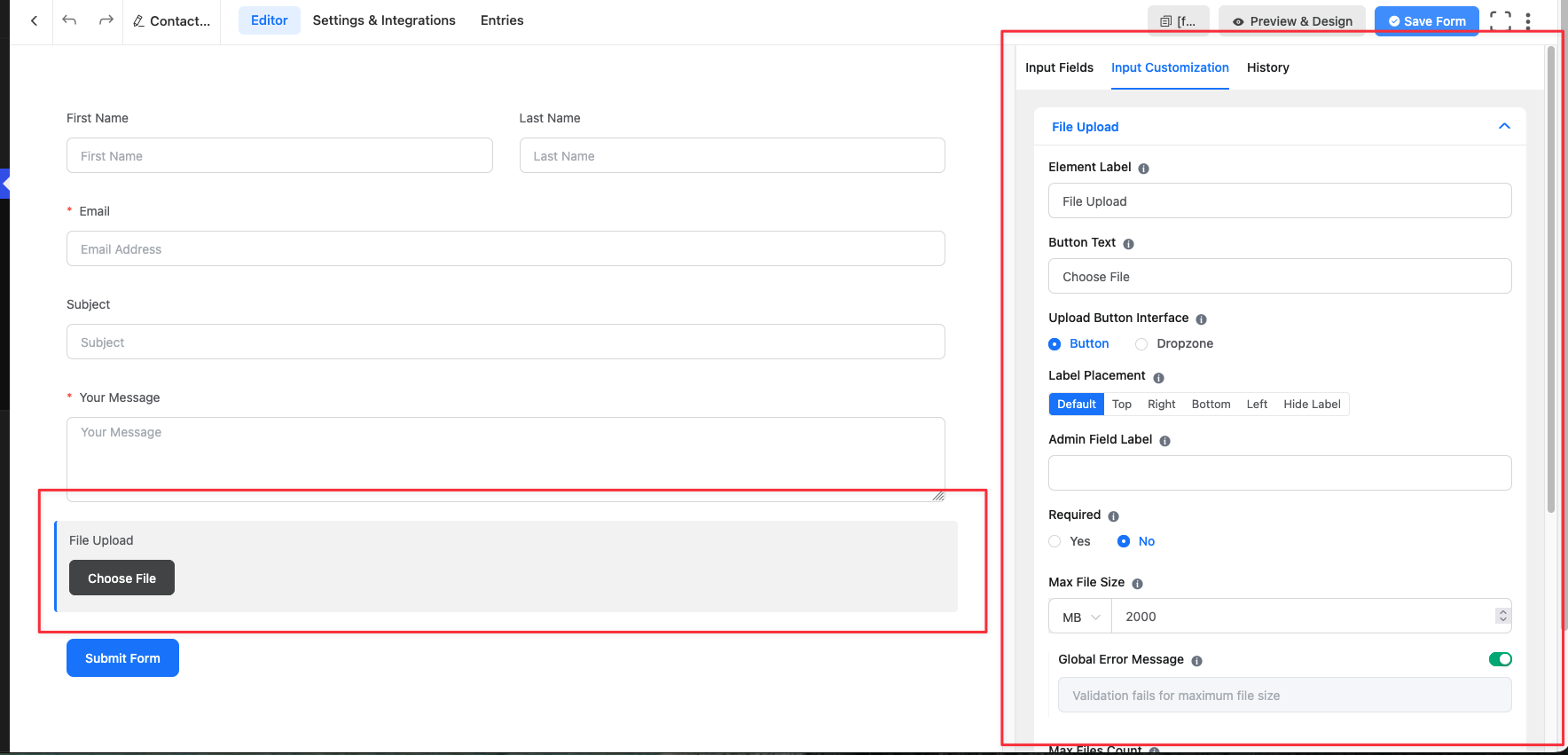
From your WordPress dashboard, go to Fluent Forms and open the form you want to edit, or create a new one. In the form editor, look under Advanced Fields in the left panel. Drag the File Upload field (or Image Upload field for photo-only submissions) into your form.
Once it's in the form, click the pencil icon to open the field settings. The settings you'll want to configure:
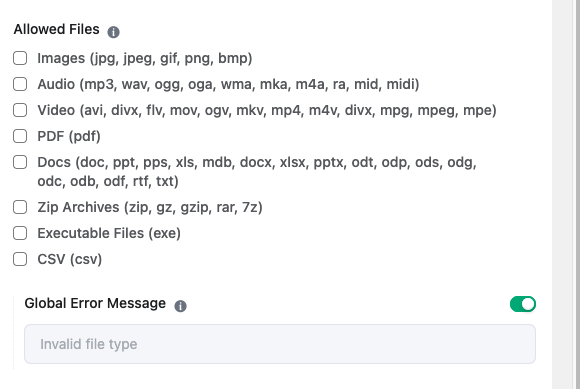
Allowed File Types: Check the formats you want to accept. Fluent Forms groups them by category such as images, audio, video, PDF, docs, zip. You can select individual formats or entire groups. If you need a format that isn't listed by default (like DWG for AutoCAD files), Fluent Forms has a fluentform/file_type_options filter you can use to add it.
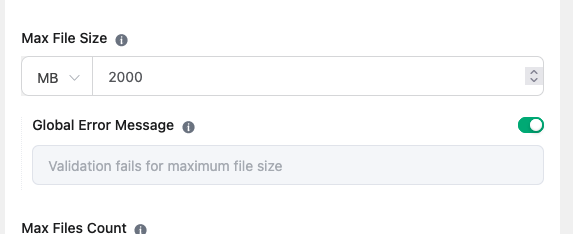
Max File Size (Important!): Set a per-file size limit in KB or MB. This is the limit Big File Form Uploads enforces on the frontend. If you set this to 5MB, files over 5MB will be rejected before a single chunk is sent. If you leave it at 0 or unset, there is no per-file cap and the only ceiling is your host's PHP limit, which is exactly the problem Big File Form Uploads is solving. So make sure this value reflects the actual maximum you want to accept.
Max Files Count: Set how many files a user can attach per submission. If you need single-file submissions, set this to 1. For portfolio or batch submissions, you can allow more.
Error Messages: Fluent Forms lets you customize the message shown when a file is too large, when the file count is exceeded, or when the file type doesn't match. Worth setting these to something your users will actually understand rather than leaving the defaults.
Required/Optional: Decide whether the upload is mandatory for submission.
Save the form when you're done. This field configuration is exactly what Big File Form Uploads reads when it builds the replacement uploader.
How Big File Form Uploads Works With Fluent Forms Pro
Once you have both plugins active, here's what happens technically (feel free to skip this if you're not technical!)
Big File Form Uploads hooks into two Fluent Forms filters: fluentform/rendering_field_html_input_file and fluentform/rendering_field_html_input_image. Those filters fire when Fluent Forms renders a file or image upload field on the frontend. Big File Form Uploads intercepts the rendered HTML and replaces it with its own drag-and-drop chunked uploader. Your field settings — accepted file types, max file count, max size — are read directly from the field configuration and passed into the replacement uploader as data attributes, so they're still enforced.
When a user selects a file, the JavaScript uploader splits it into chunks and sends them one at a time to a dedicated WordPress AJAX endpoint (fluentform_handle_chunk_upload). Each chunk is validated with a nonce and moved to a staging directory (/wp-content/uploads/fluentform_chunks/). Once the final chunk arrives, the server reassembles all the pieces into a complete file and moves it to /wp-content/uploads/fluentform/temp/ — the same temp directory Fluent Forms uses internally. From there, Fluent Forms' own processFiles() pipeline takes over exactly as it would for any other upload.
The assembled file path is encrypted using Fluent Forms' own Protector::encrypt() method before it's passed back to the frontend, which is how Fluent Forms securely references temp files between the upload step and form submission. The response shape matches what Fluent Forms expects natively, so entries, notifications, conditional logic, and any integrations you have set up all work without modification.
If you're running Infinite Uploads to push your media to cloud storage, the chunk staging directory (/fluentform_chunks/) and the Fluent Forms temp directory (/fluentform/temp/) are both automatically excluded from cloud sync. Temporary files won't appear in your media library or get pushed to cloud storage mid-upload.
What You Need
Three plugins, all active at the same time:
- Big File Uploads — the free WordPress plugin that sets your actual upload limit. Configure your limit here once and every supported form plugin inherits it.
- Big File Form Uploads — the premium add-on that handles the chunked upload integration with Fluent Forms Pro (and Contact Form 7, Gravity Forms, and Forminator).
- Fluent Forms Pro — required because the file upload field is a Pro-only feature.
The Types of Forms This Is Actually For
Not every Fluent Forms file upload field needs this. If your form collects headshots, short PDFs, or small documents that stay well under 32MB, your host's default limit is probably fine.
Where this matters is forms collecting files people actually struggle to send. Client project files. Print-ready design assets. Raw video footage. High-resolution photography. Architecture drawings. Audio recordings. These are the files that hit 50MB, 200MB, or more without anyone thinking twice — and they're the ones your clients email you about when the form just stops responding.
A construction company collecting project briefs and site photos. A recording studio taking raw session files from remote clients. A university department running an application form that requires portfolio uploads. A video production agency collecting footage from contributors. These are the situations where the PHP limit stops being a background configuration detail and starts costing real submissions.
Getting Started
Install Big File Uploads from the WordPress plugin directory. Set your upload limit in the Big File Uploads settings. Then install and activate Big File Form Uploads. With Fluent Forms Pro already active, the integration loads automatically — no additional setup required.
You can read more about how Big File Form Uploads works across all supported form plugins in the full plugin overview. Fluent Forms Pro support shipped in version 1.2.