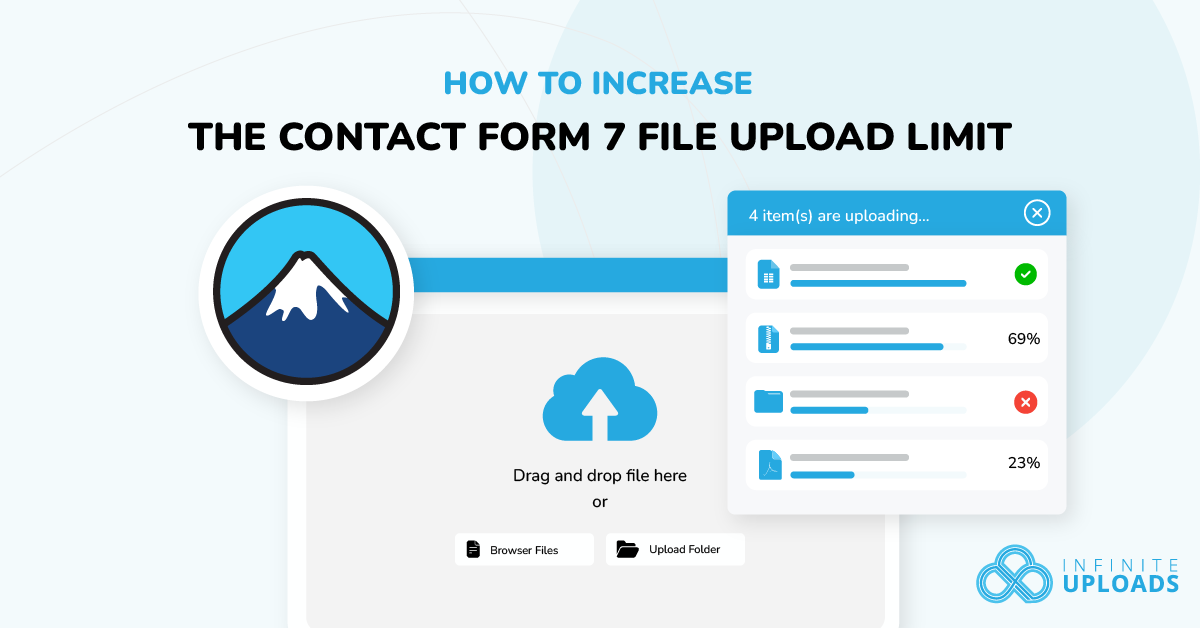
Running into upload errors with Contact Form 7? You’re not alone. Whether you're collecting resumes, images, or videos, your visitors hitting the upload limit when trying to upload can be frustrating and confusing to fix. In this guide, you’ll learn exactly how to increase the Contact Form 7 file upload size limit, step by step, with no coding.
Quick answer: set the limit explicitly in the Contact Form 7 form tag, for example [file your-file filetypes:pdf|jpg limit:25mb]. Contact Form 7 currently defaults to 1 MB when limit: is omitted, and it warns when total email attachments can exceed 25 MB. The effective maximum is the lowest limit across the form tag, PHP upload_max_filesize and post_max_size, the web server or proxy, security rules, and the email transport. Review the official file upload and attachment documentation before publishing the form.
Contact Form 7 is a widely used free WordPress form plugin. While it supports file uploads out of the box, the default limits often set by your server or the plugin itself can be restrictive. Let’s break it down and get your forms optimized.
What is Contact Form 7 and Why Use It for File Uploads?

Contact Form 7 offers a lightweight plugin (though, not the easiest in my findings) way to build contact forms without coding. It includes built-in support for file attachments, making it ideal for scenarios like accepting video uploads, large files, and more.
The best part? It’s free! You can create a basic file upload form in minutes, and if you need more, there are free extensions that expand what Contact Form 7 can do. For example, Drag and Drop Multiple File Upload adds multi-file support, Conditional Fields lets you show or hide uploads based on choices, and Flamingo saves submissions to your database.
How to Increase the WordPress Contact Form 7 File Upload Limit Size
Before we start building our form, in order to Increase the Contact Form 7 file upload limit, we must increase the limit. To raise the WordPress Contact Form 7 file upload limit size, I’m going to outline 4 methods that can be done, with 3 getting down and dirty into the code and one method is using a plugin, and one is asking your hosting support, but there’s limitations.
Method 1: Edit PHP Settings via php.ini or .htaccess (Free Methods)
This method is free, but requires a lot of scary code & opening configuration files. And, in my experience you’ll start to get more errors when your maximum upload file size surpasses your memory limit, but results may vary!
First, access your site’s files via FTP or your hosting control panel.
- php.ini File: Locate or create php.ini in your WordPress root. Add:
upload_max_filesize = 64M
post_max_size = 64M
max_execution_time = 300- Save and restart your server if needed. Ensure you set 64M to the size you wish, with M standing for megabyte.
- .htaccess File: In the root directory, add to .htaccess:
php_value upload_max_filesize 64M
php_value post_max_size 64M
php_value max_execution_time 300- This works on Apache servers. Ensure you set 64M to the size you wish, with M standing for megabyte.
Method 2: Use Your Host Control Panel or Server Configuration
Do not rely on @ini_set() in a theme’s functions.php to raise upload limits. Hosting platforms often disable runtime changes, theme updates can remove them, and the request may already have been rejected before WordPress runs the code.
Use the host’s PHP settings panel or the appropriate PHP-FPM, php.ini, .user.ini, Apache, or Nginx configuration. Confirm that post_max_size is larger than upload_max_filesize, then check the proxy, CDN, firewall, and mail limits separately. Ask the host which layer rejected the request instead of assuming one setting controls the full upload path.
Method 3: Install Big File Form Uploads to increase the maximum file upload size (easiest)
Big File Form Uploads extends the free Big File Uploads plugin with chunked uploads for Contact Form 7. Once both plugins are active, Contact Form 7 file fields inherit the maximum configured under Settings → Big File Uploads. The add-on replaces any manual limit: value for those fields. Follow the current Contact Form 7 setup documentation and test the completed upload, storage location, notification, and cleanup behavior.
- Install Big File Uploads and set the maximum size your storage and workflow can safely support.

- Install the Big File Form Uploads plugin
That’s it! It’s extremely simple.
Method 4: Contact Your Hosting Provider
There’s some great web host providers, and there’s some lackluster ones – all for a variety of reasons. So reaching out to your hosting provider support could be a hit or miss. And, in my experience, most hosting providers will only increase it to about 256MB, maybe a stretch to 512MB – but that’s it. So, you’ll still have to go back to using method 3 if you want something substantial.
The first step is to reach out to your hosting provider and tell them:
Hello, I am trying to let my visitors upload large files through my Contact Form 7 form. Can you increase the maximum file upload size of my website please?
From there, they should be able to help you or give you other options. Make sure they set it to 256MB or 512MB.
How to Create a File Upload Form in WordPress Using Contact Form 7
Now that we have a clear runway to uploading large files, let’s get to building the form! Creating a file upload form in WordPress is straightforward with Contact Form 7. This method is free and works on any standard WordPress installation. Follow these steps:
- Install and Activate Contact Form 7: Go to your WordPress dashboard, navigate to Plugins > Add New, search for “Contact Form 7,” and install it. Activate the plugin once installed.
- Create a New Form: In the dashboard, click Contact > Add New. Give your form a title, like “File Upload Form.”
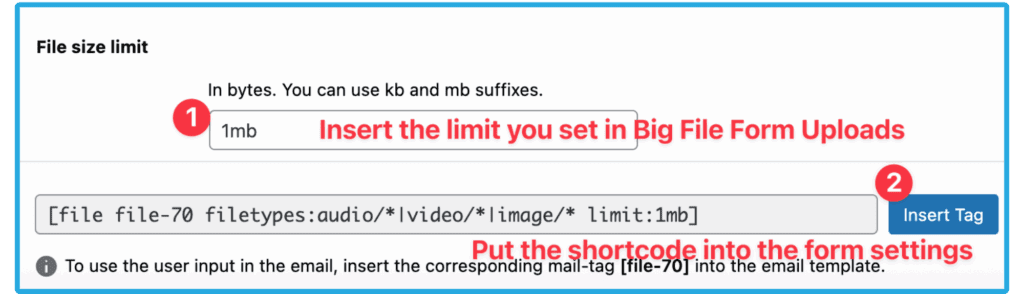
- Add the File Upload Field: In the form editor, click the “file” button to insert a file upload tag. It will pop up with a modal and Field type, Field name, Class attribute, Acceptable file types, and File size limit. For the sake of this tutorial, we will only focus on the file size limit.
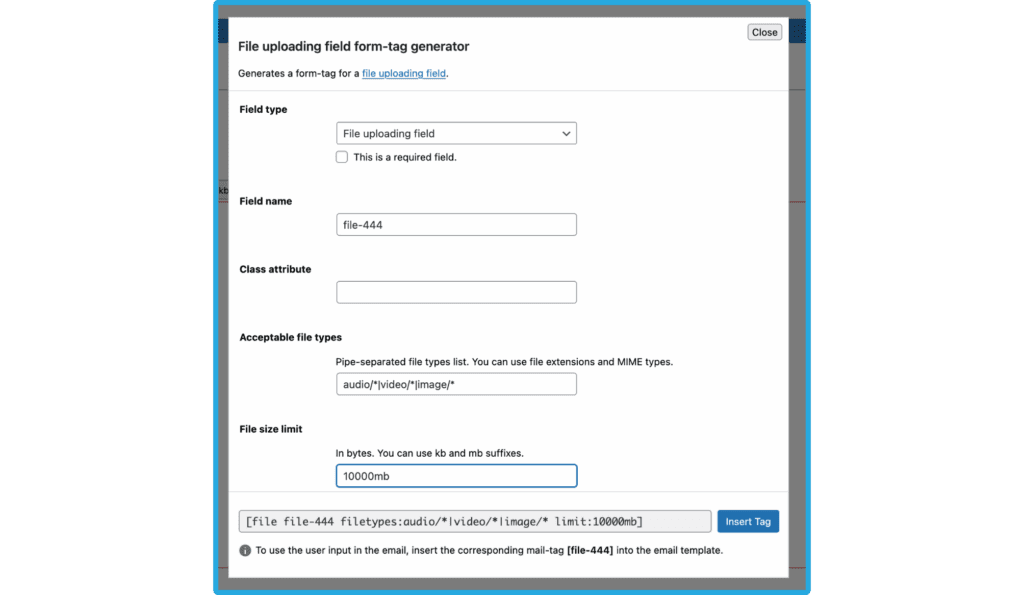
- You’ll want to set this as the same size you set Big File Uploads as. If it says there is a configuration error, that is OKAY. Make sure you insert the tag, and this sets a Contact Form 7 image upload file size limit or restricts file types.

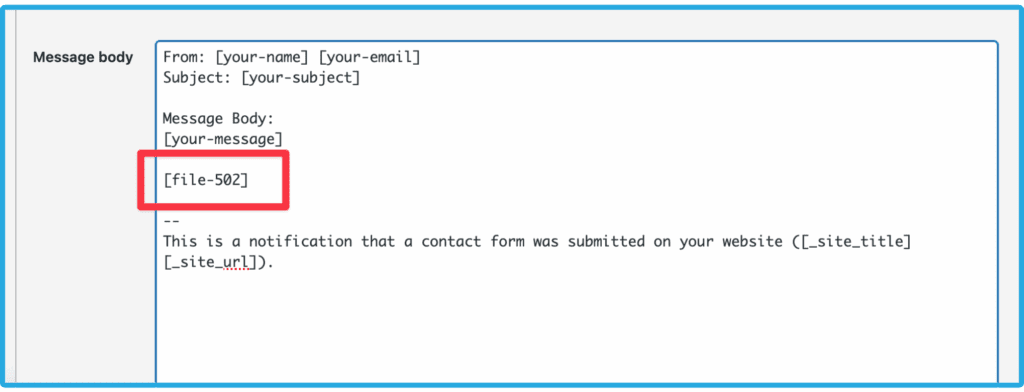
- Configure delivery: For a standard Contact Form 7 email attachment, put the matching mail-tag such as
[your-file]in the Mail tab’s File attachments field. Keep the total well below the documented 25 MB ceiling. For larger files, avoid sending the binary by email; store the upload and send an authorized link instead.
- Save and Embed the Form: Save the form, copy the shortcode (e.g., [contact-form-7 id="123" title="File Upload Form"]), and paste it into a page or post.
That’s it! You’ve now created a file upload form on your WordPress website with the file upload size increased.
Understanding the Contact Form 7 File Upload Size Limit
The Contact Form 7 file upload limit isn’t just plugin-specific. It’s influenced by multiple factors:
- Plugin-Level Limit: Set in the form tag (e.g., limit:256mb). This caps individual files but doesn’t override server settings.
- Server-Level Limits: WordPress inherits limits from PHP configurations like upload_max_filesize (default often 2MB) and post_max_size (default 8MB). If your form allows multiple files, the total size can’t exceed these. Can be bypassed by Big File Form Uploads.
- Hosting and security restrictions: Chunking can avoid single-request PHP size limits, but it cannot safely bypass a host firewall, proxy rule, ModSecurity rule, rate limit, storage quota, or blocked
admin-ajax.phprequest. Check the server logs or ask the host which rule fired. - Total Attachment Size: For multiple files, Contact Form 7 may throw a “The total size of attachment files is too large” error if exceeding mailer limits. This is why we recommended above not to have ANYTHING in the mail attachments section.
Troubleshooting Common Issues
Frequently Asked Questions (FAQs) About Contact Form 7 File Upload Limits
What is the default file upload limit in Contact Form 7?
Contact Form 7 currently defaults to 1 MB when a file tag omits the limit: option. Set it explicitly, for example [file your-file filetypes:pdf|txt limit:2mb], and keep it below every server and delivery limit in the request path. The plugin warns when your configured upload size exceeds PHP’s upload_max_filesize.
Why does my file upload fail even after increasing the limits?
If you’ve done any of the methods above, the likely culprit is you didn’t set the limit properly in Contact Form 7 settings.
Can I allow multiple file uploads in Contact Form 7 without plugins?
Core Contact Form 7 supports only single-file uploads per field. Big File Form Uploads only supports this, too. For multiple files, you’ll need a free extension like “Drag and Drop Multiple File Upload – Contact Form 7” or “Contact Form 7 Multi-File Upload.” These add drag-and-drop interfaces and let you set total size limits to prevent “total attachment size too large” errors.
How do I restrict file types in Contact Form 7 uploads?
Use the filetypes: option in the form tag and separate allowed values with a pipe. For example: [file your-file filetypes:pdf|jpg|png limit:5mb]. Use file* when the upload is required. Avoid executable file types and validate the final file on the server.
What if my host doesn’t allow editing php.ini or .htaccess?
Contact your hosting support to request an increase in upload limits. They often can adjust PHP settings on their end. But, if they can’t, or you need more than what they will set, use Big File Form Uploads.
How can I store uploaded files on my server instead of emailing them?
Standard Contact Form 7 temporarily stores an upload, attaches it when the matching mail-tag is configured, and then removes the temporary file. For a persistent server copy or a link-based large-file workflow, use a purpose-built integration and document its storage, access control, retention, and cleanup behavior. Big File Form Uploads stores completed Contact Form 7 uploads under /uploads/cf7_uploads/ according to its current documentation.
Is there a way to resume interrupted file uploads in Contact Form 7?
Unfortunately not. I’m not sure if there’s any solution out there, either!
How do I handle security for file uploads in Contact Form 7?
Always validate file types and sizes in the form tag to prevent malicious uploads. Use plugins like “Wordfence” for scanning uploads, and enable CAPTCHA or reCAPTCHA in Contact Form 7 to reduce spam. WordPress core also sanitizes uploads, but avoid allowing executable files (e.g., .exe, .php) by restricting filetypes.
Conclusion
Start with the Contact Form 7 tag, then verify PHP, the web server or proxy, security rules, storage, and email delivery. Keep MIME validation, executable-file blocking, malware scanning, access control, retention, and cleanup in the design. If you need large chunked uploads, review Big File Form Uploads after the native limit stack is clear.