If you've been storing your videos in Infinite Uploads and displaying them through FooGallery, the workflow just got a whole lot cleaner. FooGallery has integrated Infinite Uploads as a native datasource on their FooGallery PRO Expert plan, which means your WordPress video gallery can now pull directly from your Infinite Uploads cloud library. No manual importing, no re-uploading, no stitching things together with workarounds.
This is a genuinely useful integration. Here's what it means in practice and why it matters.
How FooGallery's Infinite Uploads Integration Works
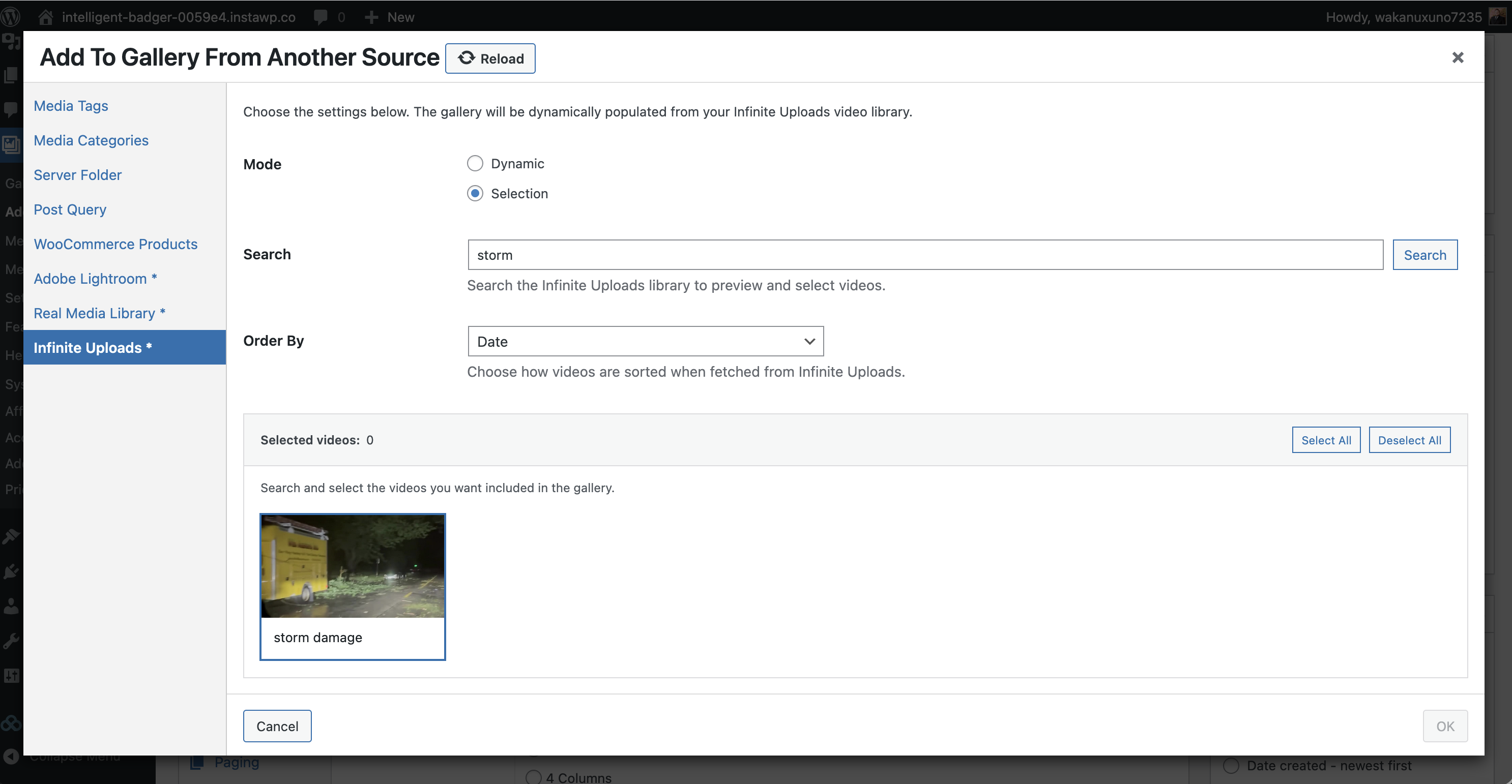
FooGallery has added Infinite Uploads as a gallery source option alongside things like Media Tags, Server Folder, Post Query, and WooCommerce Products in their FooGallery PRO Expert plan. When you create or edit a gallery in FooGallery, select the 'Add From Another Source' option and you will now see "Infinite Uploads" in the left sidebar.

From there, you pick a mode: Dynamic or Selection.
Dynamic mode pulls in everything from your Infinite Uploads video library automatically. Think of it like a live feed. Whatever videos are in your Infinite Uploads account get surfaced in the gallery. Add a new video to Infinite Uploads and it shows up. You don't touch the gallery settings at all. It just stays current. The search box in Dynamic mode is there for previewing only — it doesn't filter what gets displayed in the published gallery.

Selection mode is the manual pick. You search your Infinite Uploads library, click specific videos, and only those get saved into the gallery datasource. Search for "storm damage," click the thumbnail, and that's the only video included. One thing worth understanding here: Selection doesn't import videos into your WordPress Media Library. It stores the Infinite Uploads video IDs and records directly, and FooGallery builds the gallery items from that list. Your Media Library stays clean. The videos live where they've always lived, in Infinite Uploads.
Both modes support ordering by date, so you have control over how the videos are sorted even when the content is being pulled dynamically.
Why This Is the Smarter WordPress Video Gallery Workflow
Before this integration, the typical workflow looked something like this: upload a video to Infinite Uploads, download or copy it, import it into WordPress media, add it to a FooGallery gallery. That's friction. And if you had a large video library, that friction multiplied fast.
Now the workflow is: upload to Infinite Uploads, done. The gallery handles the rest.
For agencies managing client sites with ongoing video content (promotional clips, product demos, event coverage), this is significant. The client adds videos to their Infinite Uploads library and the gallery updates automatically. No support ticket to the agency every time they want to add a video. That's the kind of thing that quietly saves hours every month.
What Infinite Uploads Does for Your WordPress Media
Infinite Uploads is a WordPress plugin that offloads your media to the cloud. Instead of your videos sitting on your hosting server (eating disk space, slowing down your site, getting wiped when you switch hosts), they live in cloud storage that Infinite Uploads manages for you. Your WordPress media library still shows everything normally, but the actual files are served from the cloud.
The video cloud piece is part of that. Every video you upload through or connect to Infinite Uploads gets cataloged in a searchable library called the Infinite Uploads Video Cloud. That's the library FooGallery is now tapping into.
So when FooGallery pulls from Infinite Uploads, it's reaching into that video cloud library and displaying the videos directly. The videos never had to live on your server to begin with, and now they don't have to move anywhere to get displayed in a gallery either.
How to Add an Infinite Uploads Video Gallery in WordPress
You need FooGallery (on their PRO Expert plan) and Infinite Uploads both installed and active on your WordPress site. Infinite Uploads needs to be configured with your account, and your videos need to be in your library.
From there, go to FooGallery and create a new gallery or edit an existing one. In the datasource panel on the left, choose the 'Add From Another Source' option and then click Infinite Uploads. Then pick a mode.
If you want the gallery to stay automatically up to date with your Infinite Uploads library, choose Dynamic. Pick your Order By (Date or Title), optionally use the search box to preview what's there, and save. Done. New videos added to Infinite Uploads will show up in the gallery without you touching it again.
If you want to hand-pick specific videos, choose Selection. Enter a search term or leave it blank and hit Search. Click the videos you want (or use Select All), then save the datasource. Only those selected video IDs get stored with the gallery. FooGallery renders them as gallery items from there.
That's it. No shortcode gymnastics, no custom fields, no CSV imports. It's about as simple as this kind of thing gets.
WordPress Video Gallery Performance: Why Cloud Delivery Matters
One thing worth knowing: because Infinite Uploads serves your videos from cloud storage, the actual video delivery is handled by a CDN. Even better, it is encoded & streamed specifically at the optimal playback resolution for every visitor. Your WordPress server isn't streaming the video to every visitor. This matters a lot if you have a gallery with 10, 20, or 50 videos. A local server hosting all of that would struggle under real traffic. Cloud-served video scales without you having to do anything.
FooGallery handles the presentation layer. Infinite Uploads handles the storage and delivery. They each do what they're good at, and together the combination is more capable than either alone.
Get Started with FooGallery and Infinite Uploads
If you're already an Infinite Uploads user, update FooGallery (and make sure you're on their FooGallery PRO Expert plan) and look for the Infinite Uploads datasource option. If you haven't tried Infinite Uploads yet, this integration is one more reason it's worth it. Especially if you're managing a site with a growing video library and you're tired of your hosting costs creeping up every time you add content.
The combination of a solid gallery plugin and cloud video storage that's actually connected to it is something WordPress has needed for a while. It's good to see it here.