When you add a file upload field to a Gravity Form, it works fine for small files like PDFs or images. But if you need to collect large videos, design assets, or full project folders, you’ll quickly hit your server’s default caps. Visitors may see the error: “exceeds the maximum upload size for this site.”
The limit isn’t set by Gravity Forms itself. It comes from your WordPress hosting stack: PHP settings, your web server (Nginx or Apache), and any restrictions from your host. The fix is to raise those caps. With tools like Big File Uploads and Big File Form Uploads, you can safely accept multi-GB uploads without timeouts or errors.
In this post, we’ll walk through:
- Why Gravity Forms file upload limits exist
- How to raise those limits easily
- How to configure Gravity Forms for larger uploads
- How to handle large uploads (GBs instead of MBs)
- Common errors and how to fix them
By the end, you’ll have a clear step‑by‑step process to raise your upload limit and keep forms working smoothly.
Why You Should Increase Your Form Upload Limit
Fewer Failed Submissions
Big files are the top reason Gravity Forms submissions fail. Imagine a visitor waiting 10 minutes for a 1 GB video to upload, only to hit an error. Even smaller files can cause issues. Many hosts cap uploads at just 2 MB, while a single iPhone photo is often 3–8 MB. Without raising the limit, you’re setting users up for failure.
Happier Users
A smooth upload experience builds trust. Features like a visible progress bar show users their file is moving, while resumable uploads let them pick up where they left off if their internet drops. Both reduce frustration and make forms feel reliable.
Protecting Conversions
Every failed upload is a lost opportunity. If prospects can’t send project files or clients can’t share the assets you’ve requested, they may give up and look elsewhere. Raising your upload limit ensures your forms actually capture the leads and submissions you’re after.
How Gravity Forms Handles File Uploads
Gravity Forms includes a File Upload field you can drop into any form. With it, you can:
- Let users upload one or multiple files
- Limit uploads to certain file types (e.g., PDF, JPG, MP4)
- Define a max file size per upload, entered in MB
However, Gravity Forms doesn’t set the true upper limit. That ceiling comes from your PHP configuration and web server settings. For example, if PHP is capped at 50M, then even if you allow 500 MB inside Gravity Forms, uploads will still fail at 50 MB. This mismatch is why you’ll often see confusing “file too large” errors.
Where File Upload Limits Come From
Believe it or not, it's a whole slew of things in the stack that can limit form file uploads. From CloudFlare, to the web server, to PHP, to the Gravity forms file upload settings.
PHP Upload Settings
The main settings are:
- upload_max_filesize
- post_max_size
Web Server Upload Limits
- Nginx: controlled by client_max_body_size (the default is 1MB)
- Apache: controlled by LimitRequestBody.
If your web server cap is lower than PHP’s, uploads fail before PHP even sees them.
CloudFlare
CloudFlare sets their maximum upload size of 100MB at a time if your website is proxied by Cloudflare.
WordPress Upload Check
When you go to Media → Add New or Tools → Site Health → Info → Server, WordPress shows “Maximum upload file size: X MB.” This is just reflecting your PHP settings.
Gravity Forms File Upload Setting
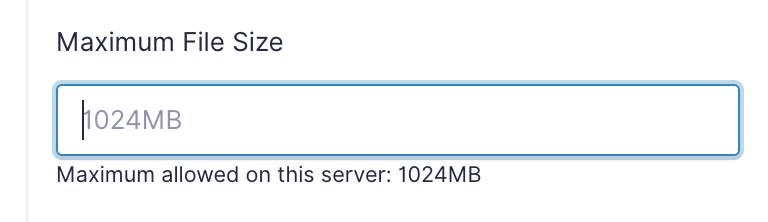
In the form builder, each File Upload field has a Max File Size (MB) option. This must be equal to or lower than the server’s cap.
Method 1: Raise PHP Limits (Medium difficulty)
You can do this in php.ini, .user.ini, .htaccess, or your host’s control panel.
Example php.ini settings:
upload_max_filesize = 2G
post_max_size = 2G
max_execution_time = 300
max_input_time = 300
memory_limit = 512M
Restart PHP-FPM or your server after changes.
Pro Tip: Always set post_max_size equal to or larger than upload_max_filesize, with about 20% headroom. If you want 1 GB uploads, set 1.2 GB.
Method 2: Match Your Web Server Limit (Very Difficult)
This is a little more difficult for most users, and perhaps not even possible for those on managed WordPress hosting, the environment is too locked down for any direct server changes.
For NGNIX
Edit your nginx.conf (located in /etc/nginx/nginx.conf):
client_max_body_size 10G;Reload Nginx (The command is sudo systemctl reload nginx)
For Apache
In .htaccess or your virtual host:
LimitRequestBody 0Setting 0 removes the limit. Alternatively, set it in bytes to match PHP.
Method 3: Install Big File Form Uploads To Increase the Maximum File Upload Size (Easiest difficulty)
Big File Form Uploads is the easiest way to Increase the Gravity Forms File Upload Limit. It works in tandem with our popular Big File Uploads plugin, and you actually set the Gravity Forms File Upload Limit in there. Big File Form Uploads works in the background only, there's no interface for it.
- Install the Big File Uploads plugin and set the limit you want (it can be anything from 1MB to 10GB or larger!)

- Install the Big File Form Uploads plugin & activate it using your license.
That’s it! It’s extremely simple.
Make Sure You Update Your Gravity Forms Settings
- Open your form in the builder.
- Click the File Upload field.
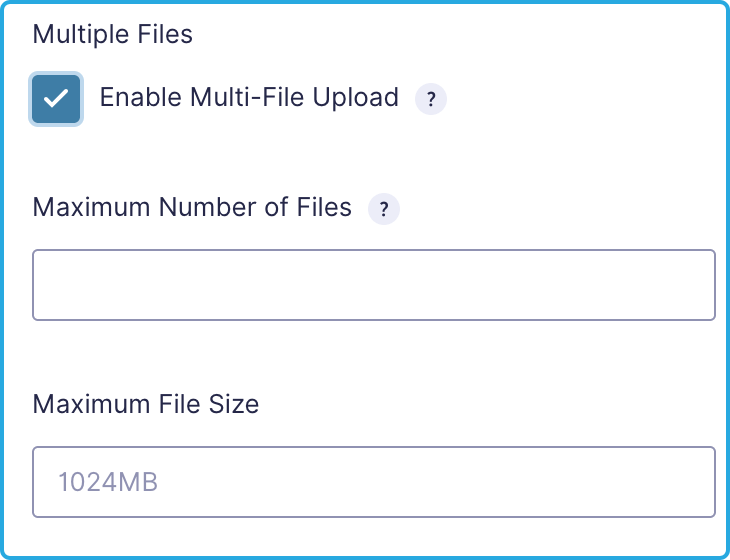
- Under General → Max File Size (MB), set your new maximum that you set in Big File Form Uploads
- Use Allowed file extensions to restrict uploads (e.g., only pdf, jpg, mp4).
- If needed, enable Multi-File Upload so users can send more than one file.
Test Your Configuration With Gravity Forms + Big File Form Uploads
- Upload a file slightly under the limit → should succeed.
- Upload a file slightly over the limit → should fail with a clear error.
- Confirm that large files complete without timeout.
Important To Note
When increasing your file upload limits, especially on your frontend forms, it's important to make sure you have enough disk space on your web hosting server. Allowing users to upload gigabyte files can quickly fill up your server if abused, so ensure you set your limits for what you're expecting, and ensure you have plenty of server space. Alternatively, you can offload them to Infinite Uploads.
Recommended Limits By Use Case
- Design proofs, raw photo sets: 2–5 GB
- Legal or HR documents: 250–500 MB
- Video submissions (HD/4K): 2-5 GB
- Everyday contact/support forms: 25–100 MB
Email Notifications
When you're increasing the size of uploads, you don't want to have the uploads attached to the email notification, as that could cause the email to fail because the attachment would be too big. So make sure you do not have this option checked in Gravity Forms.

Troubleshooting Common Issues
What Is the Default File Upload Limit in Gravity Forms?
Gravity Forms doesn’t set its own hard limit—it inherits from your server’s PHP settings. By default, upload_max_filesize is often just 2 MB, which is smaller than most smartphone photos. If you don’t set a custom limit in your File Upload field, it falls back to these server defaults. To check, review your php.ini file or open Tools → Site Health in WordPress. To break past these limits safely, use Big File Uploads and Big File Form Uploads.
Different Limits for the Media Library and Forms
Big File Uploads sets the global WordPress upload limit, and Big File Form Uploads follows that ceiling. If you need to upload very large files into your Media Library but want tighter limits on forms, set the higher cap in Big File Uploads and then apply a smaller file size rule directly inside the Gravity Forms field. That way, forms stay lightweight while your library accepts bulk media.
Gravity Forms File Upload Field and Browser Conflicts
Not all browsers handle file uploads the same way. Older browsers or certain mobile devices may not fully support drag-and-drop, multi-file uploads, or live progress indicators. This can cause silent failures or generic error messages. If users report issues, encourage them to switch to a modern browser like Chrome, Safari, or Firefox, and always test your forms across devices.
Handling Security for File Uploads in Gravity Forms
Uploads can pose risks if left unchecked. Always restrict allowed file types and sizes in your File Upload field to block malicious files. Use a security plugin like Wordfence to scan uploads, and enable CAPTCHA or reCAPTCHA to prevent spam bots. WordPress core sanitizes uploads, but never allow executables (e.g., .exe, .php). Stick to safe formats like images, PDFs, and documents.
Wrapping Up
Raising the Gravity Forms file upload limit keeps your forms reliable and user-friendly. With the right PHP and server settings—or plugins like Big File Uploads and Big File Form Uploads—you can handle larger files without slowing down WordPress. Whether you need a simple photo uploader or a form that accepts multi-GB archives, Gravity Forms gives you flexibility without sacrificing site performance.