If you run a photography site, an online course, a magazine, or a store with hundreds of product photos, your WordPress site is not like a regular blog. You are storing more files, handling more uploads, and giving more chances for something to go wrong. That is exactly why a proper WordPress security audit matters more here than almost anywhere else. We put this checklist together with two things in mind. First, what actually needs checking on a site that lives and dies by its images and video. Second, what you can realistically fix yourself.
Why Media-Heavy WordPress Sites Need a Wider Security Audit
A blog posting a handful of images a month has a small footprint. A site pushing out product photos, course videos, or a growing photo archive carries a lot more weight, and it needs a different level of checking. Here's what changes when media becomes the main part of your site:
- More upload points than a typical blog, and each one is a possible weak spot
- You're probably bringing in outside storage and CDN services alongside your own server once your media library gets large enough
- Your image and video files get scraped, hotlinked, and copied far more than plain text does
- You're likely running more plugins, like galleries and video players, and each one is more code that can go wrong.
- Your backups take longer and cost more to store, so you end up putting them off more than you should
This is the part a lot of security checklists skip over. They tell you to turn on two factor authentication and call it done. That's a fine start, but it's not the whole picture for a site where media is the product.
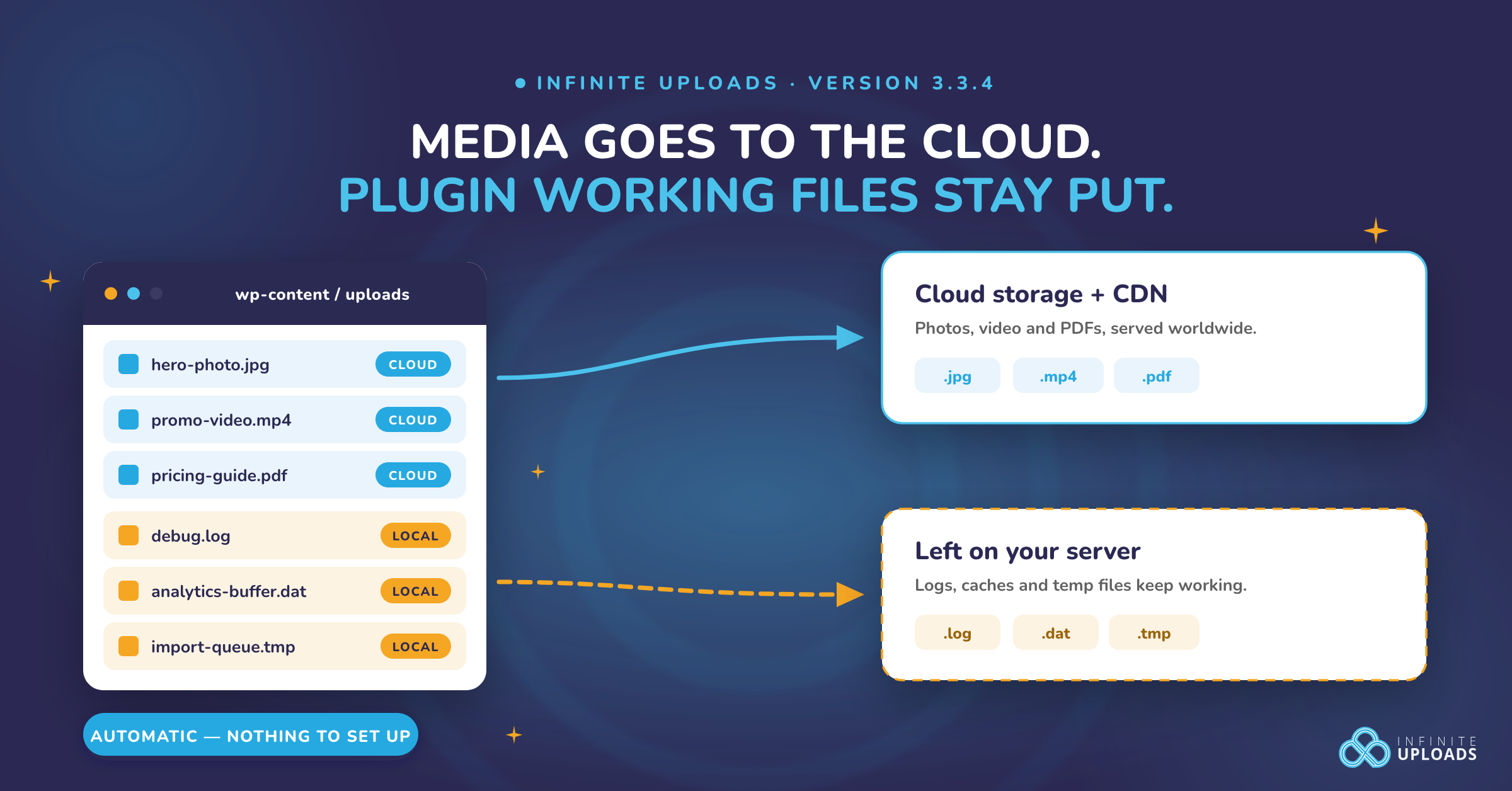
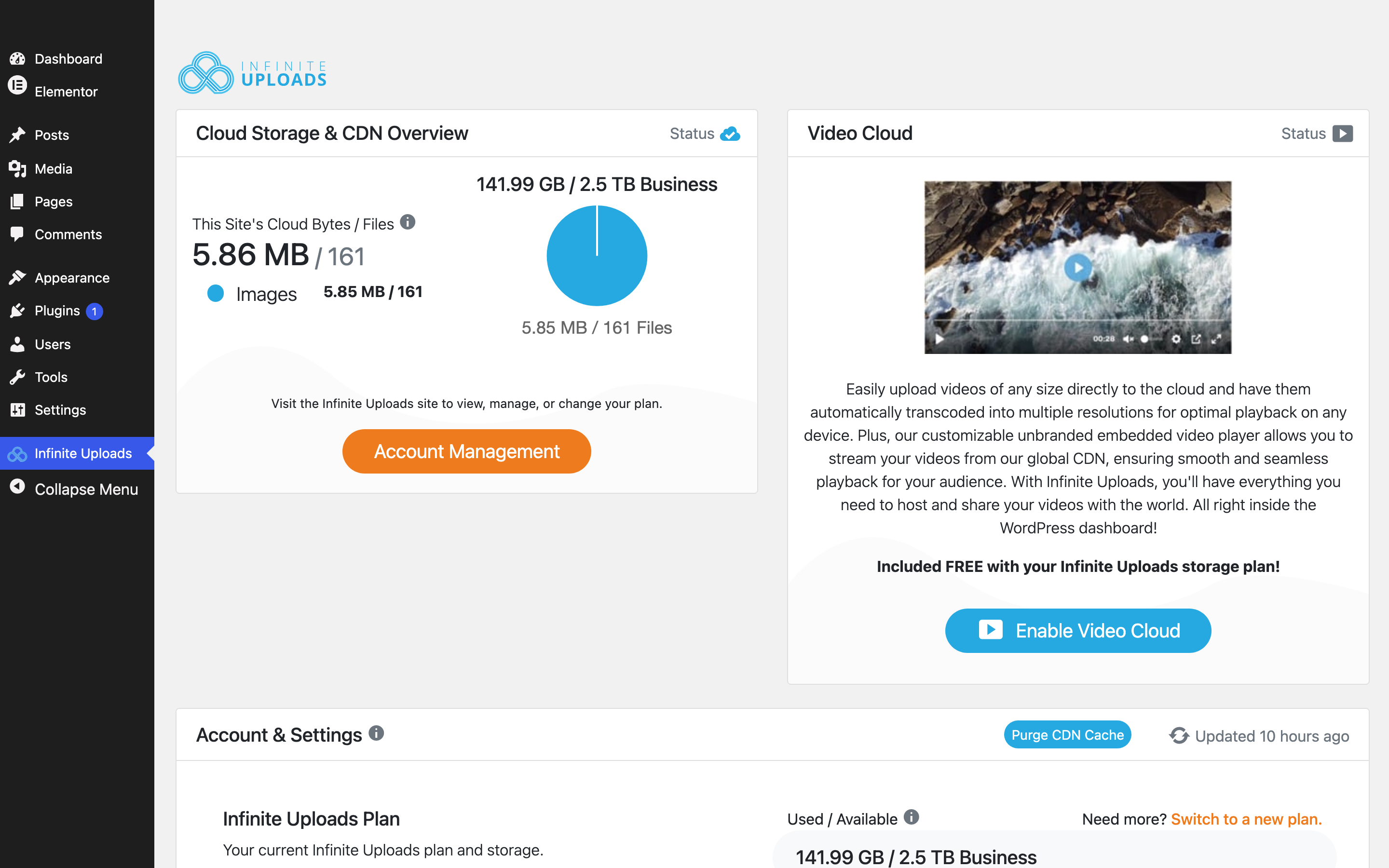
Storage and delivery are their own jobs, separate from security, and this is where Infinite Uploads fits in. Infinite Uploads offloads your images and videos to the cloud and serves them through a global CDN, so pages load faster and your own server carries less weight. It also handles video hosting and lets you download your media library back to your server with one click if you ever need to. We won't go deep into that side here since it's not our area. What we will cover is everything that keeps attackers, bots, and bad actors away from your login, your files, and your server. Two different jobs, both worth doing properly.
Login and Access Audit
Your login page is the first thing an attacker tries. Most attacks start there, because it's the easiest target to try over and over, not because it's technically weak. For the checklist below, we're using Ultimate Security plugin. It is lightweight and privacy-first. It covers everything in this list below.
Custom Login URL
Most bots aren't targeting you specifically. They're scanning thousands of sites at once, looking for the default wp-login.php page. Moving your login page to a custom address through the security plugin takes your site out of that scan entirely. It clears out almost all the background noise from automated bots.
Password Requirements
Length and complexity rules only catch so much. A password can be long and still be weak if it's already sitting in a leaked database somewhere online. The plugin can also check new passwords against known data breaches powered by “Have I Been Pwned” before allowing them, so a password that's already been exposed elsewhere gets rejected here too.
Two-Factor Authentication
A password by itself isn't enough these days. The plugin gives you two separate ways to add a second login step, and both are free to use.
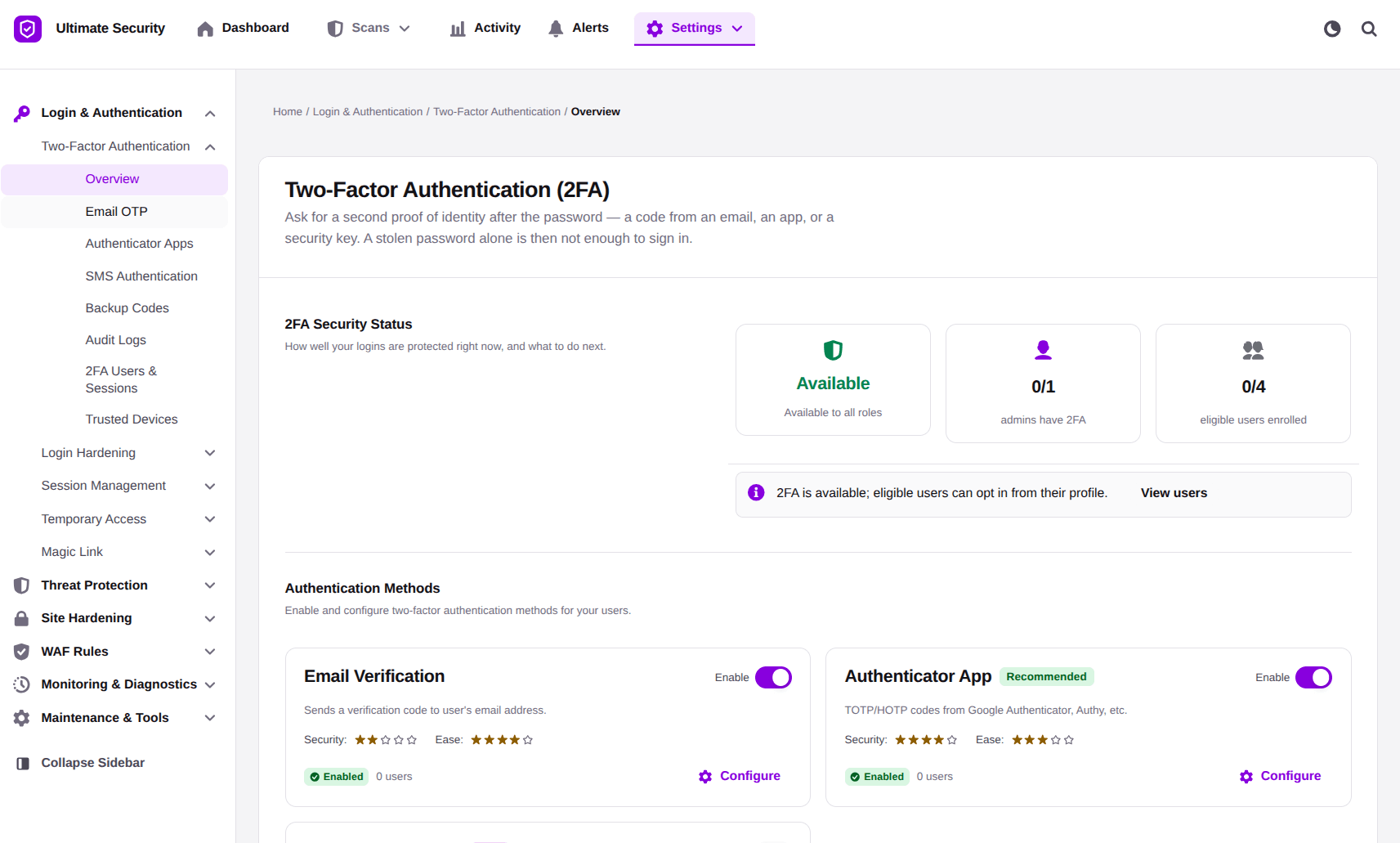
The first is email OTP. After a user enters their password, they get a short one-time code to their email inbox, and they type that code in to finish logging in.
The second is the authenticator app method. Instead of email, the user scans a QR code once to link an authenticator app to their account. From then on, that app generates a fresh login code every time, without needing an internet connection or an email.
You get to choose which method fits each user, and you can turn either one on per user role. A photographer who only uploads images can stick with the simpler email OTP, while your site admin might prefer the authenticator app for a faster, more self-contained login step.
Brute Force Limits
Without a limit on failed logins, someone can sit there guessing passwords for hours. The plugin locks an account out after a certain number of failed attempts and keeps it locked for roughly fifteen minutes. That short pause is usually enough to send an automated attack somewhere easier.
Plugin, Theme, and Core Update Audit
Outdated plugins are one of the most common ways WordPress sites get compromised, and media-heavy sites tend to run more plugins than average. Gallery plugins, video players, image optimizers, and form builders. Every one of them can be a potential entry point if it goes unpatched.
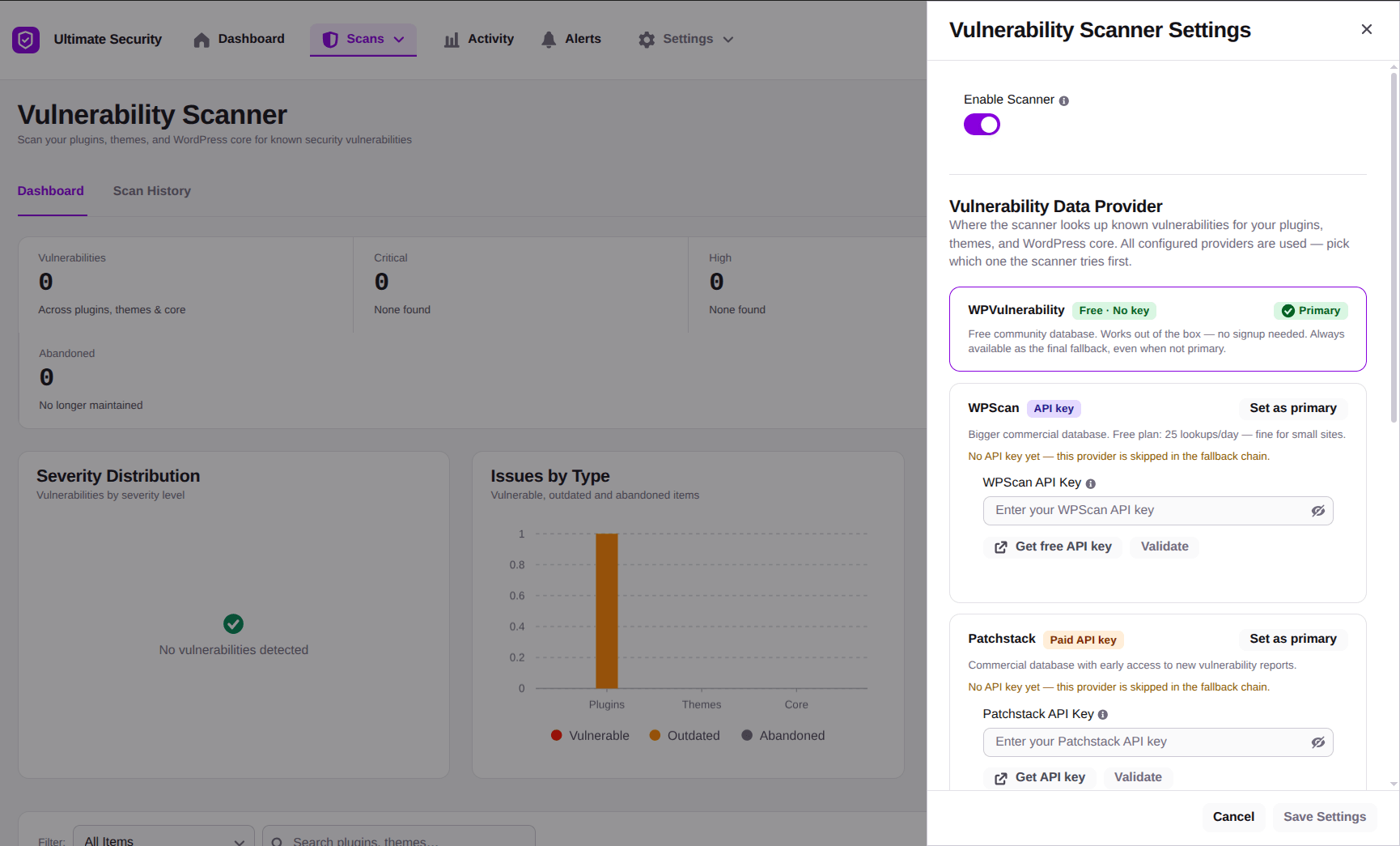
- Run a vulnerability scan against your active plugins, themes, and core with the plugin. The vulnerability scanner checks your WordPress site against known vulnerability databases and keeps a scan history, so you can see what changed since your last scan.
- Remove anything you're not using. An inactive plugin sitting in your files can still be a target. If you tried a gallery plugin last year and stopped, delete it instead of just deactivating it.
Cloudflare WAF and Bot Traffic Audit
Media-heavy sites get scraped a lot. Bots crawl for images to steal, bandwidth to drain through hotlinking, and content to copy wholesale. This part of the audit is where you cut a lot of that off before it becomes a real problem. Here's how the setup actually works.
You connect your own Cloudflare account to Ultimate Security, and from there, the plugin has preset rules, and you can deploy the five groups of rules directly to your Cloudflare zone. You don't write those rules by hand. Once deployed, Cloudflare filters your traffic at its own network edge. Here's what each of those five rule groups does. And don’t worry, Infinite Uploads CDN is compatible and complimentary with Cloudflare.
Allow Good Bots First
Before you start blocking anything, it helps to whitelist the bots you actually want visiting. Search engine crawlers, uptime monitors, and SEO tools all fall into this group. Getting this step right first means your later rules won't accidentally block something useful.
Optimize Your Images
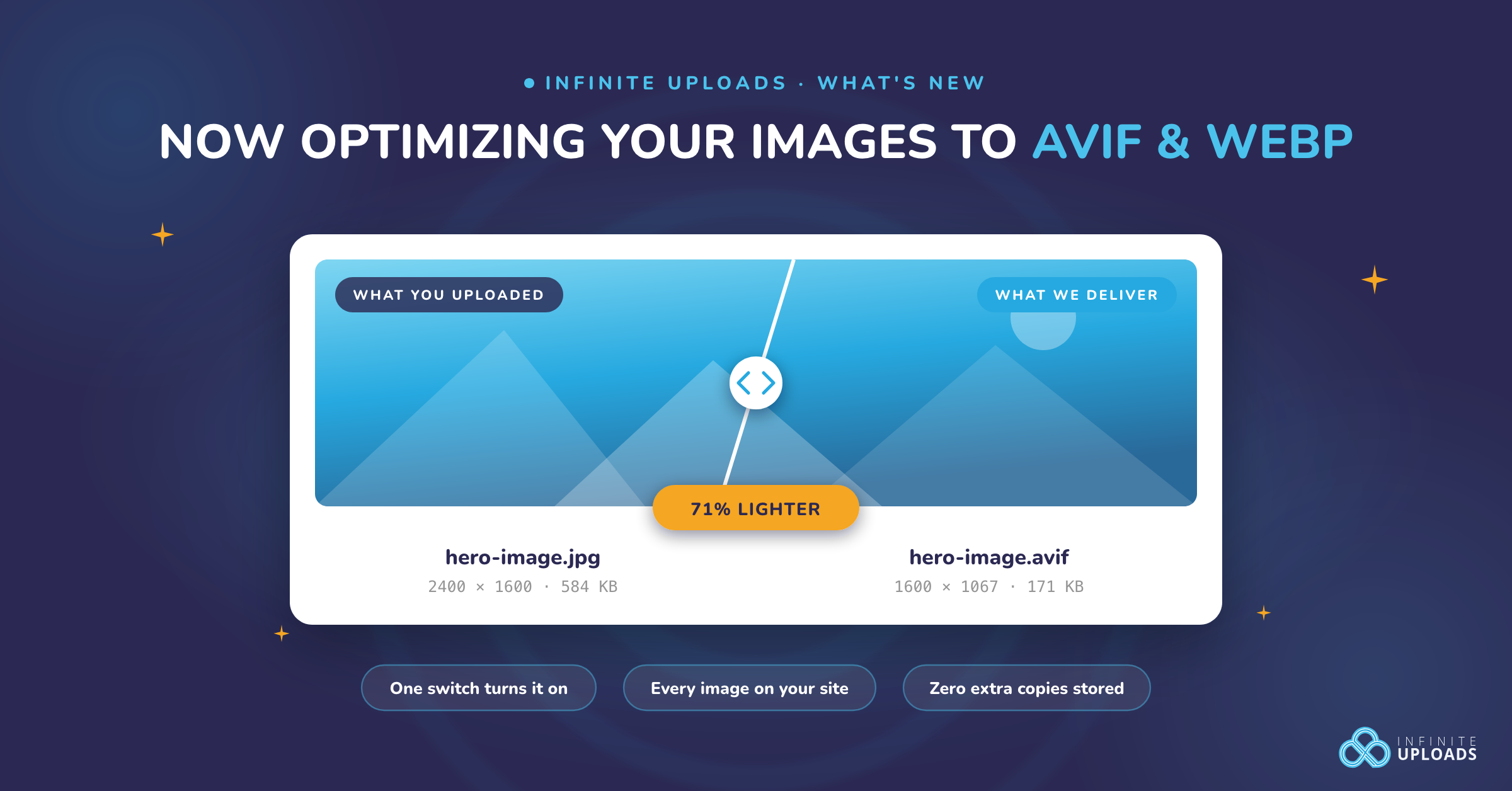
Even with Cloudflare WAF enabled and allowing good bots, you need to ensure that your images are optimized. This reduces your bandwidth and server strain, enhances your SEO, and allows more good traffic to hit your site by reducing the file size at the edge. Infinite Uploads takes care of image optimization, in addition to offload & CDN.
Block Crawlers and Sensitive Paths
Once the good bots are cleared, the next step blocks the aggressive crawlers and scanners showing up on almost every WordPress site, along with the sensitive paths bots probe by default, things like config files and install scripts that have no reason for being reachable from the outside.
Block Hosting Providers and TOR
A lot of attack traffic doesn't come from someone's home computer. It comes from cloud servers and TOR exit nodes, both used to hide where an attack really originates. Blocking traffic from known hosting provider networks and TOR closes off a route a lot of bots rely on.
Challenge Cloud Providers and Countries
Some traffic isn't worth blocking outright but still deserves a second look. Requests from large cloud platforms fall into this group, and if your visitors mostly come from a handful of countries, you can add a challenge step for anyone connecting from outside that list.
Challenge VPN Traffic on Login
Your login page is the one spot worth being extra careful about. Adding a challenge step for major VPN providers on just this page catches a lot of automated login attempts without affecting real visitors browsing the rest of your site.
Backup and Recovery Readiness Audit
No audit is complete without asking, if something goes wrong tomorrow, can you actually recover?
- Back up your security settings. This is your plugin configuration, things like your 2FA setup and custom login URL. If your site goes down, you don't want to rebuild these one by one from memory.
- Back up your database. This holds your posts, pages, user accounts, and comments. It's separate from your security settings and separate from your media files, and it needs its own backup on its own schedule.
- Check your media backup separately. Your images and videos are usually the heaviest part of your site and often get treated as an afterthought. If you're offloading media through Infinite Uploads, your files already live in the cloud with a one-click download option, which takes real weight off your regular site backup routine. It's worth checking that this part of your setup actually works, not just assuming it does.
Run a Security Score Check
Once you've gone through the checklist above, it helps to have a number to measure against. Ultimate Security's security score runs fourteen weighted checks and rates your site from Vulnerable up to Fortress across five tiers.
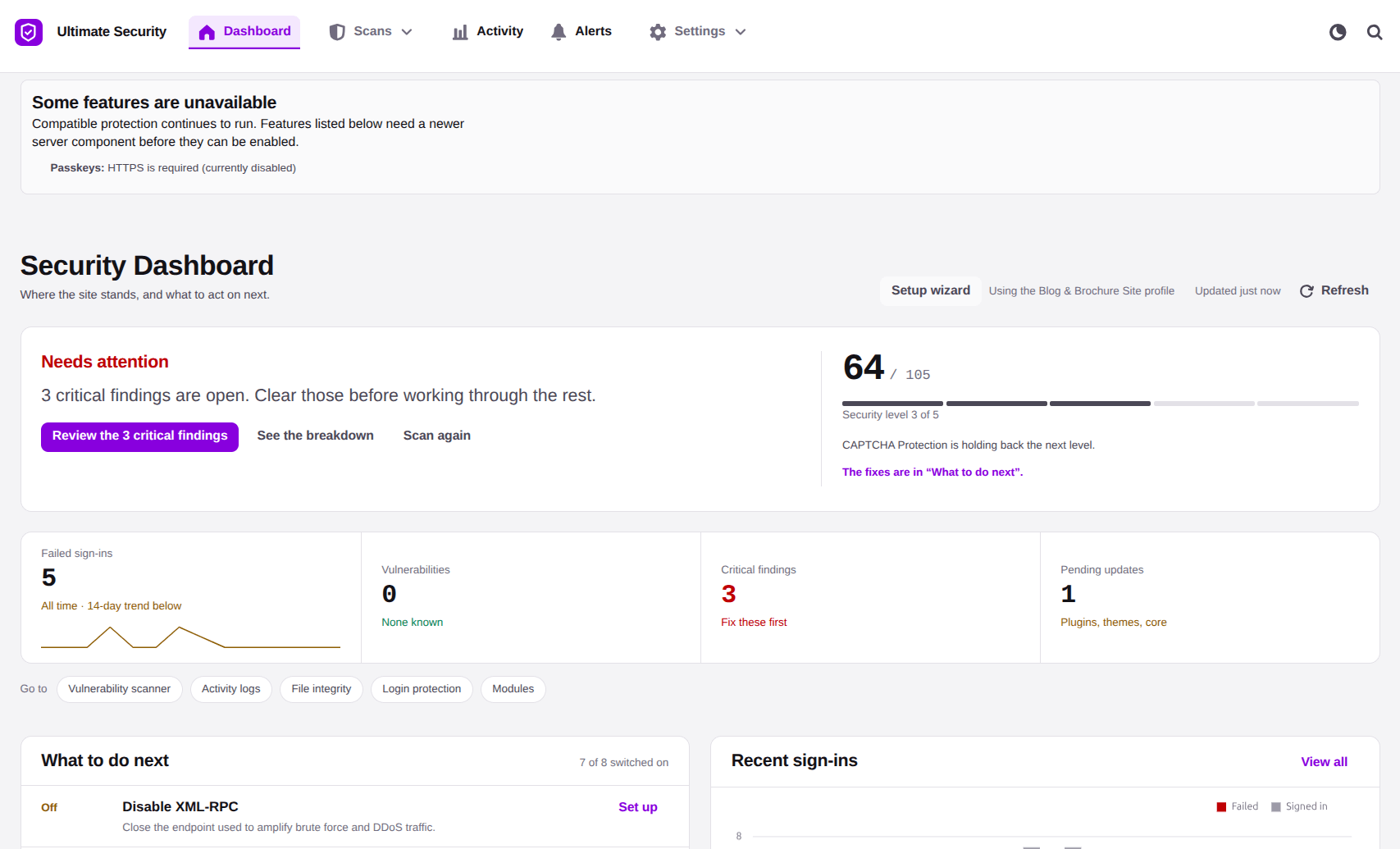
It's a simple way to see where you stand today and exactly what to fix next, rather than guessing whether your audit actually improved anything. See how the dashboard works in the documentation.
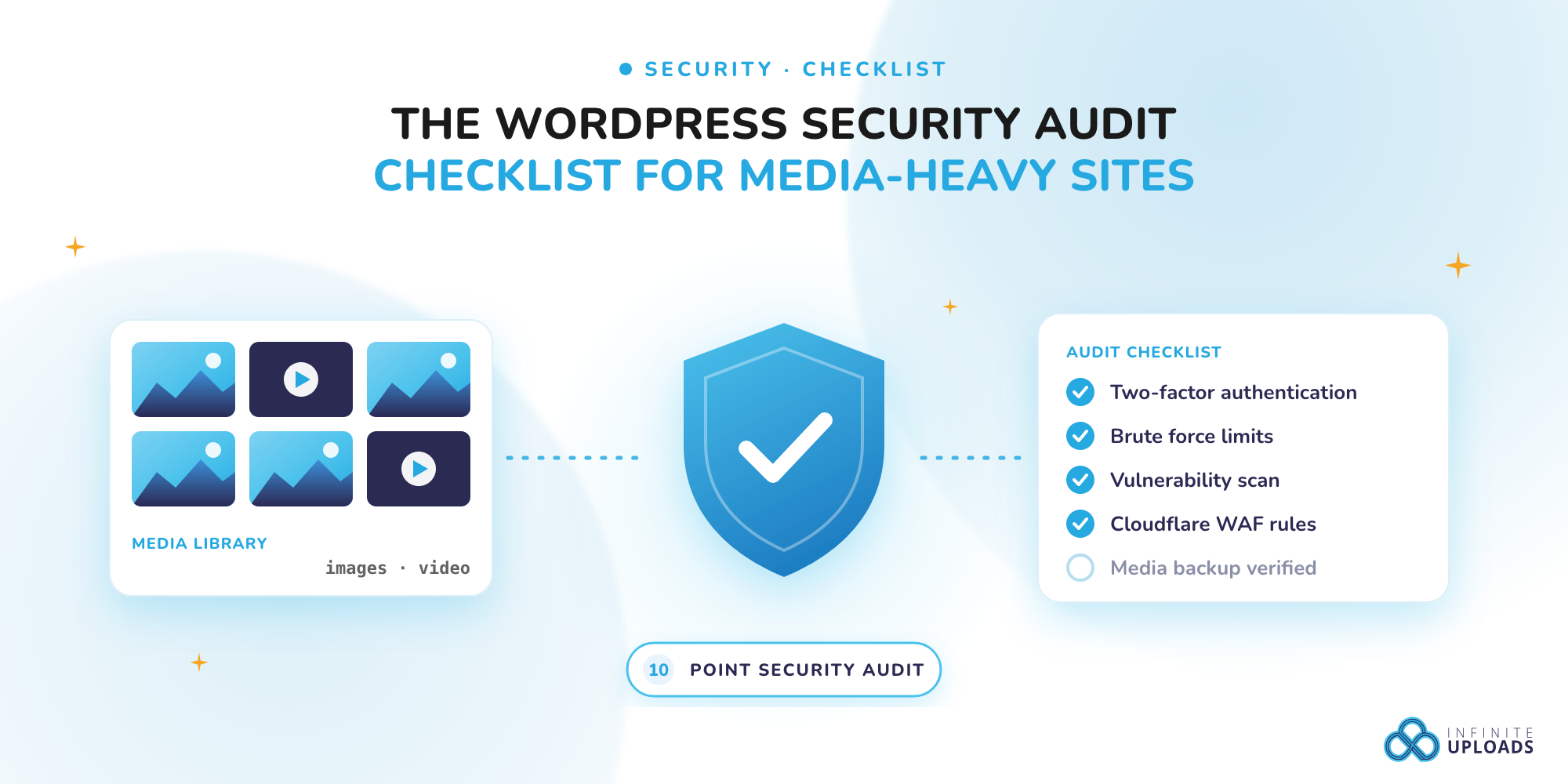
The Full WordPress Security Audit Checklist
Here's everything from above, pulled into one list you can work through.
- WordPress Two-Factor Authentication enabled for every admin and other user
- Brute force limits set
- Custom login URL in place
- Password policy enforced, checked against known breaches
- Vulnerability scan run on plugins, themes, and core
- Unused plugins and themes deleted, not just deactivated
- Cloudflare WAF rules deployed and active
- Settings backup taken and stored somewhere safe
- Media backup and restore process confirmed working
- Security score checked and action items noted
Save this list somewhere you'll actually see it again. A WordPress security audit is a continuous process. Set a reminder to run through it every few months, or after any big change to your site.
Frequently Asked Questions
How often should you run a WordPress security audit?
Every three to six months is a reasonable pace for most sites. If you run an ecommerce store or handle a lot of user uploads, doing it monthly is not overkill.
Is a security audit the same as a malware scan?
No. A malware scan checks whether something bad is already on your site. A full audit looks at your entire setup, logins, files, plugins, backups, and more, to reduce the chance of something bad getting in at all.
Do I need Cloudflare to use WAF rules?
Yes, you need your own free or paid Cloudflare account connected to your site. Ultimate Security handles deploying and managing the rules for you once that connection is in place.
Does offloading media to the cloud make my site more secure?
Not directly. Offloading mainly helps with storage space and delivery speed. Security still depends on the checklist above, things like login protection, firewall rules, and file monitoring. Think of storage and security as two separate jobs that both need doing.
What if I don't have the technical skills to do all of this myself?
Most of this checklist can be handled through a plugin dashboard without touching code. Ultimate Security's guided setup wizard walks you through the basics, and the documentation covers the rest step by step if you get stuck on a specific setting.
Conclusion
Your media library is what makes your site worth visiting, and it's also what makes it worth protecting properly. None of the steps above require a developer or a big budget, just a bit of time going through your settings one by one. Do it now, put a reminder on your calendar for a few months out, and this stops being something you worry about and starts being something you've already handled.