

Your Infinite Uploads subscription is managed in two places: the Payment & Billing page on the Infinite Uploads website, and the Stripe billing portal that it links to. Between the two, you can change your plan, switch between monthly and yearly billing, update your payment method, view invoices, and cancel your subscription.
The Two Billing Interfaces
There are two separate screens involved in managing your billing, and they handle different things.
The Payment & Billing page is part of the Infinite Uploads Member Dashboard at infiniteuploads.com/account/billing/. You’ll find it under the Payment & Billing tab alongside Usage Overview, Sites, and Profile. This page shows your current plan name and tier (for example, “2.5 TB Business”), your price and billing frequency (monthly or yearly), your subscription status (Active, Past Due, etc.), and your next invoice date. This is also where you change your plan.
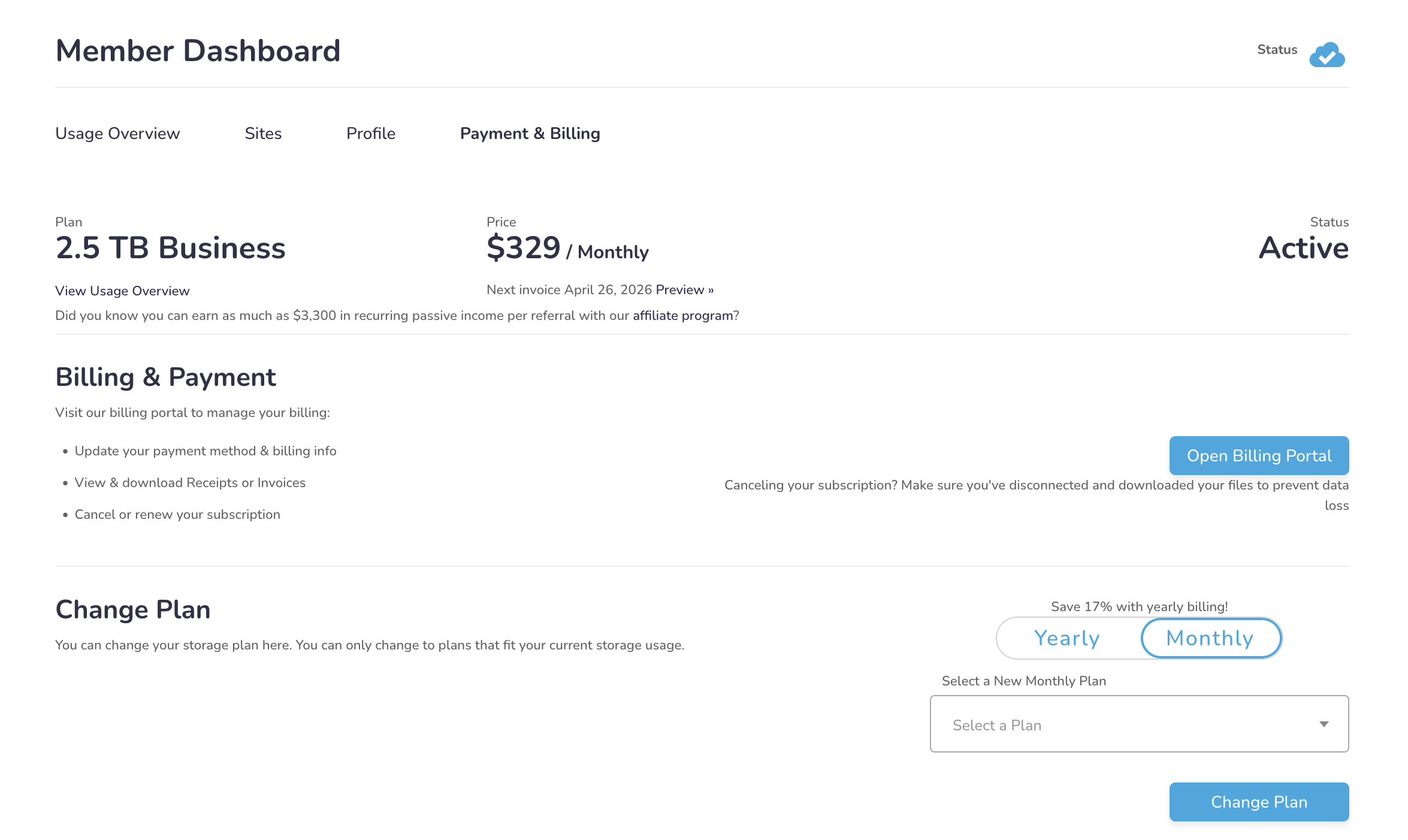
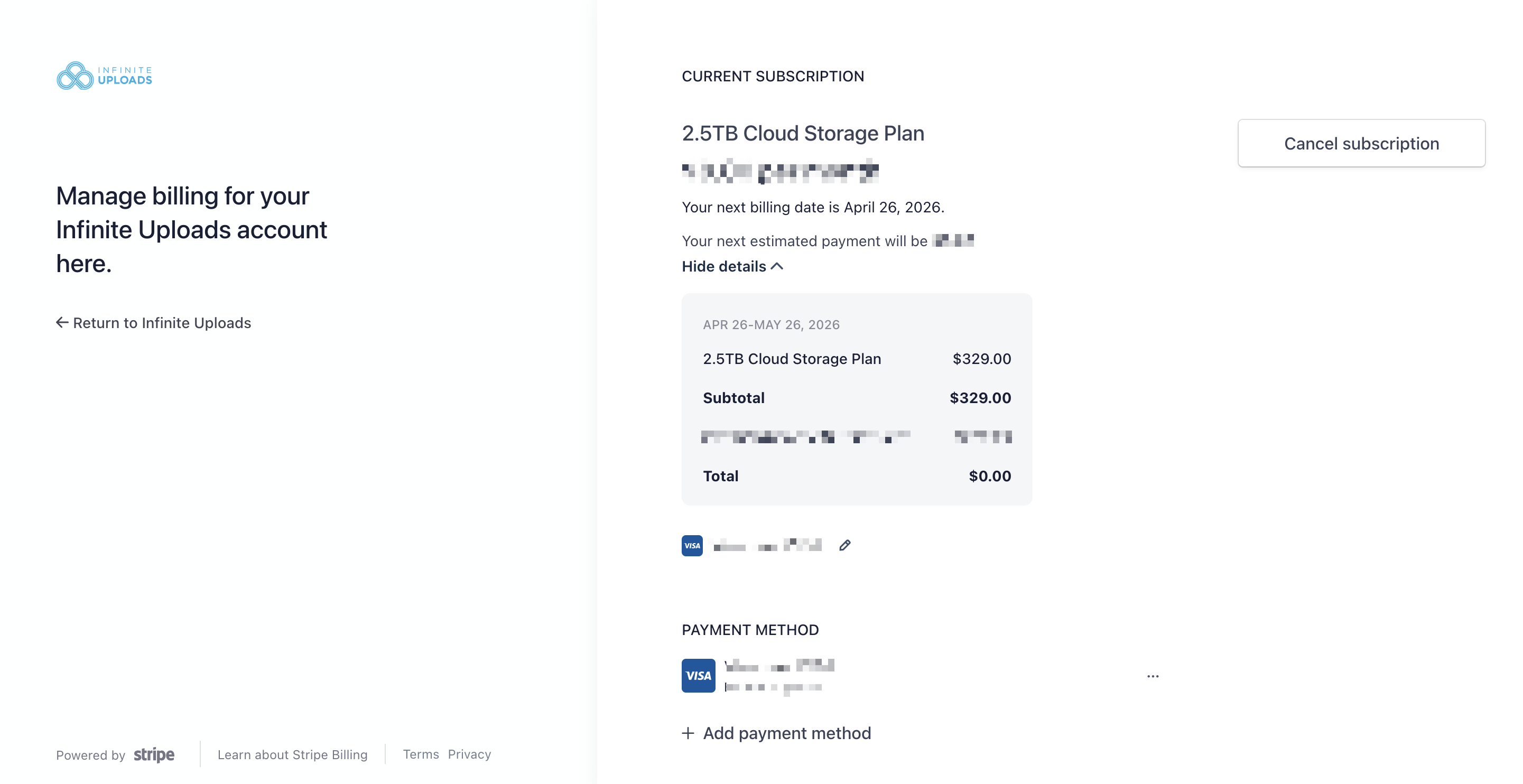
The Stripe billing portal opens when you click the Open Billing Portal button on the Payment & Billing page. This is a separate, Stripe-hosted page where you manage payment details. From here you can view your current subscription and upcoming invoice amount, see a detailed breakdown of charges (including any promo codes or credits applied), update or add a payment method (credit card), download past receipts and invoices, and cancel your subscription.
How to Change Your Plan
Plan changes are handled on the Payment & Billing page, not in the Stripe portal.
Scroll down to the Change Plan section. You’ll see a toggle to switch between Yearly and Monthly billing, and a dropdown to select a new plan tier. Pick the plan you want, then click Change Plan.
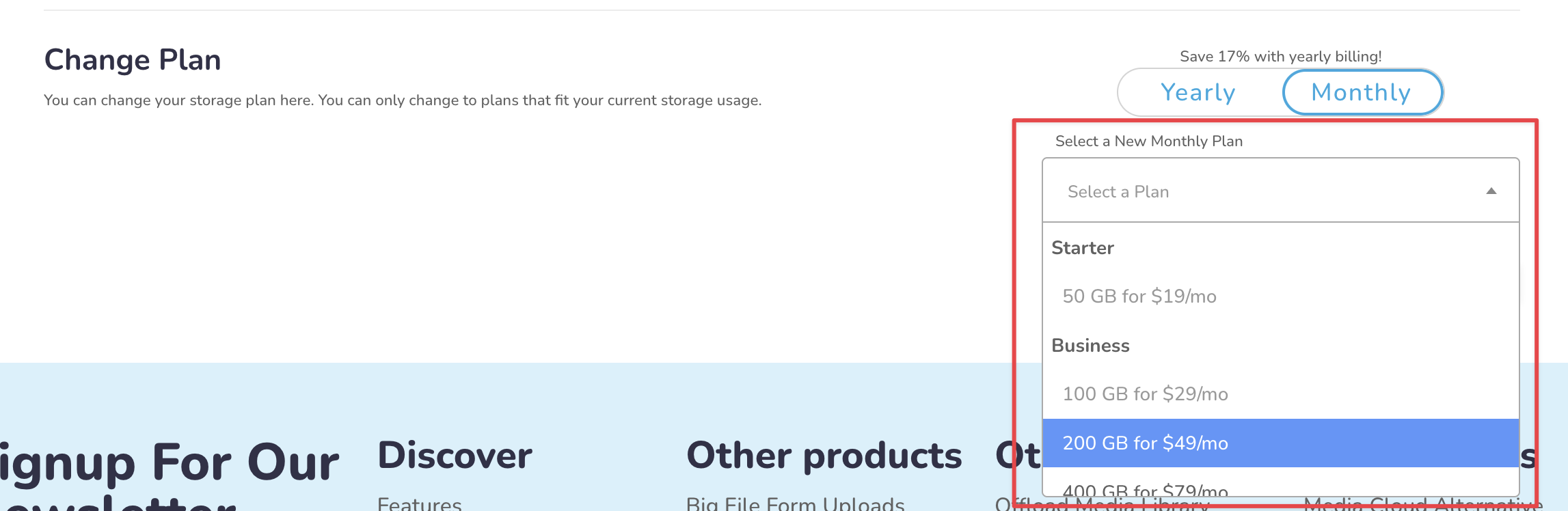
There’s one restriction: you can only change to plans that fit your current storage usage. If you’re using 120 GB of storage, you won’t be able to downgrade to the 100 GB plan. You’d need to reduce your stored files first by deleting media from the cloud or disconnecting sites.
Plan changes take effect immediately. Charges are prorated, so you get credited for the unused portion of your old plan and pay a prorated amount for the new plan through the end of your current billing cycle. You’ll see a preview of these prorated charges before you confirm.
Switching Between Monthly and Yearly Billing

The Yearly/Monthly toggle is in the Change Plan section on the Payment & Billing page. Yearly billing saves about 17% compared to monthly. Your monthly usage limits (storage and CDN bandwidth) stay the same regardless of billing frequency.
When switching from monthly to yearly, you’ll be charged a prorated annual amount for the remainder of your billing cycle. When switching from yearly to monthly, any unused prepaid credit from the annual plan is applied to future monthly invoices.
Updating Your Payment Method
Payment method changes happen in the Stripe billing portal. Click Open Billing Portal on the Payment & Billing page to get there.

In the Stripe portal, scroll down to the Payment Method section. You’ll see your current card on file with its last four digits and expiration date. Click the three-dot menu next to it to edit or remove it. You can also click + Add payment method to add a new card. Stripe handles all card storage and processing. Infinite Uploads never sees or stores your full card number.
If your card on file is expired or declined, this is where you fix it. Updating the payment method here will resolve any billing issue warnings you’re seeing in the WordPress plugin dashboard.
Viewing Invoices and Receipts
The Stripe billing portal shows your upcoming invoice at the top of the page, including a detailed breakdown: the plan name, subtotal, any discounts or promo codes applied, and the final total. Click Hide details / Show details to expand or collapse the line-item view.
Past invoices and receipts are available further down in the portal. You can view and download them as PDFs for your records or to submit to your accounting team.
What Your Next Invoice Date Means
Both the Payment & Billing page and the Stripe portal show your next billing date. This is the date your card will be charged for the next billing cycle. If you’re on a monthly plan, this is roughly 30 days from your last payment. If you’re on a yearly plan, it’s 12 months from your last annual payment.
If you cancel, your service continues as normal until this date. After that, uploads are blocked, CDN delivery is disabled, and files are scheduled for deletion.
Automatic Plan Upgrades When You Exceed Limits
If your storage or bandwidth usage goes over what’s included in your current plan, Infinite Uploads will automatically upgrade you to the next plan tier that fits your usage. This happens during the 10:30PM CT usage recalculation. Any remaining credit from your previous plan is applied to the new charges, and you’ll see a preview of the prorated amount.
There are no overage fees or penalties. You just move to the plan that covers your actual usage. If you want to avoid automatic upgrades, keep an eye on your storage and bandwidth numbers in the plugin dashboard or on the Usage Overview tab of your account page.
Cancelling Your Subscription
Cancellation is done through the Stripe billing portal. Click Open Billing Portal on the Payment & Billing page, then click Cancel subscription in the top-right corner of the Stripe portal.
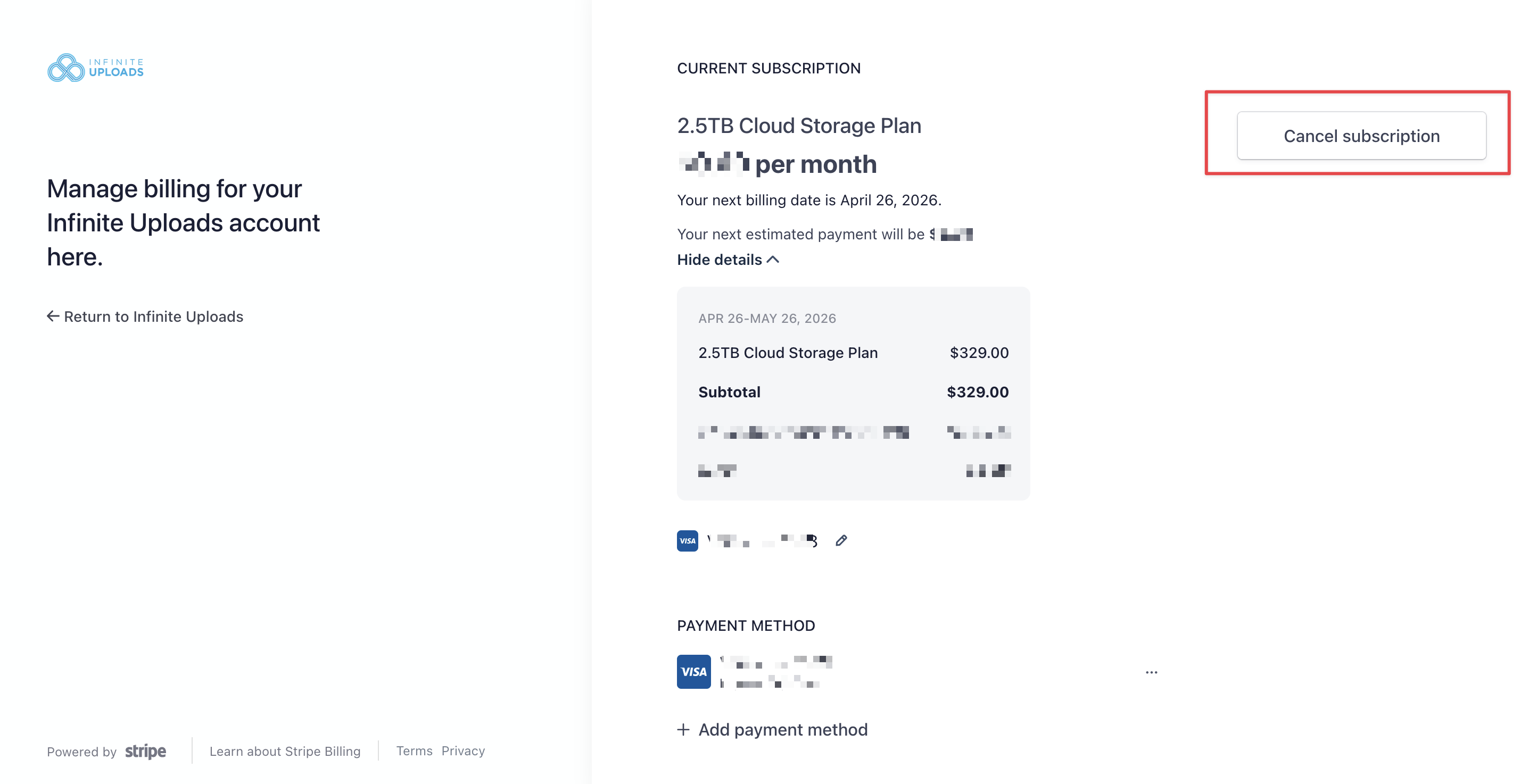
There are no contracts and no cancellation fees. When you cancel, your service stays active until the end of the current billing period. You can reactivate at any time before that date if you change your mind.
Download your files before cancellation takes effect. The Payment & Billing page itself warns: “Canceling your subscription? Make sure you’ve disconnected and downloaded your files to prevent data loss.” Use the Download & Disconnect tool in the Infinite Uploads plugin settings on each connected site, or use the WP-CLI command wp infinite-uploads download for larger libraries.
Once cancellation takes effect at the end of your billing period, all new uploads are blocked, your CDN is disabled, and files are scheduled for deletion. If media only exists in the cloud because you deleted local copies, that data will be lost.
For the full cancellation walkthrough, see Cancelling Your Account. For instructions on disconnecting individual sites, see Disconnecting, Deactivating, or Deleting the Plugin.
What Happens When a Payment Fails
If your payment method is declined or expired, the plugin will start showing a warning in your WordPress dashboard. There are two stages:
Stage 1 (soft block): “Files can’t be uploaded and your CDN will be disabled soon due to a billing issue.” At this point, new uploads to the cloud are blocked, but your CDN is still serving existing files. Your site’s images and media still work for visitors.
Stage 2 (hard block): “Files can’t be uploaded and your CDN is disabled due to a billing issue.” Now both uploads AND CDN delivery are disabled. Any media URL pointing to the Infinite Uploads CDN will return errors. Your visitors will see broken images.
To fix this, go to the Stripe billing portal via Open Billing Portal on the Payment & Billing page and update your payment method. Once the payment goes through, uploads and CDN delivery resume automatically. You don’t need to do anything else in the plugin.
If you can’t fix the billing issue and need to restore your site immediately, use the Download & Disconnect tool to pull your files back to local storage. This will restore your media from the cloud to your server’s uploads directory.
Quick Reference: Where to Find Everything
View your current plan and status: Payment & Billing page
Change your plan or storage tier: Payment & Billing page
Switch monthly/yearly billing: Payment & Billing page
Update payment method: Stripe billing portal (Payment Method section)
View upcoming or past invoices: Stripe billing portal (Click Open Billing Portal on Payment & Billing page)
Cancel subscription: Stripe billing portal
Check storage and bandwidth usage: Plugin dashboard (Account & Settings) or Usage Overview tab
For pricing details, plan comparisons, and what’s included in each tier, see Understanding Billing and Pricing.