If you have been running a WordPress site for a while, you probably know the moment it starts to feel fragile. You go to upload a batch of new images, and the Media Library is slow. You try to import a few hundred product photos, and your host starts complaining about disk usage. You finally decide to offload your media to the cloud, start a big sync, and then you hit the kind of error that makes your stomach drop. Too many server errors. Timeouts. Retries. A sync that feels like it is fighting your site instead of helping it.
A big part of the problem is something most people do not notice until they have lived it. On a real production site, your uploads directory is rarely just “uploads.” Over time, plugins and workflows start leaving behind cache folders, logs, generated files, and other fast-changing paths that were never meant to be treated as permanent media. When those get mixed into the same scan and sync loop as images, PDFs, and videos, the whole system becomes noisier and less predictable. That is the pain Infinite Uploads 3.1 is aimed at reducing.
Infinite Uploads is built as an all-in-one cloud media system for WordPress. It offloads the Media Library to the cloud and serves files through a global CDN, without asking you to configure buckets, manage API keys, or stitch together separate services. You connect, sync, and keep working inside the WordPress dashboard as usual. It also includes video hosting and streaming directly in WordPress, with support for large uploads, automatic transcoding, and adaptive bitrate playback.
Version 3.1 keeps that core workflow, but tightens one of the most practical parts of running media offload at scale.
The big change in 3.1 is exclusions you can manage in plugin settings
Infinite Uploads 3.1 introduces user-controlled folder exclusions directly in the plugin settings. Instead of relying on custom code or one-off workarounds, exclusions become something you configure as part of operating your media library.
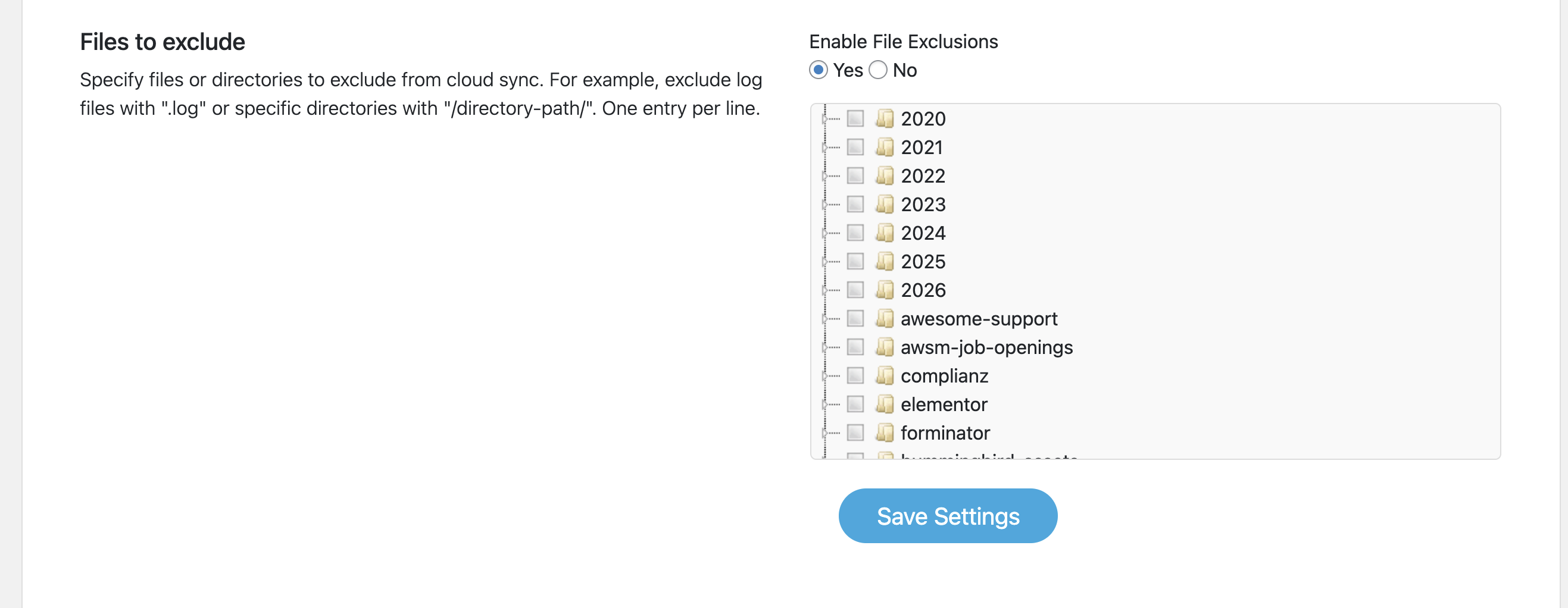
That might sound like a small switch, but it changes how offload behaves on real sites. A folder that is harmless today can become noisy tomorrow after a plugin update, a new caching layer, or a logging feature gets turned on. With exclusions in settings, you can respond quickly and keep your offload workflow focused on actual media. The model is designed to treat exclusions as a living configuration, not a decision you only make during initial setup.
This is especially helpful when you are trying to keep cloud storage clean and predictable. Infinite Uploads pricing is based on total storage and total CDN bandwidth, not per site. So reducing noise is not just about making sync feel better. It is also about keeping usage aligned with the media you actually intend to store and deliver.
Smarter default exclusions so the plugin focuses on media
Exclusions in 3.1 are not just about giving you a new settings screen. The exclusion system is designed to be much more aggressive about skipping paths that repeatedly cause issues with your site. Caches and logs are not stable media, and they can change constantly. Infinite Uploads 3.1 is designed to keep these kinds of paths out of the cloud sync workflow by default, so the plugin stays focused on what it is meant to do, which is offload and deliver your Media Library reliably.
Here’s a list of files that will not be synced with Infinite Uploads:
/wc-logs//php-errors//error_logdebug.log.log(substring match, so it will exclude many filenames ending in.log)/logs//tmp/,/temp/, plus other temp-like locations
This is also important for teams that manage multiple WordPress sites. When you are supporting client sites, you do not want every migration to turn into an investigation of which plugin is writing what into uploads. Better defaults mean fewer surprises, and the new settings-based exclusions give you a clear way to handle the surprises that still happen.
Changing exclusions after you are already in cloud mode should not break your site
The tricky part of exclusions is not adding them. The tricky part is changing them after you have already synced, especially if you use cloud-first uploads or you delete local copies to reclaim disk space.
Infinite Uploads already supports cloud-first behavior, where new uploads can exist only in the cloud, and it supports intentionally deleting local copies after syncing to free up disk space. That is great for reducing storage pressure on your host, but it raises a practical question. What happens if you later decide a folder should be excluded?
In 3.1, exclusions are treated as a change in storage policy, not simply “stop uploading new files from here.” When you exclude a folder, the intent is that files in that folder behave as local-first again, and if local copies were previously deleted as part of saving space, the system should restore those files back to their original locations so your site remains intact. This aligns with the broader idea that offload should be reversible, including how Infinite Uploads handles disconnecting by downloading missing cloud-only files back to your uploads directory to prevent broken media.
Performance improvements that matter under real load
This release includes a major performance upgrade across the most expensive operations in Infinite Uploads: syncing media, deleting local files after offload, and downloading files back to the server. The sync process now does less work per request by splitting large execution paths into smaller methods, caching frequently updated progress data, and removing redundant database queries. The result is fewer retries, lower memory usage, and far more predictable behavior during long running syncs, even on shared or constrained hosting environments.
Under the hood, these gains come from several concrete improvements that directly reduce load and failure rates:
- Batch based processing replaces file by file operations during syncs, deletes, and downloads
- Transient caching reduces repeated progress calculations and database writes
- Bulk database updates replace dozens or hundreds of individual queries
- Early validation exits prevent unnecessary filesystem and network calls
- Smarter directory handling avoids excessive disk IO and cleanup loops
- Reduced memory usage lowers the risk of PHP worker crashes during long operations
Together, these changes make large libraries easier to manage, cleanup operations faster, and restores safer, without changing how customers use Infinite Uploads day to day. The improvements focus on eliminating avoidable work and protecting the system from files that were never meant to be part of a media workflow in the first place.
Security hardening where it matters most
Media offload plugins have a few actions that deserve extra care because they can affect a lot of files quickly. Syncing. Deleting. Downloading files back to the server.
Infinite Uploads 3.1 includes a hardening across those operations. On the security side, it strengthens request validation, improves nonce handling, and tightens path validation to reduce the risk of deleting or writing outside the uploads directory. It also improves database interaction patterns to reduce injection risk. On the performance side, it reduces redundant database calls, moves to batch operations where possible, and improves how progress data is handled during long-running work.
A quick reminder of what Infinite Uploads does beyond sync
This release is focused on exclusions, but it sits on top of the core Infinite Uploads stack.
Infinite Uploads offloads your Media Library to the cloud and serves it through a global CDN with over 100 edge locations, which reduces latency for visitors and takes pressure off your origin server. It is designed for minimal setup. No buckets, no API keys, no separate CDN configuration. You install the plugin, connect, and migrate existing media without breaking URLs. One account can connect unlimited WordPress sites, which is useful for agencies and multi-site owners.
And if video is part of your site, Infinite Uploads includes video hosting and streaming inside WordPress, with large uploads, transcoding into multiple resolutions, adaptive bitrate streaming, and a WordPress-native embedding experience.
What to do next
If you already use Infinite Uploads, update to 3.1 and take a look at the exclusions settings before your next large sync or cleanup. Start with the defaults, then add your own excluded folders for any plugin-generated paths you know are volatile or temporary. If you are the person who always ends up diagnosing “why is uploads full of stuff,” this release is meant to make that work easier and keep your offload workflow focused on media. If you have issues, our support team is standing by.
If you are new to Infinite Uploads, version 3.1 is a good time to start with a cleaner, more predictable setup. Connect, sync your existing Media Library, let the CDN deliver files globally, and use exclusions in settings to keep non-media noise out from day one.