
URL Image Importer
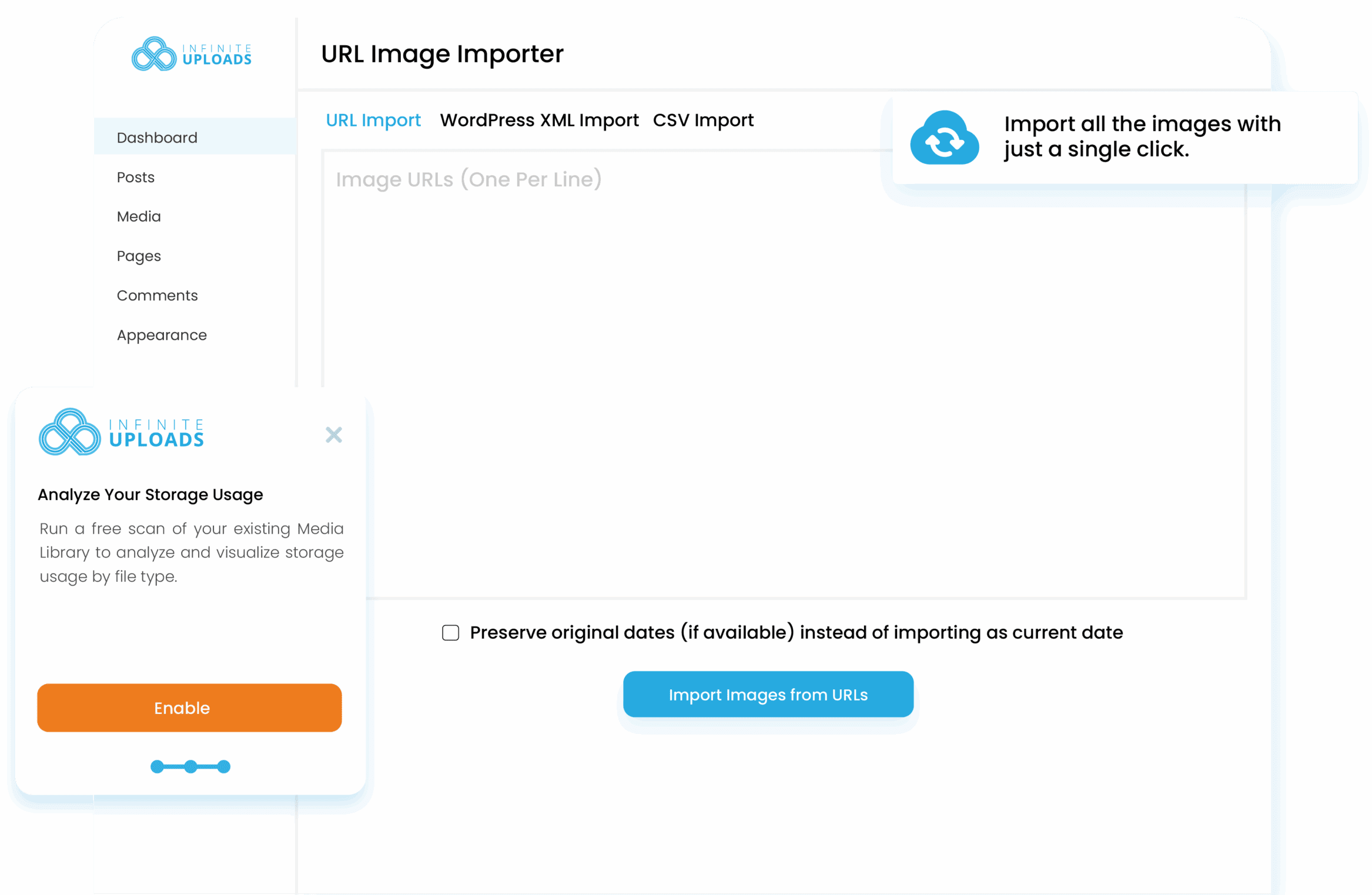
Effortlessly import any image from any URL straight into your WordPress Media Library. Skip the downloading, saving, and re-uploading. Just paste a link and instantly pull high-quality images into your site. Fast, reliable, and built for creators who want to work smarter, not slower.
Testimonials
Hear from some of our 120,000 active users about our WordPress plugins!
Big File Uploads Plugin Features
Instantly Import Images From Any URL
Skip the tedious download and upload workflow. URL Image Importer lets you pull images directly from a link into your WordPress Media Library in one quick step. Import full-resolution images from blogs, product pages, cloud folders, or any public URL and keep your content workflow fast and organized. Save time, reduce clicks, and focus on creating instead of managing files.

URL-Only Import
Paste a public image link and watch it appear in your WordPress Media Library. Fully hosted and ready to use. No manual download, no drag and drop. Just a URL, one click, done.
XML Export Import
Have an XML file exported from another WordPress site? Upload it, let the plugin parse all image attachments and import them into your library cleanly. Ideal for migrations or content restores.
CSV Bulk Import
Bring in entire image collections from a spreadsheet. Upload a CSV with image URLs (plus optional metadata) and import dozens, hundreds, or thousands of images at once, automated, fast, scalable.
Media Library & Storage Insights
Keep your uploads organized and your storage under control. Use the built in disk utility to review how many files you have by type and size, analyze space usage and make smarter media decisions.

FREQUENTLY ASKED QUESTIONS
Your questions answered.
Will Big File Uploads allow me to increase the upload limit for a form plugin (or other plugin) that allow users to upload on the frontend of my website?
No. Frontend uploading built-in to plugins like Forminator, Gravity Forms, and WPForms do not use the same process as the WordPress media uploader on the backend of WordPress. Big File Uploads only works with the backend uploader or plugins that use the built-in media uploader code base to process the files.
Is Infinite Uploads required for Big File Uploads to work?
No. Infinite Uploads is an optional service to offload your media files to the cloud and make your WordPress website storage infinitely scalable. Perfect for sites that need to store many large file uploads.
What media files can be uploaded? Are there any limitations with Big File Uploads?
If you can upload it to the WordPress media library, Big File Uploads can process it. Big File Uploads can process everything from images and archive files to huge video and audio files.
Can I import images using a CSV file?
Yes. You can upload a CSV spreadsheet containing image URLs (with optional metadata) under the “CSV Import” tab, and the tool will process each row to import multiple images.
Can I import images from a WordPress XML export file?
Yes. Under the “WordPress XML Import” tab you can upload a standard WordPress XML export file. The plugin will parse it, detect all image attachments, and import them into your Media Library.
Can I import images from a WordPress XML export file?
Yes. Under the “WordPress XML Import” tab you can upload a standard WordPress XML export file. The plugin will parse it, detect all image attachments, and import them into your Media Library.
What if I want to preserve original upload dates or force re-import of existing images?
The plugin includes import options (such as ‘preserve original dates’ and ‘force re-import’) when using CSV or XML imports.
Where do I get the XML file to use with this plugin?
Here’s how to quickly get the file you need:
- Go to your WordPress dashboard of the source site.
- Navigate to Tools → Export. Choose All content (or select specific types: posts, pages, media).
- Click Download Export File. This will generate a
.xml(WXR) file containing your site content. - Upload the XML file in our plugin’s XML Import section. The plugin will parse & import image URLs into your Media Library.
For step-by-step visuals and more detailed guide, refer to our documentation.